

Quick Answer
You can play MP3 files on an iPhone using four methods: the Files app for direct playback, Apple Music to sync files from a Mac, third-party apps like VLC for more features, and cloud storage services to stream MP3s from the cloud.
Everything has gone online. From movies and TV shows to music streaming, everything is done online via different streaming services. Gone are the days when we used to have a localized playlist of our favorite songs stored in microSD or internal storage in MP3 files. Currently, if you wish to listen to a song and add it to a playlist, you will probably use streaming services such as Spotify to search, download, and add it to your Spotify playlist. Similarly, you can add multiple songs and create a playlist.

However, what if you have a collection of songs that is not available on specific music streaming platforms, including Apple Music? This is where this guide comes into the picture. Here, we will show you the different ways to play MP3 files on iPhone. You may have a concert recording or a personalized mixtape someone close created for you; the methods mentioned in this guide will help you play them right on your iPhone. Let’s jump right into it.
Table of Contents
How to play MP3 files on iPhone?
Play music through the Files app
The built-in file explorer app, which is the Files app, isn’t just for opening documents and other files. It also has an efficient music player, which you can use to play your locally stored MP3 files on iPhone. Here’s what you need to do:
- Transfer MP3 files to your iPhone. If you have received the MP3 file via email or another file-sharing app, tap on the file, choose “Save to Files” and select the location “On my iPhone” or a specific folder.
- Open the Files app and locate the MP3 file.
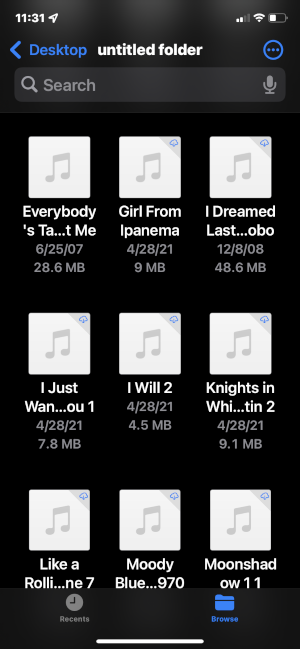
- Tap on the MP3 file and it will play the track in a simple audio player within the Files app.
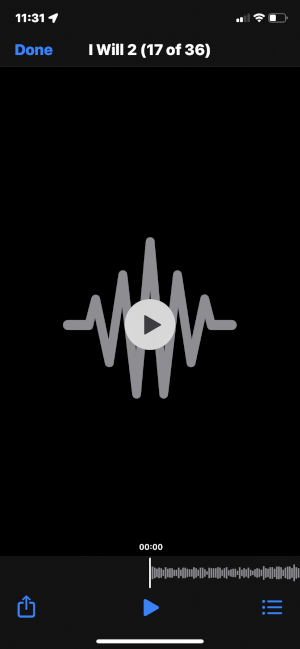
- If you have multiple MP3 files in the folder, then you can tap on the 3-line menu icon on the top-left, which will display all MP3 files stored in that folder. You can tap on another MP3 file to play it directly on the Files audio player.
Do note that the Files audio player doesn’t offer you much customization, such as equalizer, etc. It is a simple audio player meant to play localized audio files.
If you want more customization, then you can try the Nota – Player for Files app available on the App Store. It offers you options such as a 10-band equalizer, 0.5-2x speed adjustment, sleep timer, music playback queue, smart shuffle and loop, background playback, AirPlay support, and much more.
Download: Nota – Player for Files
Play music using Apple Music
- Plug in your iPhone into your Mac computer using a cable.
- Open the Apple Music app on your Mac computer if you are using macOS Catalina or later. If you are using an older macOS version, then you need to launch the iTunes app.
- Your phone will be automatically detected by the Apple Music app. Select it from the left sidebar.
- Drag and drop the MP3 files from your computer into your phone’s window in the Apple Music app.
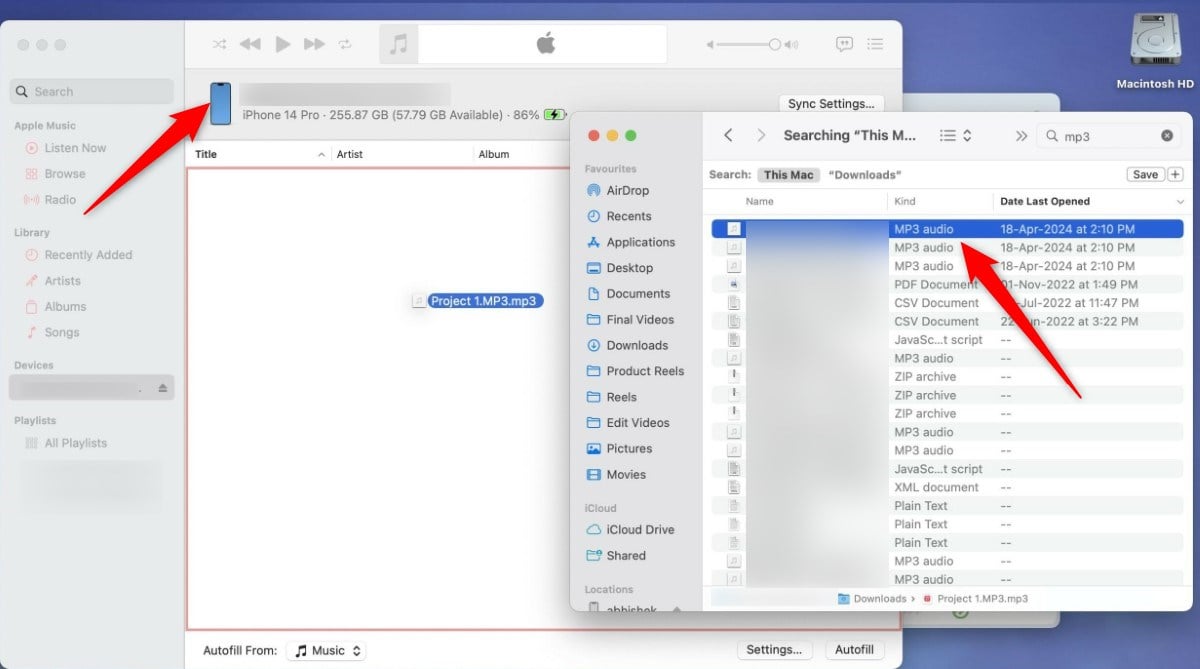
- Apple Music will start syncing the MP3 files with your iPhone. After the syncing completes, safely remove your iPhone from the PC.
- Open Apple Music on your iPhone, and you will see all the MP3 files that you have transferred automatically getting populated under the Library tab.
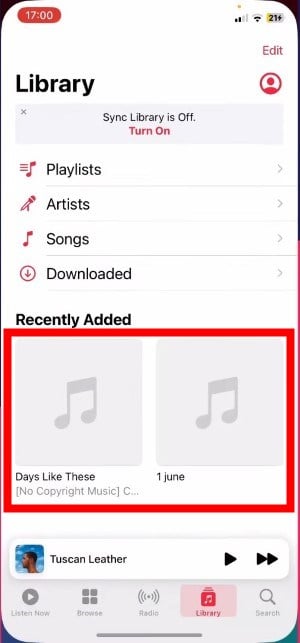
- You can tap on any MP3 file and start listening to it on Apple Music.
Use third-party apps
There are a lot of third-party music player apps available on the App Store. However, upon trying various apps, we found that the best app that you can use to play MP3 files on iPhone is the VLC media player app. Here’s how you can use the app to play MP3 files:
- Open the App Store on your iPhone and download VLC. Once the download is complete, a VLC folder will automatically be created inside your storage.

- Open the Files app on your iPhone and copy the MP3 files that you wish to play on your iPhone.
- Navigate to Files > On My iPhone > VLC. Paste the MP3 files inside the VLC folder.
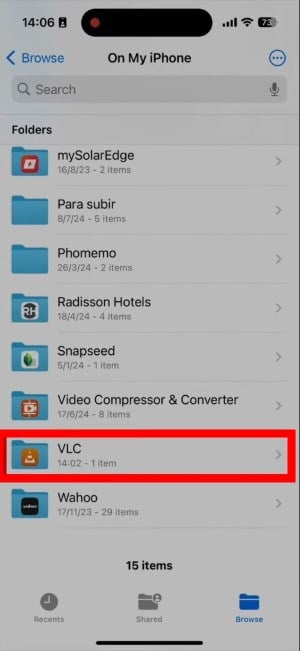
- Once done, open the VLC app, head over to Settings > Media Library, and tap on Force VLC to rescan the media library.
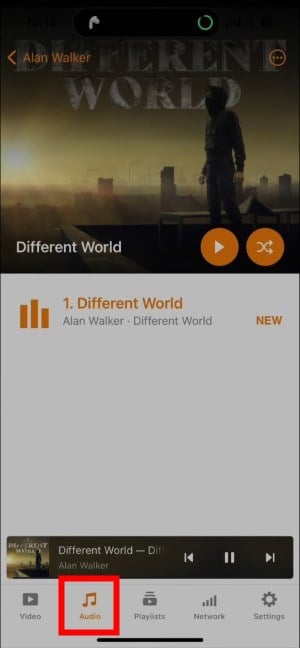
- Tap on the Audio tab at the bottom and you will see all your MP3 files. You can tap on anyone to play them on your iPhone.
Using Cloud services
If you have MP3 files stored in any of the cloud storage services, then you can also use them as your media player and play the MP3 files on your iPhone using your cloud storage services. Here’s what you will need to do:
- Make sure that all the MP3 files that you want to play on your iPhone are available in the cloud storage service you are using.
- Install the respective cloud storage app on your iPhone from the App Store.
- Log in with the account in which you have stored all of your MP3 files.
- Locate the MP3 file in the cloud storage and tap on it to play.
- The MP3 file will open in a native audio player for cloud storage. Do note that it will be a simple player with no option to tweak the equalizer or other settings.
Bonus tip: Enjoy music streaming services
Yes, the above methods let you enjoy all of your favorite songs that you have collected and stored over the years. However, to avoid the hassle of transferring music from a PC to an iPhone and then playing it locally, you can use any of the hundreds of music streaming apps available on the App Store to enjoy listening to your favorite music.
Note that if you are unable to find a specific song on one music streaming platform, you can always find it on YouTube. YouTube has billions of songs, even some unheard-of songs. While streaming music using these apps will eat up your internet data, it shouldn’t be a matter of concern, as we are mostly connected to unlimited plans on either mobile or Wi-Fi.
Final thoughts
The above guide provides you with simple yet effective methods to play locally stored MP3 files on an iPhone. From using the built-in Files app to using third-party apps such as VLC or cloud storage services, you have plenty of options to listen to that great playlist of yours tailored to your music taste.

