

Quick Answer
To use Google Maps offline, download the area before your trip via Profile > Offline maps > Select your map. Offline mode supports driving navigation, place searches, and GPS tracking, but no live traffic, transit, walking, or Street View.
Google Maps is the most popular navigation app around the world, used by billions of people. Thanks to its offline support, it is also a preferred option for people who travel often and navigate to other countries and remote locations where the internet is hard to find.
However, despite its offline capabilities, many people are still unaware of how to use Google Maps offline, especially when travelling to different countries and when you don’t have an internet connection. In this guide, you will learn about how to use Google Maps offline and also tips to get the most out of it when using it offline. The best part of Google Maps is that it is also available on iPhone, so you don’t need to worry about compatibility.
Using Google Maps Offline
Applications like maps work differently when they are offline. This also includes Google Maps. To use it offline, you need to download specific maps, and also note that there are limitations that you need to be aware of before using the app offline.
Benefits and Limitations of Using Google Maps Offline Mode
- First, as said, Maps and navigation apps in the offline work differently from other offline apps. You can download specific parts of the maps to use them offline.
- Currently, offline maps also support turn-by-turn navigation, location searches, view places, and GPS position to track your real-time location while using the map.
- Offline maps only support driving mode. Walking, cycling, and public transport modes are not available offline
- Real-time live traffic data is not available online since it requires the internet for the latest updates
- Satellite view, street view, and 3D maps options are also not available offline at the time of writing this article
- And one more important limitation is that offline maps expire after a certain number of days. It varies between 30 days to 1 year. However, you can turn on auto-updates features, and Google Maps will automatically update offline maps when you connect to the wifi.
Those are the benefits and limitations of Google Maps offline features, while the Google Maps offline mode can help you navigate; however, it’s not a full replacement of the online mode, especially considering all the limitations. To get most of the
Google Maps Offline, Here Are Some of the Tips You Can Follow:
First, download the entire route map you want to travel and also the surrounding area, so that in case you accidentally visit outside of your route, you won’t need to worry, and you won’t be cut off from the navigation.
It’s impossible on Google Maps to navigate in offline mode outside the downloaded area, while Google Maps offline works great for remote areas with no choice, however, so if you’re especially travelling to a new country, getting an eSIM can help you even before visiting the country and access all Google Maps online features whenever you need.
For example, getting an Asia travel eSIM is the best option if you are travelling across Asian countries. With it, you can always stay connected to the internet and get access to all the core features of Google Maps, including searching nearby places such as hotels, restaurants, and real-time business information, public transport directions and much more.
How to Download Google Maps Offline
Step 1: It works on both Android and iOS. For iOS, you can download Google Maps for free from the App Store. On Android is the default navigation app. You can update it from the Google Play Store to get the latest version.
Step 2: Open the Google Maps app on your Android or iPhone
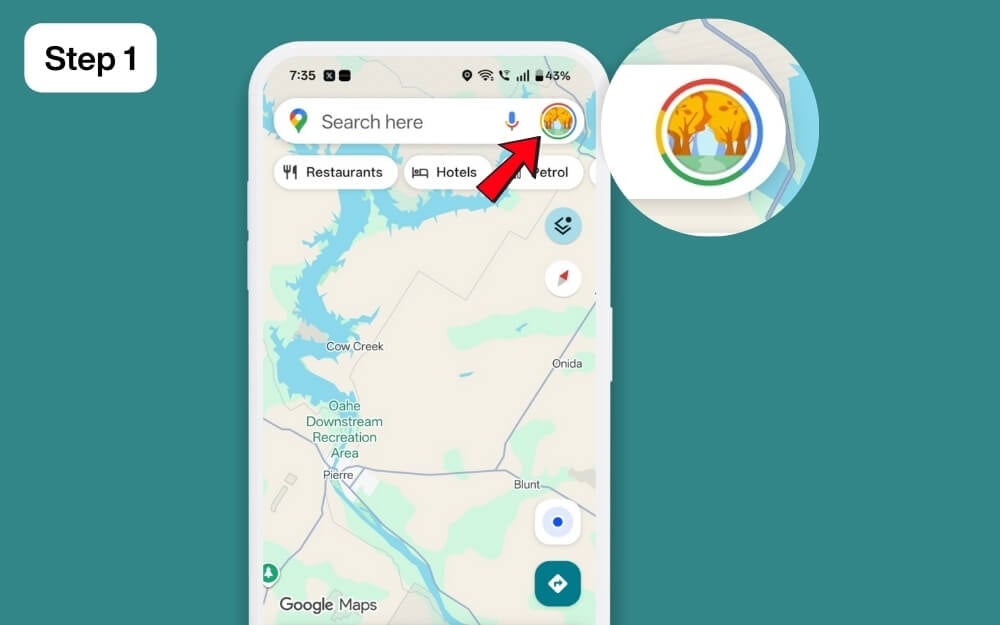
Step 3: Click on the profile picture in the top right corner of the screen
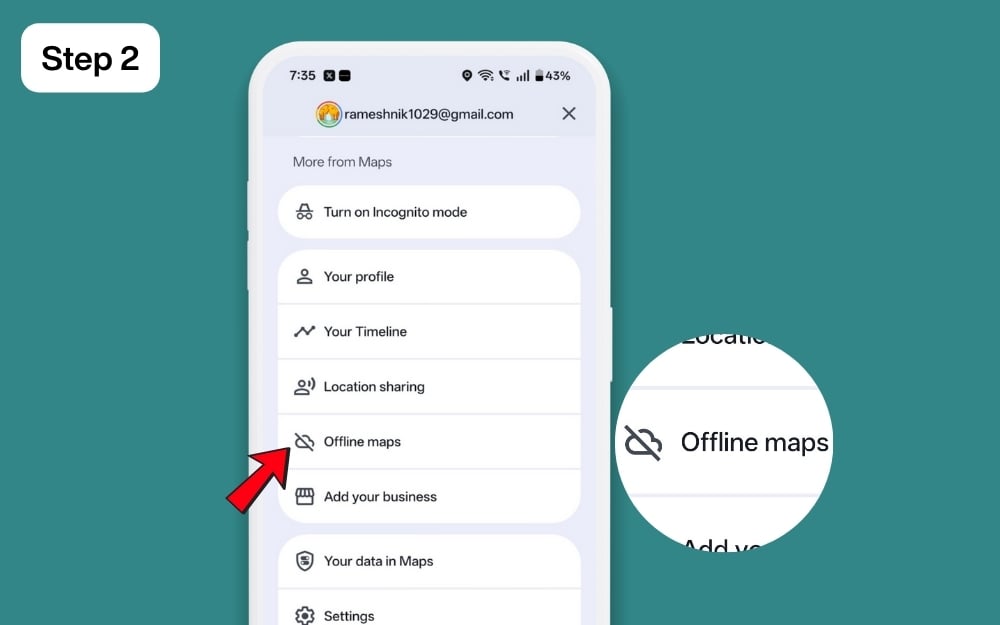
Step 4: Scroll down and select offline maps
Step 5: Click on Select your map and drag and drop the area to download.
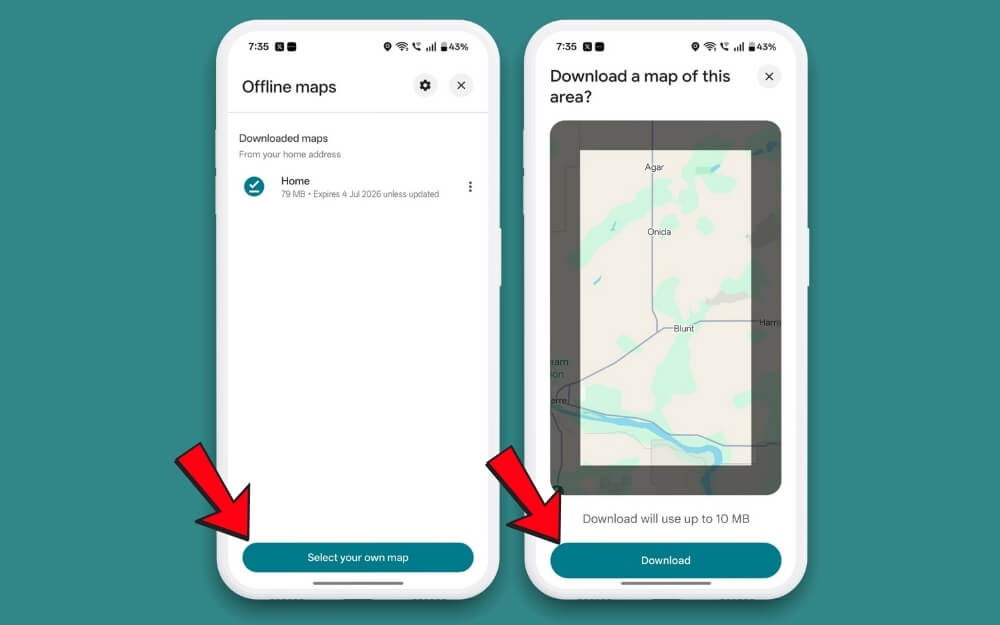
Step 6: Once downloaded, you can rename the map so it is easy to access it in the future.
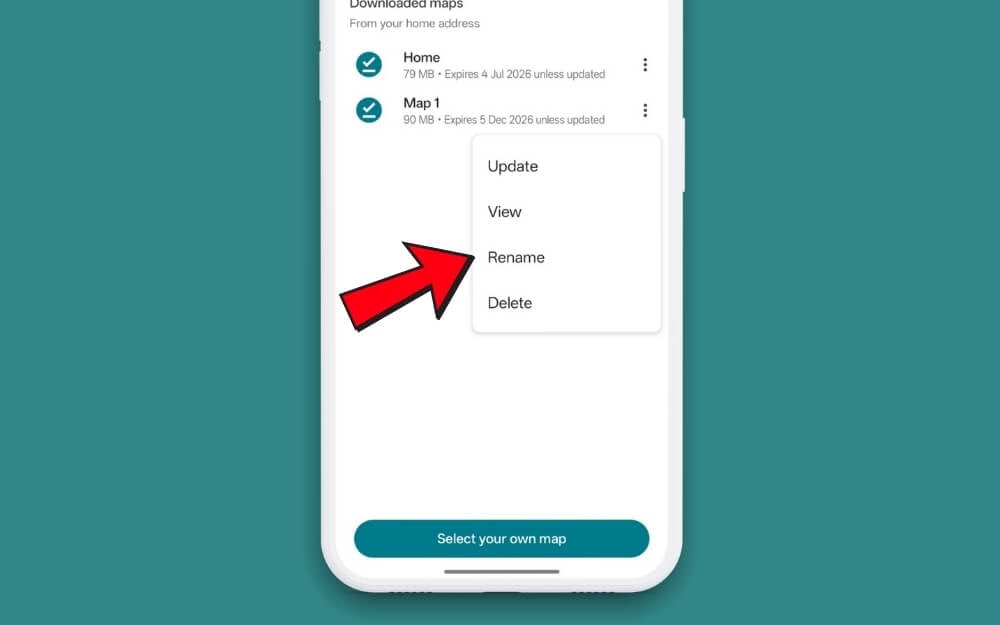
This is how you can download and save Google Maps offline. Currently, Google Maps only allows you to download map that fits inside a rectangular area; however, you can download multiple tiles if you want to save a large area offline.
Once the maps are downloaded, you can use them normally. You can search for places, view maps, and more. However, to use turn‑by‑turn navigation, ensure the offline map covers both your start point and destination. Once you have downloaded your entire route, you can simply select the start point and destination to start using the turn‑by‑turn navigation offline.
Remember that offline maps data is stored locally on your device, whose size can vary from as low as 10 MB to GB files, depending on the map data. So, ensure your device has enough storage.
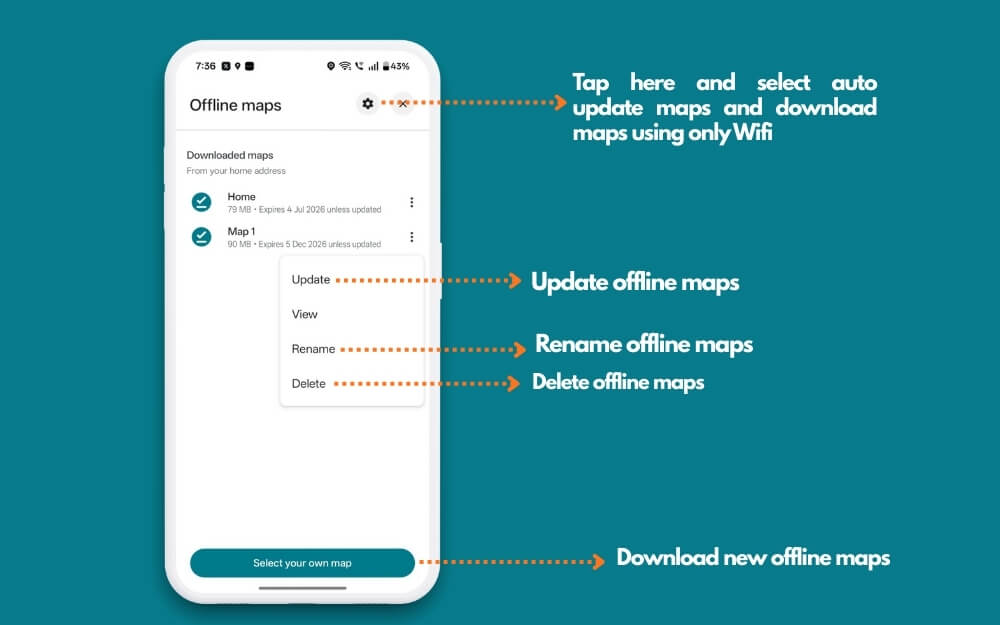
Once downloaded, to rename, update, or delete an existing offline map, you can go to profile>offline maps to manage. From there, you can also select auto update to auto update offline maps, click on the settings icon at the top and enable auto update offline maps. From there, you can also check the offline maps; expiration date so that you can refresh them before a trip.

