

Quick Answer
PhonePe now supports biometric UPI payments using fingerprint or Face ID, following NPCI guidelines. To enable it, open PhonePe, go to Profile > Manage Payments > Biometric Pay, select your bank, and activate it using your UPI PIN. Once enabled, you can approve payments up to ₹5,000 per transaction with biometrics instead of entering your PIN.
National Payments Corporation of India, also known as NPCI, has updated its guidelines to allow UPI apps to support biometric authentication, such as fingerprint or face ID, as an alternative to PIN-based authentication for UPI payments.
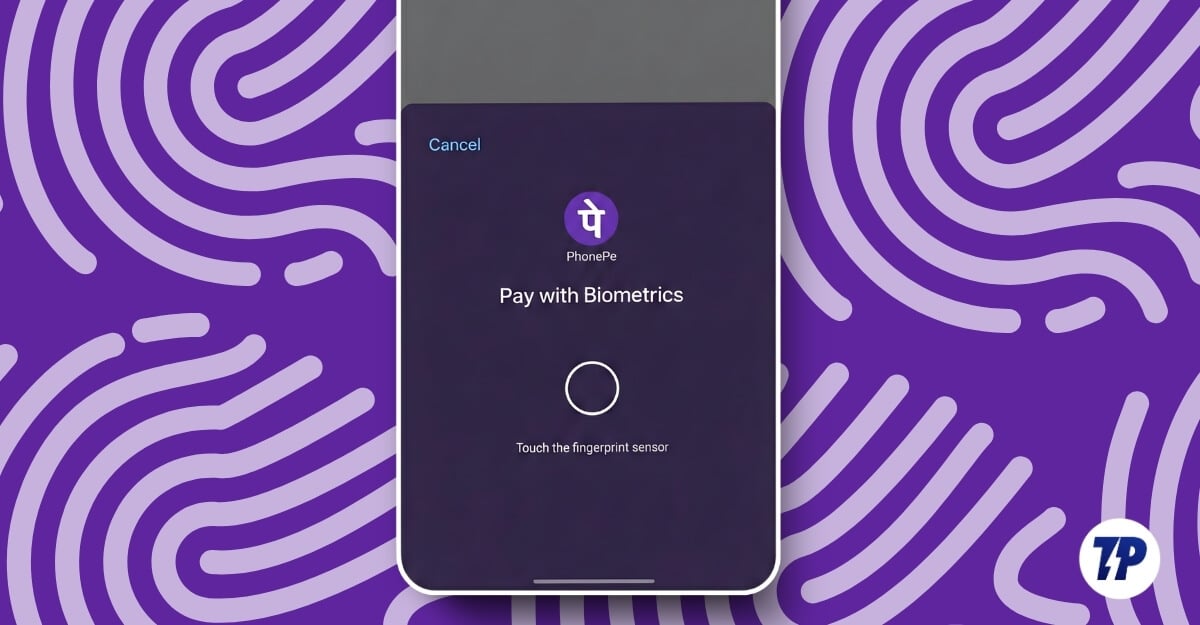
Now, almost all major UPI apps have rolled out biometric authentication, and most recently, PhonePe, the leading UPI app in India, also enabled it for UPI payments.
In this guide, you will learn about how to enable and use new biometric authentication for UPI payments instead of entering your PIN every time. This guide also covers how to disable it later and how to make transactions using biometric payments. Before proceeding to the guide, here are a few things that you need to know.
Table of Contents
What You Need to Know About Biometric Payments
- At the time of writing this article, Phonepe, Google Pay, Amazon Pay, and Navi UPI support biometric payments
- Currently, the maximum transaction limit for biometric authentication is capped at 5000/ per transaction across all apps. You still need to use a UPI PIN for payments of more than 5000 rupees. You can make multiple biometric UPI payments per day.
- Only devices with working fingerprint and face ID support this feature and should be password-protected
- You should have an active bank account linked to UPI, and UPI should already be set up and working. You will need to enter the UPI PIN to activate biometric authentication.
How to Enable Biometric UPI Payments on PhonePe
Once you have met all the above requirements, you can follow this simple guide to enable biometric payments.
Step 1: Open the PhonePe app on your smartphone.

Step 2: Tap on your Profile picture.
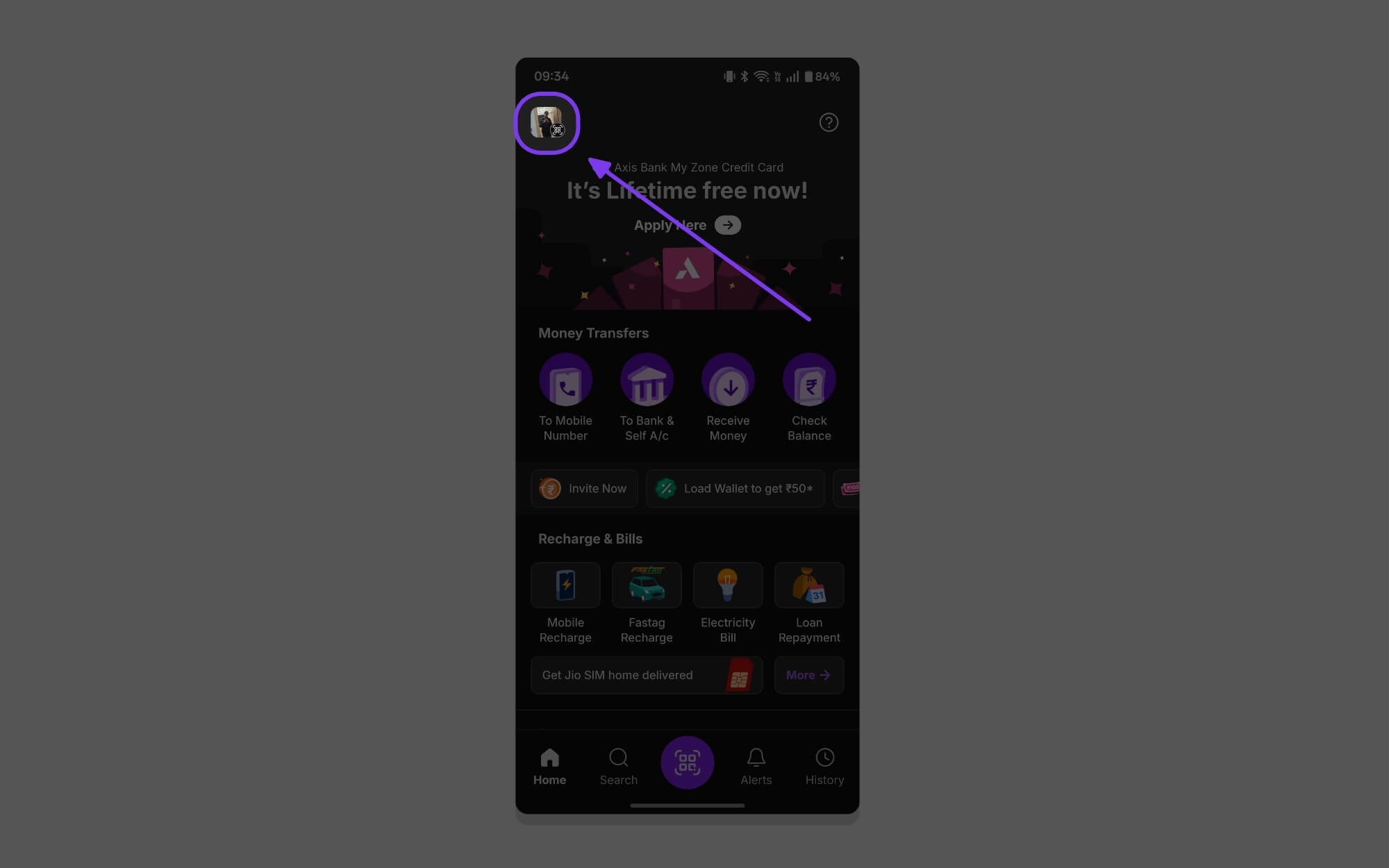
Step 3: Scroll down and tap on Manage Payments.

Step 4: Now scroll down again and tap on the Biometric Pay option under the More Options section.

Step 5: If you are visiting for the first time, you will see a new onboarding screen. Tap on Get Started to continue.

Step 6: Here, you can see all the bank accounts linked to your PhonePe account. You can select any account and tap on Activate to set Biometric Payments for UPI payments.

Step 7: Tap Agree and Activate to enable Biometric Payments for your bank account.

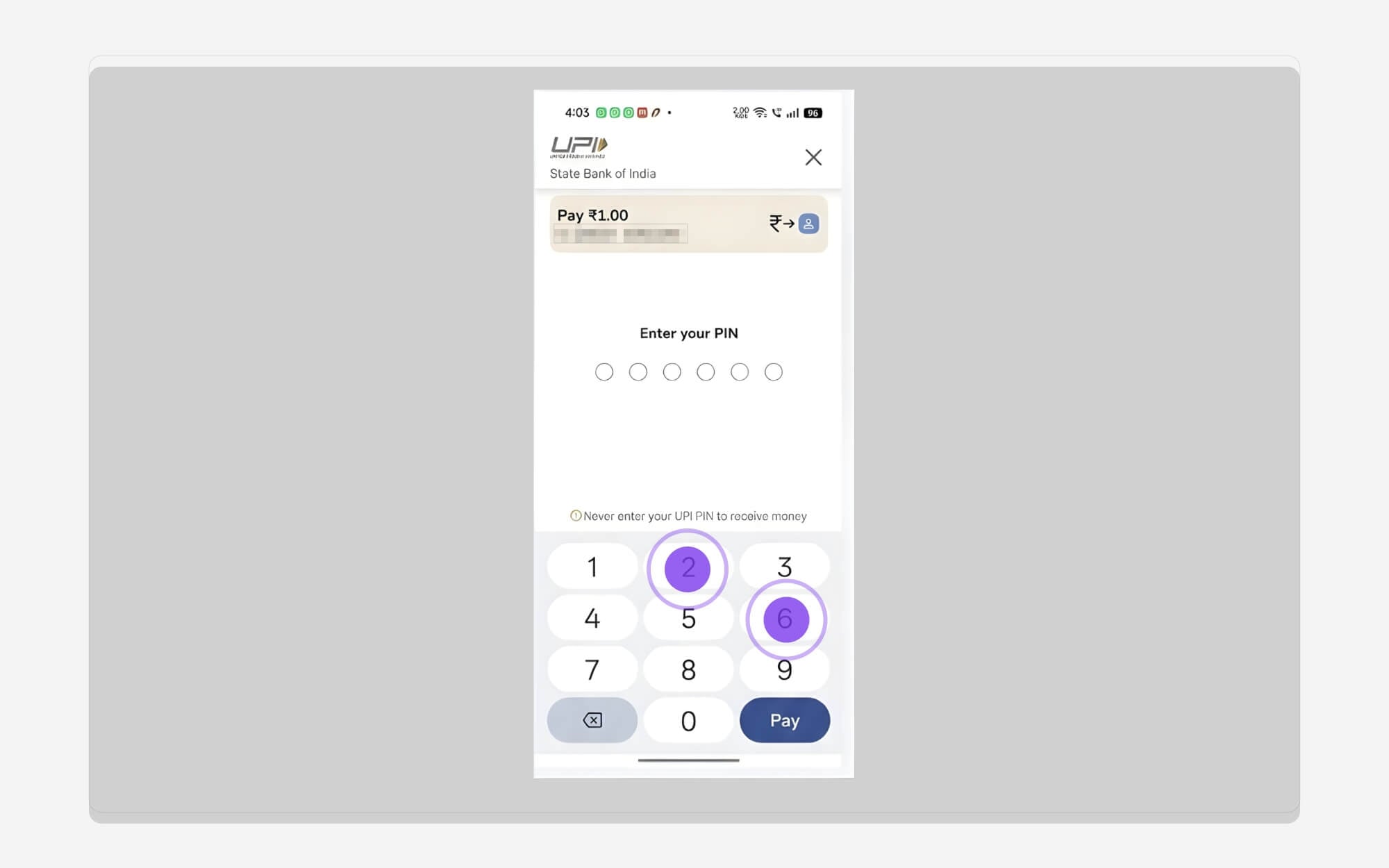
Step 8: Enter your UPI PIN to set up biometric authentication.
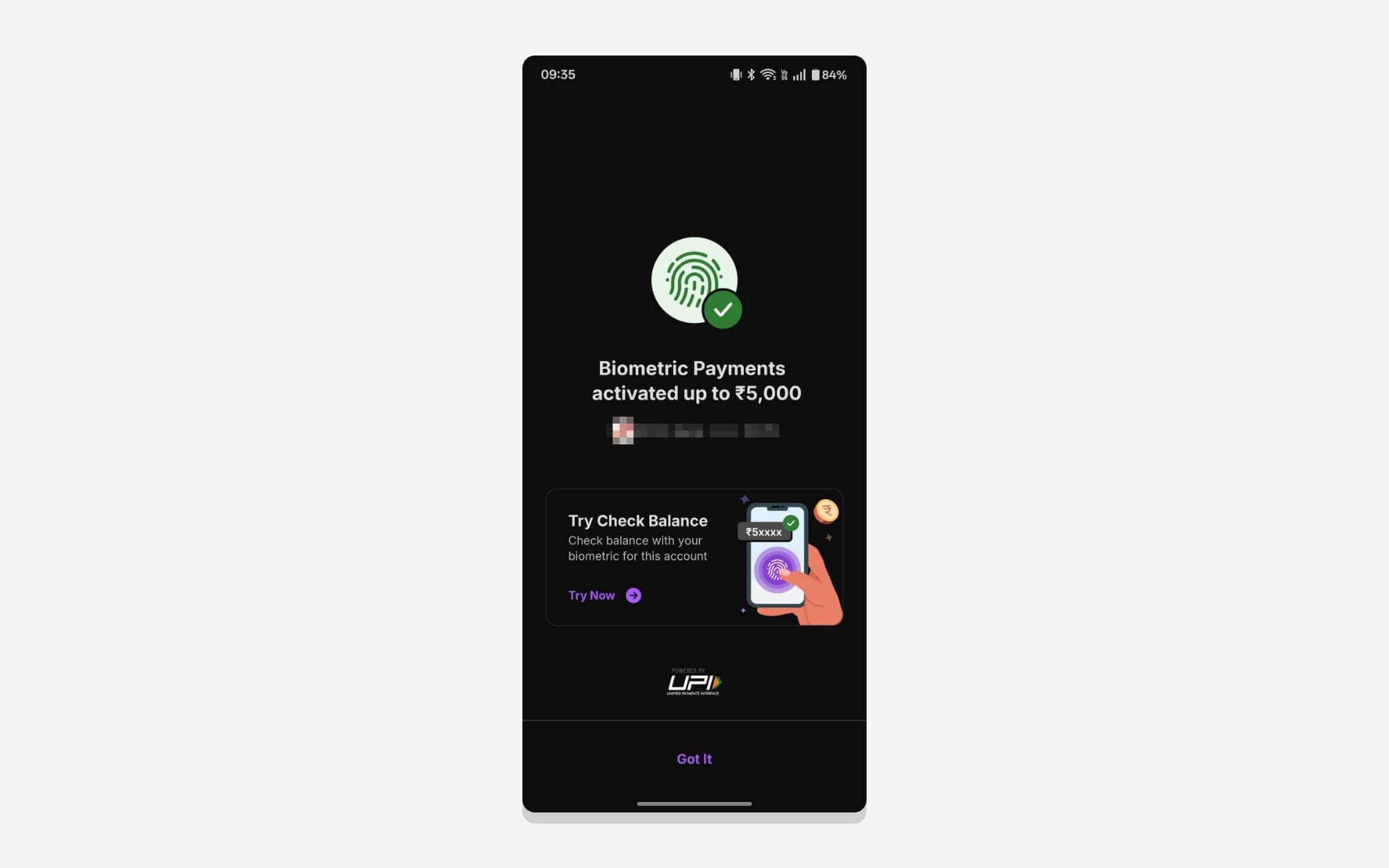
Step 9: Finally, you will see a Biometric Payments Activated successful message. That’s it.
How to Transfer Money Using Biometric Authentication on PhonePe
Once you enable PhonePe Biometric Authentication for transactions, you can use fingerprint or Face ID for all future payments. Remember, using biometric authentication, you can only transfer up to Rs 5,000. Here is how:
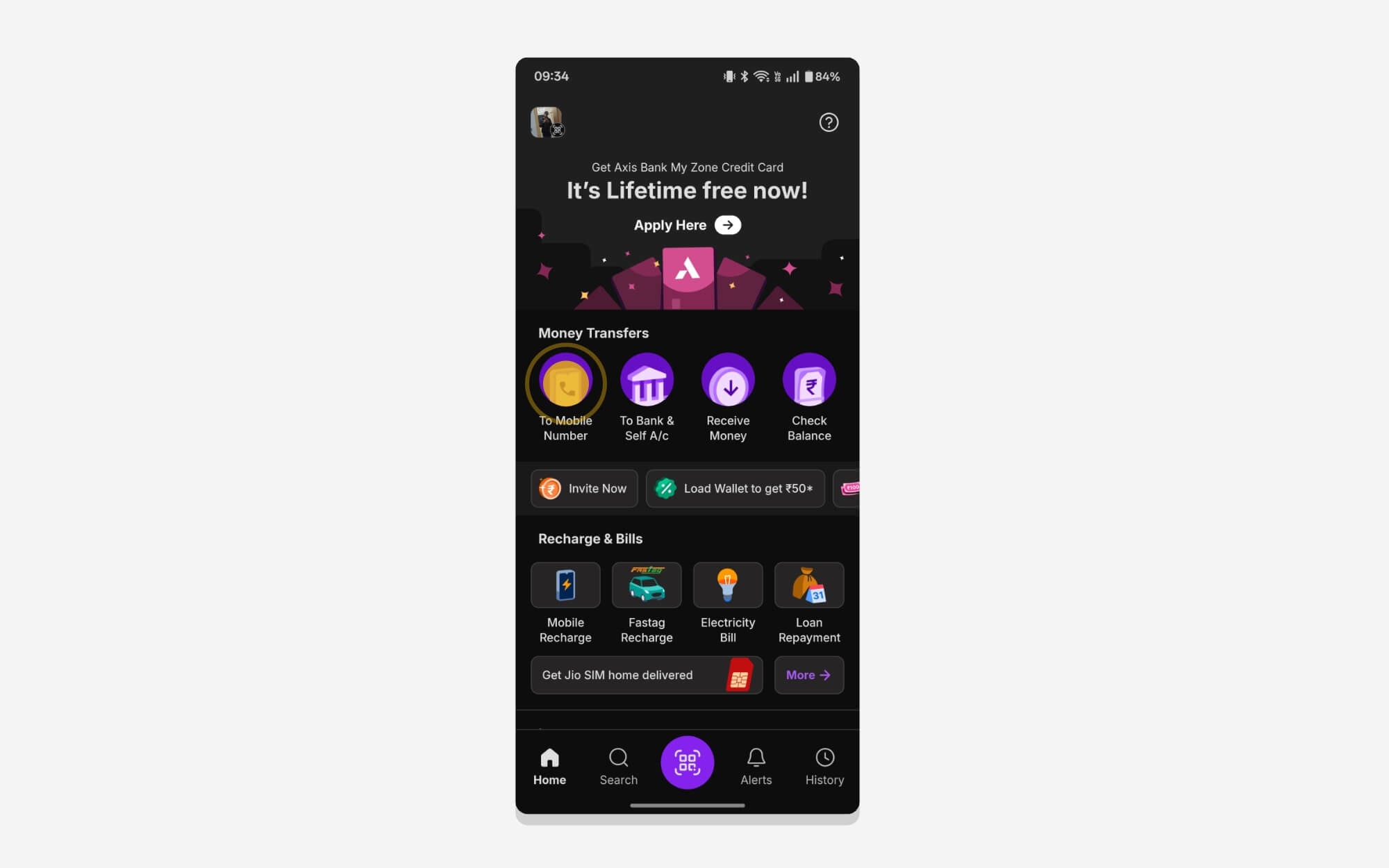
Step 1: Open the PhonePe app on your smartphone. You can use the QR code or select any contact to transfer the amount.
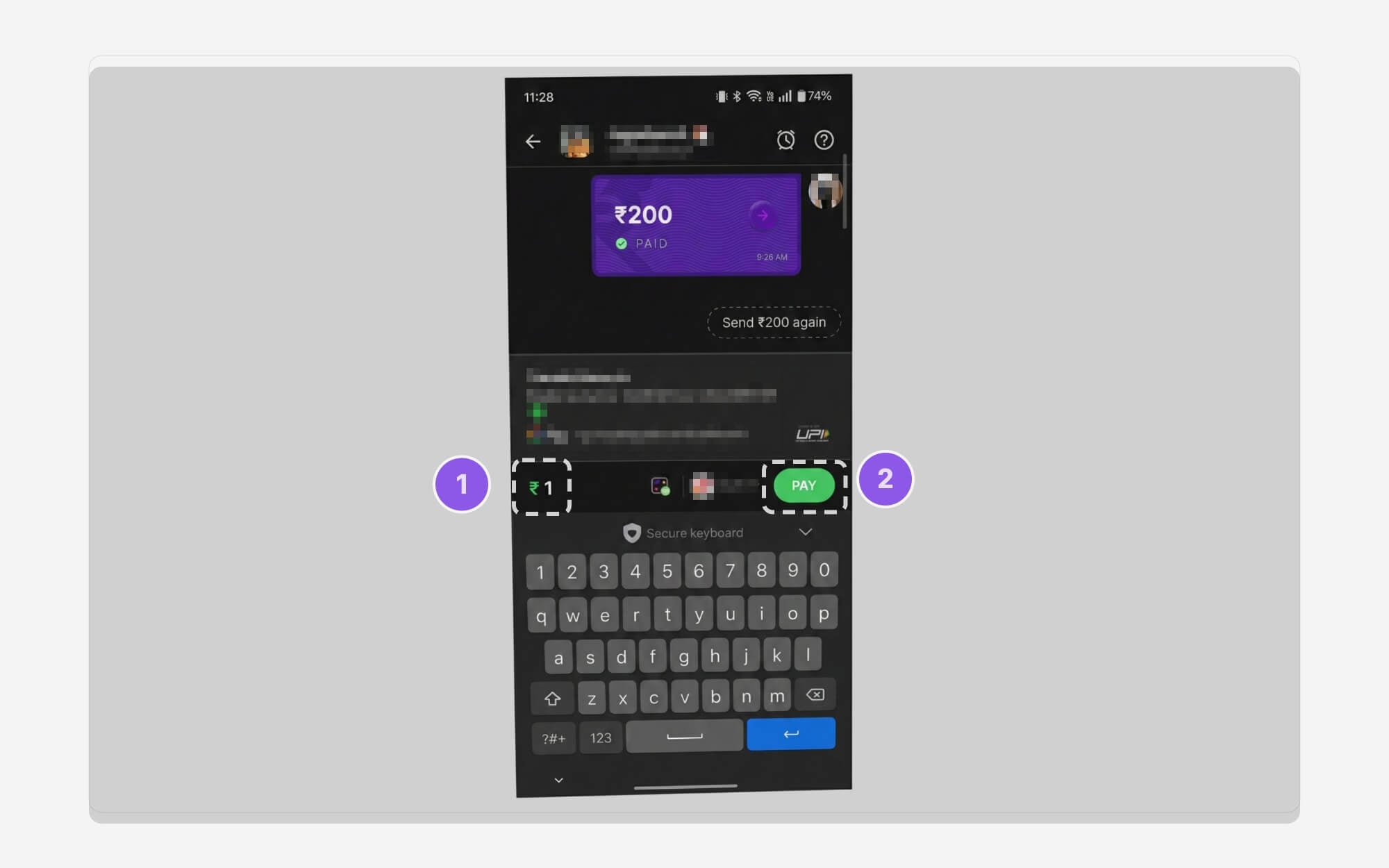
Step 2: Enter the amount as you would for a regular transaction.
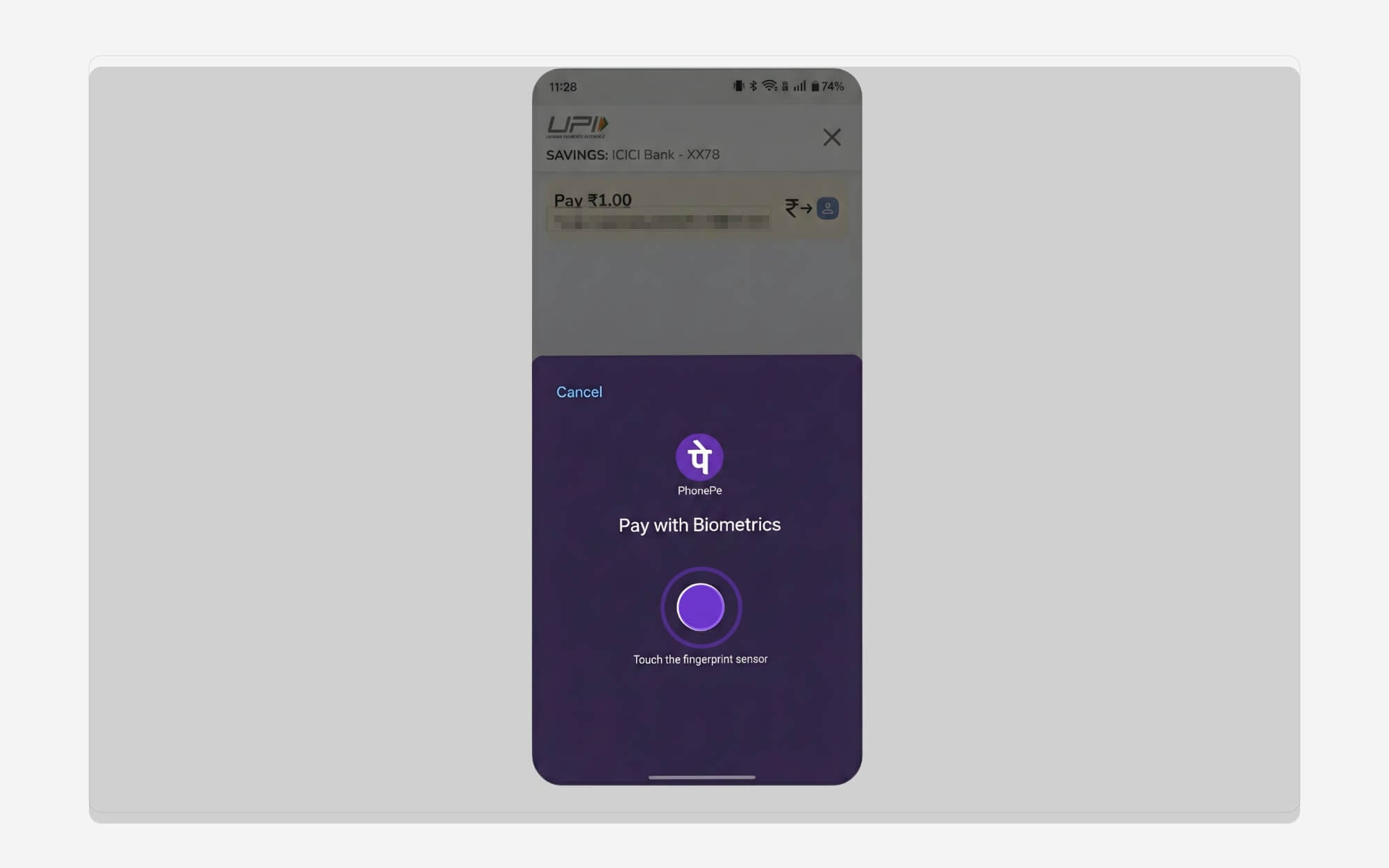
Step 3: Now, instead of the UPI PIN, you will be asked to enter your fingerprint or Face ID if you are using an iPhone. You can authenticate with your fingerprint and Face ID to complete the transaction.
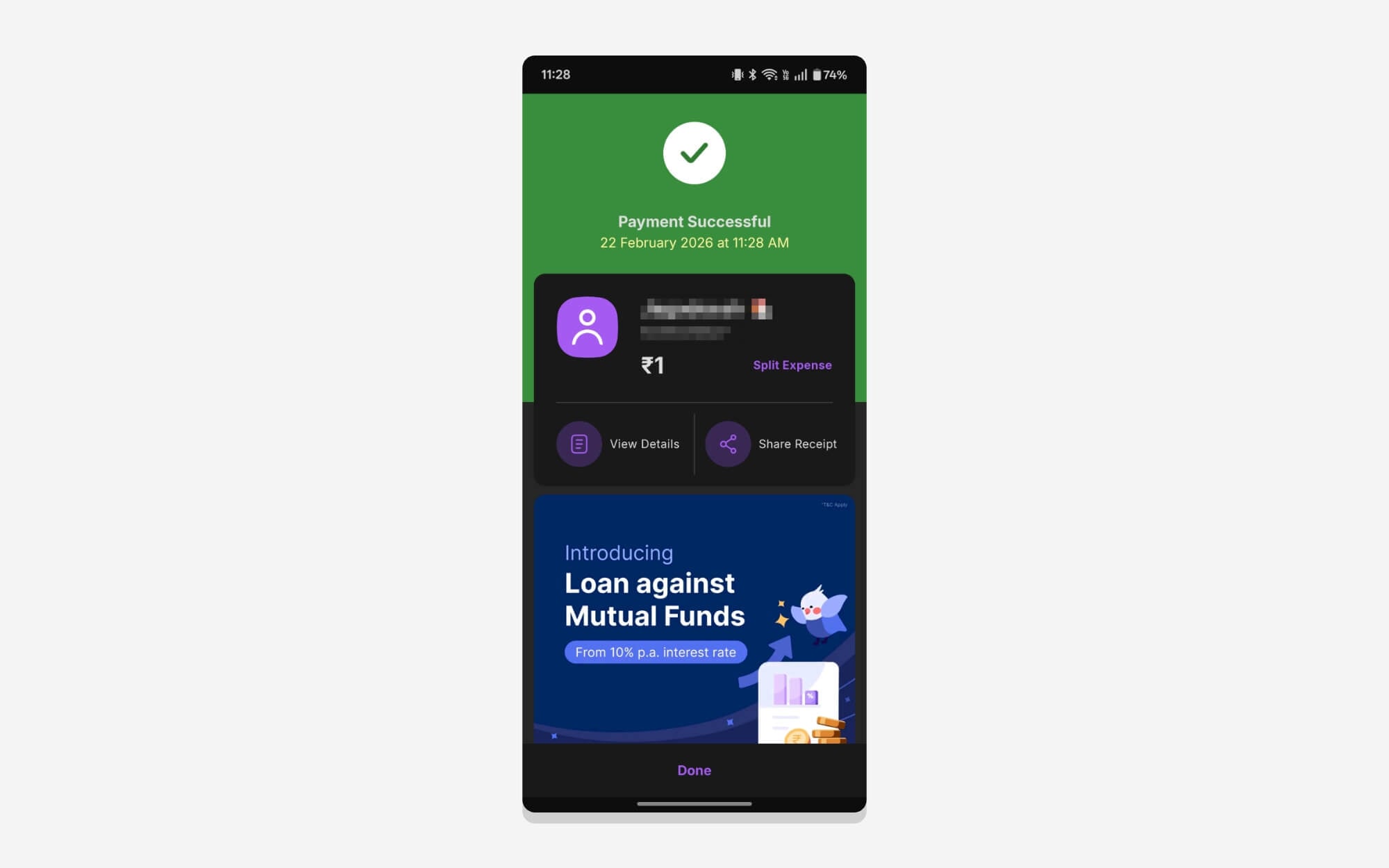
Step 4: That’s it, your transaction is successful.
How to Disable Biometric Payments Once Enabled
While the biometric authentication for UPI is convenient, it is less secure compared to the UPI PIN. Fortunately, you can easily disable it if you don’t want to use it in the future. The process is very simple. Here is how:
Step 1: Open the PhonePe app on your Phone and tap on your profile picture.
Step 2: From here, scroll down and tap on the Manage Payments option.
Step 3: Scroll down again and go to the ‘More Options’ section. From here, tap on the ‘Biometric Pay’ option.
Step 4: From here, you can see all your bank accounts that have biometric payments enabled. Select the account and tap on the Deactivate option.

Step 5: Tap on the Deactivate button again, and then you will see the Deactivation Successful Message.
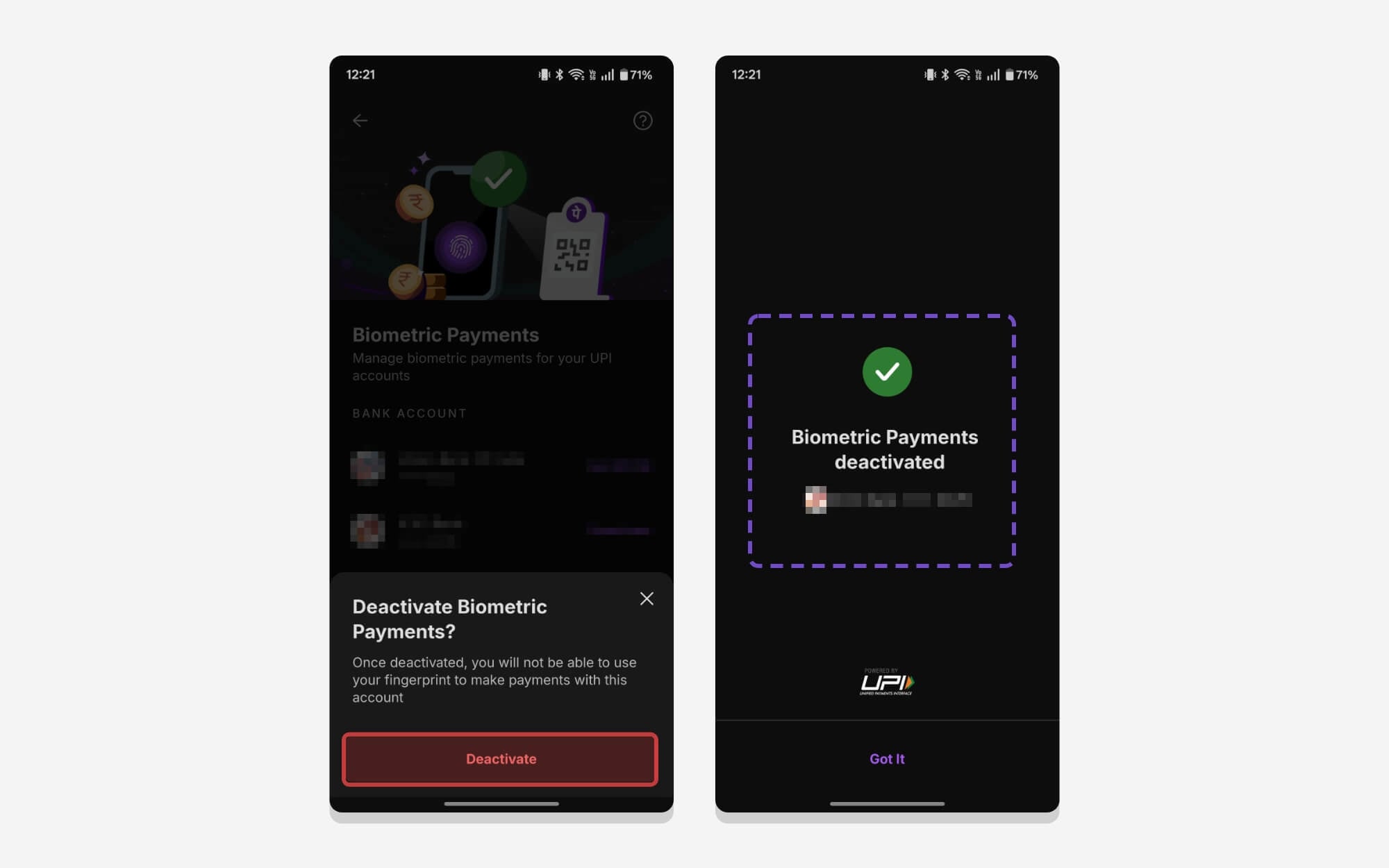
So, this is how you can enable biometric authentication for UPI transactions in the PhonePe app.
As I said before, this new feature is also available on Google Pay and other popular UPI apps. You can follow similar steps to enable biometric authentication for UPI payments. I hope you found this guide helpful. If you are facing any issues while setting up, comment below. I would be happy to help you.
FAQs on Biometric Payments on PhonePe
1. Is biometric UPI payment safe compared to using a UPI PIN?
PhonePe uses your device fingerprint and face unlock for authentication. If someone else is enrolled in Fingerprint or FaceLink, they can also make payments.
2. What should I do if fingerprint or Face ID is not working during payment?
If the fingerprint or FaceID is not working during payments, you can tap on the cancel button in the top left corner and enter your UPI pin.
3. Can I disable biometric authentication later and switch back to PIN-only payments?
Yes, you can easily disable biometric authentication later if you want to switch back to UPI pin. I have shared detailed steps above.
4. Does the 5,000 limit apply per transaction or per day?
The Rs 5000 cap limit is only applied to each transaction. You can make multiple biometric payments in a day without any limits. But remember that for each individual transaction, the maximum amount is 5,000 rupees to use biometric authentication. If the payment amount exceeds that limit, you will need to enter your UPI PIN.
5. Will biometric UPI payments work on all Android phones and iPhones?
To use biometric payments, your device needs to support biometric authentication and be enabled on your phone. You can see all the requirements above.

