

Apple uses Gatekeeper technology to verify applications before you install and open them on your Mac. If you install an app from a third-party or unverified developer, you may see the error message “Cannot Be Opened Because the Developer Cannot be Verified“. If you encounter this problem, you can approve the app to run on your Mac. In this guide, you’ll learn three different ways to do this. When you’re ready, we can get started.

Table of Contents
What Is ‘Cannot Be Opened Because the Developer Cannot Be Verified’ Error on Mac
Apple’s Gatekeeper technology protects your device from harmful viruses. When the security software detects that the app is downloaded from outside the app store or an unidentified developer, it displays the ‘Cannot Be Opened Because the Developer Cannot be Verified‘ error.
Reasons for This Error:
The most common reasons why you might encounter this error include:
- Downloading apps from third-party sources outside of the App Store or from unidentified developers.
- An issue with the app or using an outdated version of the app.
How To Fix ‘Cannot Be Opened Because the Developer Cannot Be Verified’ Error
You can fix this error in three different ways. Allow the app to open anyway in the settings or open the app in the Finder. Sometimes the error can be caused by an outdated app; in such cases, you can update the app to the latest version to fix this error.
Allow the App To Open Any Way From the Settings
You can fix this error by allowing the app to open in the settings. To do this:
- Step 1: Open the app and let the error appear.
- Step 2: Now go to Mac Settings

- Step 3: Go to Privacy & Security
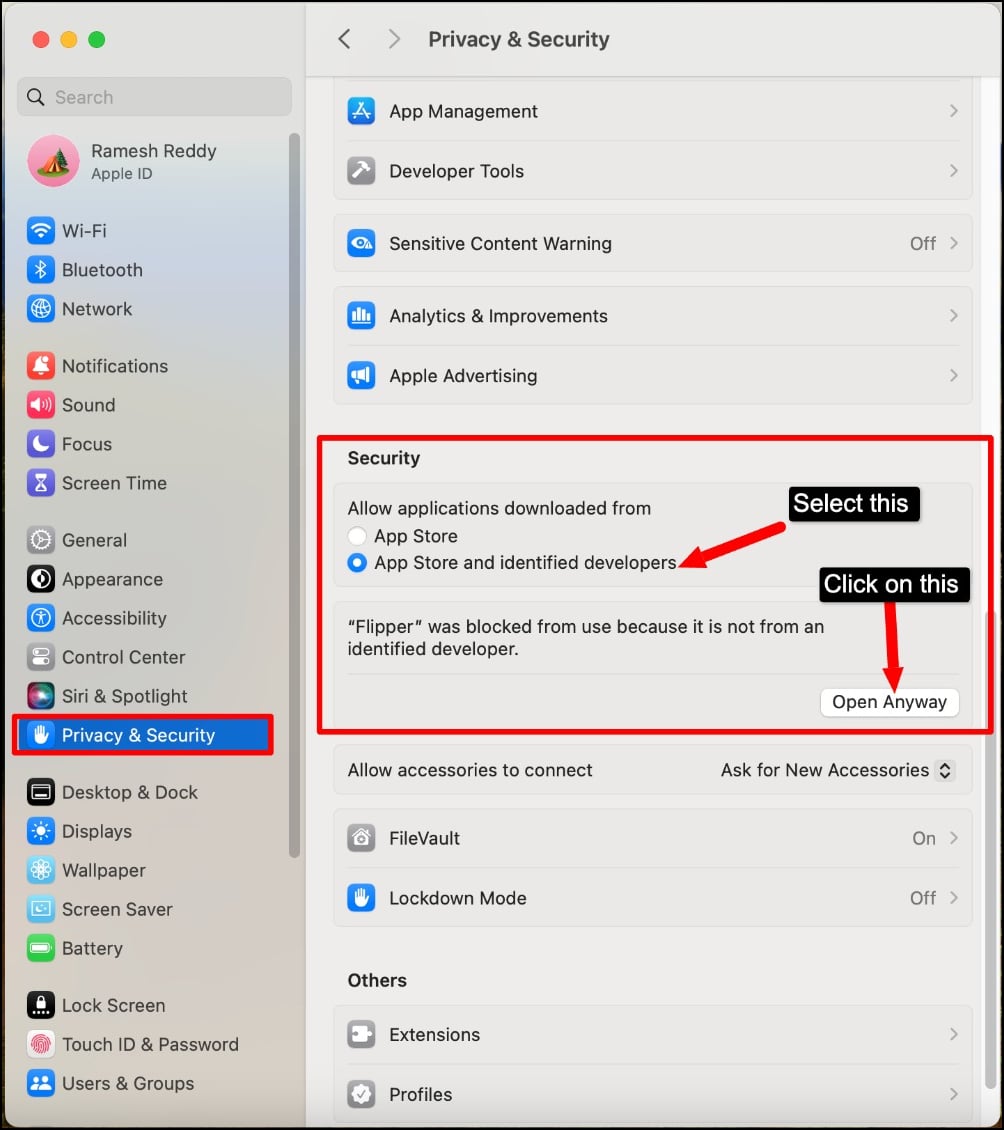
- Step 4: Under the Security section, select Allow applications downloaded from the App Store and identified developers, and under the same section, you will see a warning that says “[App name]” was blocked from use because it is not from an identified developer. Under the error, click on the button Open Anyway.
- Step 5: Confirm the settings with your password.
- Step 6: Again, you will see the warning that says, ‘macOS cannot verify the developer of [App Name]. Are you sure you want to open it?‘. Click on the Open.

- Step 7: Once you install the app and open it for the first time, you will not get the error again. You can continue using the app.
- Step 8: If you use an app that needs multiple packages, you can temporarily turn off this security feature using the Terminal. Use the sudo spctl –master-disable command in Terminal. Remember to turn it back on after you’re done for better security. To re-enable it, use the command sudo spctl –master-enable.
Open the App From the Finder (Recommended by Apple)
Another simple way to fix this error is to open the app via the Finder app. Apple officially recommends these steps. To use this method:
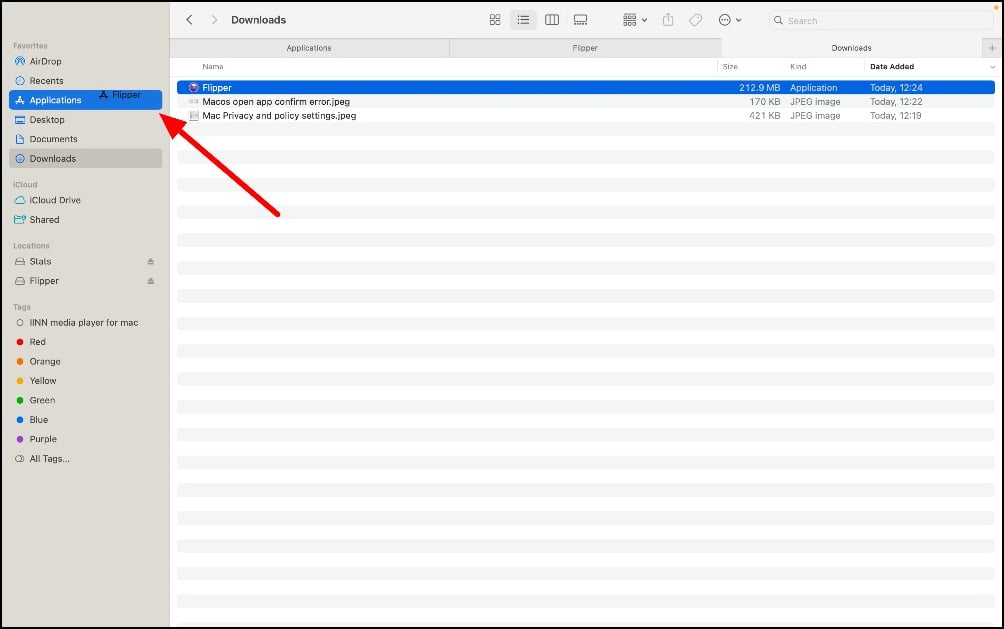
- Step 1: Move the app to the Applications folder. (Open the app, right-click on the app, click on the options, and then click on the Show in Finder and move the file to the applications tab.
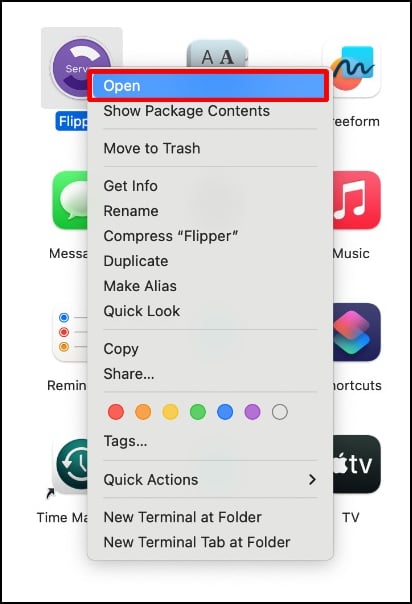
- Step 2: Now, open the Finder, go to the Applications tab, right-click on the app, and tap the open button in the shortcut menu. Don’t do this on the launch pad, as it doesn’t allow you to access the shortcuts menu.
- Step 3: This way, you can easily fix the issue.
Download the Latest Version of the App
If the app is outdated or a new version is available, Apple may prevent you from opening the app with this error message. To fix this, you can update the app to the latest version. You can update the app via the Mac App Store or download the latest version if you downloaded it outside the App Store.
Safety Measures While Preventing This Error
As already mentioned, this is a security measure of Apple’s Gatekeeper technology, which is intended to protect users from downloading malware. It is advisable to take precautions before opening an app with this error.
- Scan Files Before Downloading: Scan the file before installing it on your Mac. Many free online virus scanner tools can help you scan the virus files before installing them on your Mac. This way, you can go through extra protection to protect your Mac from harmful viruses.
- Download Alternatives from the Mac Store: Sometimes, check if the same app version is available in the Mac Store. Sometimes, developers publish apps outside the Mac Store due to Apple fees or other issues with the app. Check if the same version of the app is available on Mac for better security.
- Check the Verified Developer: This is the best and easiest way to check if the developer is verified or reputable. On Mac, there is no database or anything like that to verify the developer. However, you can consider parameters such as the developer’s website, package name verification, public forums to check for security issues, and more.
Prevent This Error From Happening in the Future
These are the simple methods to fix the problem on your Mac. You can confirm that you will open the app on your Mac to fix this error. You can do this via the settings or open the app via the Finder. Make sure you follow the security measures before installing and opening the app on your Mac. To prevent this error from occurring in the future, disable Apple Gatekeeper technology in Terminal. If you’re still experiencing this error, comment below; we’re happy to help.
FAQs on Preventing Cannot Be Opened Because the Developer Cannot Be Verified Error
1. How to Download Files from Reputable Outside Developers?
There is no database or verification symbol that we can consider to check if the developer is verified. You need to consider parameters such as popularity and more to prevent downloading files from these sources. Also, only download files from reputable sources or reliable websites and check if the same version of the app is available on the Mac App Store.
2. How can I ensure that the software from an unidentified developer is safe?
Scan the file before you install it on your Mac and make sure the third-party source is legal. Also, research the app and its security to be sure.
3. Can I safely override macOS security settings?
Yes, you can prevent this from happening in the future. You can temporarily disable Apple Gatekeeper technology by entering a command in the terminal. Make sure you enable it again after opening the app. To disable the Gatekeeper security feature, use the command sudo spctl –master-disable in the terminal. To enable it again, use sudo spctl –master-enable
4. What should I do if I accidentally allow a malicious app to be installed on my Mac?
You can find the app, uninstall it, and remove the traces of the files. For better security, scan your Mac and reset the Mac.
5. Can I still receive macOS updates and support from Apple if I bypass the “Cannot Be Opened Because the Developer Cannot be Verified” error for certain apps?
Yes, you can continue to receive updates from macOS if you work around this error. You just confirm the app to open it on your Mac.

