

Quick Answer
Other than basic steps like restarting and clearing cache, we suggest some advanced steps like adjusting animation speed scale, increasing logger buffer size, and turning on “Don’t Keep Activities” setting. A combination of these steps should help resolve Google Pixel lagging issue.
Is your Pixel lagging? Maybe you regret your decision to buy the Pixel. After all, nobody wants their smartphone, especially not a flagship phone like Pixel, to constantly lag and slow down.

Maybe you’ve already restarted your smartphone, cleared the cache and are considering resetting the device completely. But wait! Before you bite the bullet, you should implement the pro tips in this guide. These tips could help you solve the Pixel lagging issue.
Table of Contents
Easy Fixes for Pixel Performance Issues
I bought a Pixel 7 (8+128GB) in October 2023. Most of the time, I’m super happy with the device, until it freezes when opening an app, making a call or even just scrolling through the app menu. This is frustrating and I needed to find a solution to this problem. Well, I found solutions that actually work. And it works for ANY Pixel phone out there in the market.
Basic Steps
Let’s start with some basic steps. Every time you encounter lagging issues on your Pixel device, try doing the following:
- Restart Your Device: Sometimes a simple restart can resolve lagging issues by refreshing the system and closing any background processes causing the problem. I restart my device once every week. It has genuinely improved my overall experience with my phone.
- Clear Cache: Go to Settings > Apps, and look for apps that have stored a large amount of cache data. Clearing this cache can help improve performance.
What If That Doesn’t Help?
If the performance problems persist even after restarting your device and clearing the cache, you can try the following:
- Uninstall Unused Apps: If you too have a bad habit of installing new apps, using them for a few days and then forgetting about them, then it’s time to clean up. By uninstalling unused apps, you can free up storage space and improve the performance of your device.
- Check for Updates: If a particular app is crashing or causing performance issues, check if there is an update in the Play Store. It may be due to a bug in the app. An update will most likely fix your problem. Also check whether your device is equipped with the latest software updates, as this can also improve performance and security.
Advance Tips to Fix Pixel Lagging Issue
Unfortunately, the above tips didn’t work for me (since I have some heavy games and apps installed on my phone, I can’t uninstall them). So I had to take some hard steps. While troubleshooting and looking for a solution to my problem, I read most developers’ advice to factory reset the device. But I’m too stubborn to do that! So I continued to research and experiment on my own.
The following tips helped me to significantly improve my phone’s performance.
First, unlock Developers Options
But to apply these tips, you will need to unlock “Developer Options” on your device. Here’s how you can do it:
- Open “Settings” and scroll down to find “About Phone.“
- In “About Phone,” tap on “Build Number” seven times in a row (simply keep tapping).
- You will be prompted to enter your passcode, pattern, or password to confirm the action and unlock the “Developer Options.”

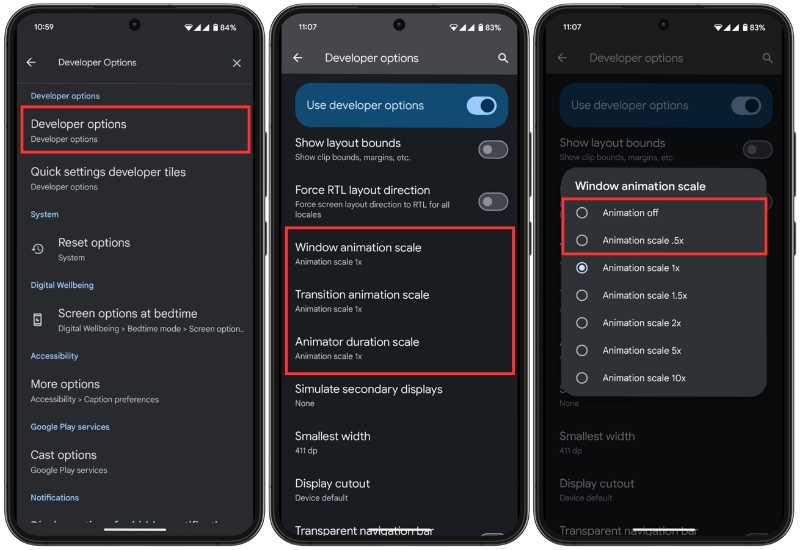
Pro Tip 1: Adjust the Animation Speed Scale
Animations are basically the transitions and effects that occur when you open or close an app. By changing the animation scale to 0.5x (or turning it off completely—that’s what I did), you can make your phone feel snappier and more responsive. This trick really makes you feel like your phone is working fast.
To do so,
- Go to “Settings” and search for “Developer Options.”
- Scroll down and find the Window animation scale, Transition animation scale, and Animator duration scale.
- Set them at 0.5x or turn them off completely.
Pro Tip 2: Increase Logger Buffer Sizes
Logger buffers are temporary storage areas on your Android device that contain system logs. This option is normally used by developers for logging and troubleshooting. However, it can also help improve the performance of your smartphone if you do it right.
Normally all Pixel phones have a logger size of 256K per log buffer by default. A full logger buffer can slow down your phone as the system has to spend more time managing the logs. So if you increase the size of the logger buffer, your phone can store more logs and manage tasks more easily. You can find this setting in the “Developer options”
- Go to Settings and search for “Developer Options.“
- Scroll down to find “Logger Buffer Sizes” and change it to 1M or 4M.

If you increase it to 1M or 4M, you may notice a significant improvement in the performance and overall speed of your device. Just be cautious not to set it on max; many developers mention that setting it on max can interrupt the stability of your device.
Pro Tip 3: Turn ON “Don’t Keep Activities”
This option has both advantages and disadvantages and isn’t suitable for everyone. This function allows you to pause and end all activities as soon as you leave an app. This way you save storage space and RAM and can improve performance, but at a higher price.
If you’re a gamer like me, you should play games with this feature. You’ll notice that the gameplay and responsiveness of your phone improve significantly.
The major drawback of turning this setting on is that as soon as you leave the app, all the background processes for that app stop. You will still see them in your recent apps, but every time you relaunch the app, it will boot again, and the system will have to reload all the necessary data, which can be time-consuming (not too much but you can feel it). You can find this setting in “Developer Options.”
- Go to “Settings” and search for “Developer Options.”
- Scroll down to find “Don’t Keep Activities” and turn it off.

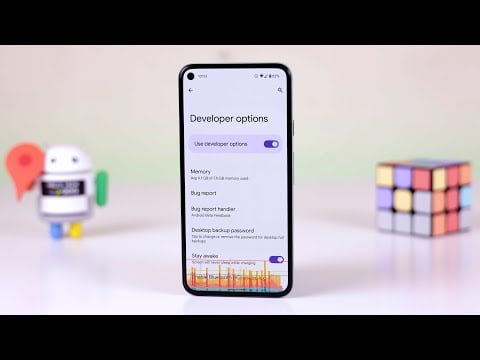
There are many other developer options that can be tweaked as per your preferences. However, you must know what you are doing before making any changes to avoid causing any issues with your device. This video is my go-to choice whenever it comes to experimenting with developer options. Give it a try, and you will be able to improve the overall performance of your device with a few tweaks.
Final Thoughts
So, that’s it. I hope implementing my tips and tricks will help you improve the performance of your device and enhance your user experience. If your problem persists, let me know in the comments and I’ll try to help you find a solution.
Thanks for reading! I hope this guide was helpful.

