

Quick Answer
To fix the USB disabled error on Mac, Use the USB logs to check the root cause of the error. The most common error is the device draws more power than the Mac’s USB ports can supply. Find the devices that are drawing more power and disconnecting them. Try quick fixes such as restarting your Mac, disconnecting and reconnecting your USB devices, reducing the number of devices connected to the ports, and restarting or updating your Mac. If these don’t fix the issue, reset using Terminal reset USB ports. Finally, you can invest in a USB hub for additional power supply to power-hungry devices.
My MacBook Air M1 comes with 256GB of memory. Because of this, I bought two external SanDisk drives, 128GB and 256GB, with Type-C support, to expand my storage. While I can opt for a dedicated hard drive, I am not a heavy user and also don’t have a lot of data, and I barely have any important files except the documents stored on my Mac.
So, every time I reset my device, I often transfer important data to my drive and reload it to my Mac. This happens regularly every week, depending on the apps that I am testing. While there are other options like wireless transfer, I often prefer USB drives because of their convenience and faster speeds, as well as because they let me easily organize files while transferring them to the drive.
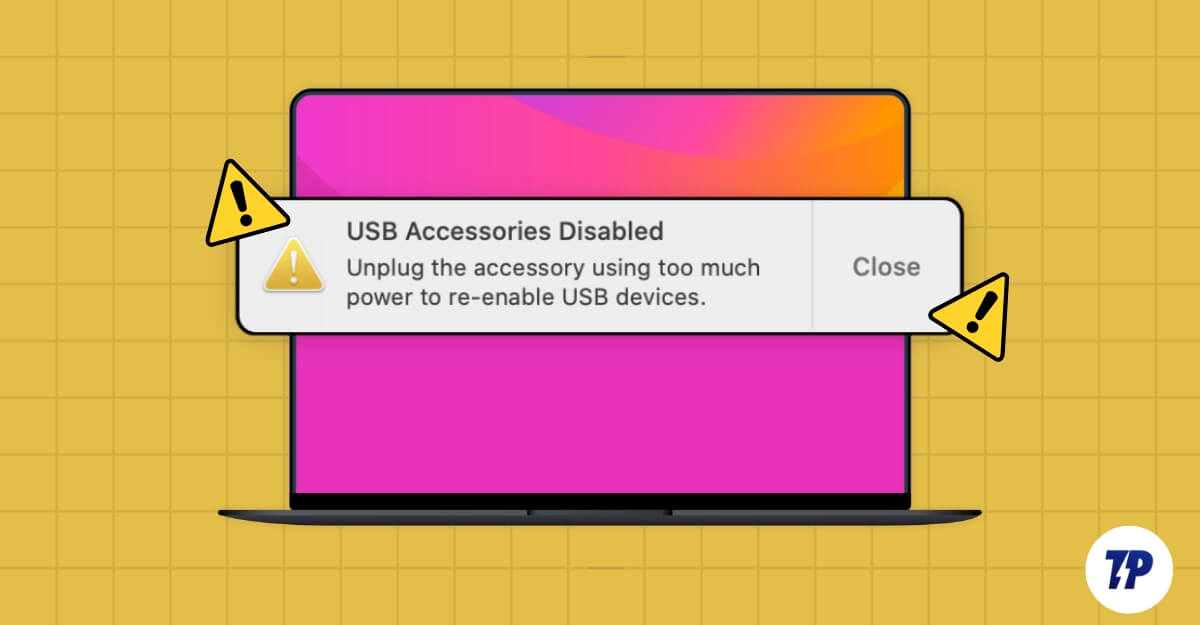
Like I said, I do it often, and every time, it was smooth, but until one day, I discovered an error on my Mac saying ‘USB disabled accessories‘. This was my first encounter with this error, which made me panic and assume that the port wasn’t working or the pen drive was corrupted, which already had a few important documents in it.
Fortunately, after initial research, I found this error is common, like any other frequent Mac error, and I can resolve it myself. I researched and found a method of troubleshooting and applied it, and finally, I was able to fix the issue. If you are having the same issues on your Mac, don’t panic. It is easier to fix than you think.
Table of Contents
What Causes the “USB Accessories Disabled” Error on Your Mac
There is no single issue that I can point to that might be causing this error on your Mac. The most common reason several users reported is because of high power usage by USB-connected devices.
This can be whether an external monitor or multiple accessories like a keyboard and mouse are drawing more power. It can also be due to faulty USB drives and bugs in your MacBook in the existing software.
In my case, the USB drive could not draw much power from the MacBook. After updating to the latest 15.2, my issue has been fixed. It might be different on your end. To help you fix your issue fast, follow the quick fixes that work for the majority of people and are easy to troubleshoot. If those don’t fix this issue, you can follow the advanced troubleshooting techniques followed by quick fixes to troubleshoot your issue further and apply a comprehensive solution.
Start with these Quick Fixes

Disconnect and Reconnect USB Devices
Try disconnecting and reconnecting all your USB devices. This will fix any temporary glitches or power issues that might be causing this error. Carefully ensure which device is causing the error by reconnecting a single device at a time. In most cases, the issue is caused by one specific device that can cause this error.
Try a Different USB Port
To know if the specific USB port is damaged, try connecting a USB device to another port. Since we have very limited ports on Mac, it lets you determine whether the specific port of the Mac is malfunctioning or the issue is with the device itself. This also works for the USB hub. Try connecting the USB hub and the connected USB accessories to another port.
Reduce the Number of Connected USB Devices and Turn Off Low-Power Mode
If the connected USB devices exceed what your Mac can handle, to fix this, try disconnecting some of your heavy power-intensive USB devices, such as monitors, speakers or other USB accessories that draw more power. While there is no guide on how many USB devices a Mac supports, according to the Apple Support community, you can connect up to 127 devices as per USB standards; however, in general, Mac can support up to 15-20 devices depending on the power usage.

Also, ensure you turn off low-power mode on your Mac. Go to System Settings > Battery and toggle off Low Power Mode.
Check Cables and Ports for Damage or Debris
Check if the connected USB devices have any damaged cables or ports or any debris that is obstructing the power supply. Although many people most likely miss this, this is also one of the main reasons for many port-related errors when using USB.
Disconnect all your ports connected to the Mac and clean them with a cloth, ensuring that you don’t damage sensitive pins while doing so. Gently wipe and blow air to clean the debris. If the cable is damaged, try changing it. Regular cleaning also avoids future power delivery issues.
Restart your Mac
Restart your Mac to fix any software issues affecting USB functionality on your Mac. It clears all the temporary data and resets the hardware interface. This is a highly effective solution for fixing software-related issues. However, it may not resolve hardware-related issues and root-level issues that require special attention.
Update your Mac
As a part of the features test, I often try out different versions of software, even the beta software, to get quick access to the features for testing early. Since beta software is primarily not intended for regular use, it can cause issues like USB-disabled errors, which is exactly what happened in my case. I was on public beta macOS 15.2 when I first encountered this issue.
Soon after updating to the stable version, my issue was resolved, and when I plugged it into the USB drive, it worked fine without any issues. Sometimes, an unknown software issue in a stable version can also cause problems. To fix this, you can upgrade your system to the latest version. To do so, go to settings on your Mac, Settings > Software Update, and then update your Mac to the latest version.
Those quick troubleshooting techniques work for most people and are easy to implement. However, if this still doesn’t resolve the issue, try our advanced troubleshooting guides to fix more deep hardware and software issues.
Advanced Troubleshooting Methods
Check What’s Causing the Issue Using USB Error Logs
Since the error doesn’t mention any details of what is causing the issue, you can check the USB logs to find the root cause of the issue using Terminal.
Using Terminal might not be appealing to all people. Still, I have made it easy for beginners, even for non-technical users, to quickly identify the solution and apply the appropriate method to help you fix the issue.

To analyze USB logs, open Terminal and run the following command log stream –predicate ‘eventMessage contains “USB”‘ –info. Now plug your USB devices one by one and check the real-time USB activity. Here are the most common error logs and what they mean. Remember, You have to manually look for the specific errors to find the root cause of the problem.
Error Message | What is means | Reason | How to fix |
|---|---|---|---|
Over-current condition detected | USB device is drawing more power than the port can supply. | Faulty or high power consuming device is causing the issue. (example: HDD, USB powered monitors, speakers and more) | Disconnect non-essential and faulty device causing the issue |
USB device not responding | Your Mac is unable to communicate with the connected device | Damaged USB cable, faulty device, or unsupported USB device. | Look for damage or loose connection ports. |
Unsupported device | The connected USB device is not recognized by macOS. | Outdated or missing USB drivers, unsupported device, or hardware issue. | Update USB driver and Mac. |
Port reset failed | The USB port failed to reset during a connection attempt. | Likely hardware or software glitch. | Might be issue with the port itselt. Clean the port. |
Device connection timeout | The device took too long to respond during the connection process. | Slow or faulty cable/port. | Look for any damage or no issues with the device itself. |
Could not load driver for device | macOS failed to load the necessary driver for the USB device. | Incompatible device or deice driver is missong, or might be using an outdated macOS. | Install required driver or update exisitng drivers and MacOS |
Device removed unexpectedly | A connected device disconnected without warning or proper ejection. | Likey Loose connection, faulty cable, or sudden ejection of usb device. | Look forloose connection and do not eject USB devices while in use. |
Power exceeded on port X | The connected device(s) exceeded the available power on the specified port. | Too many devices connected or a single device drawing excessive power. | Disconnect non-essential and faulty device causing the issue |
Depending on your specific error, you can apply the troubleshooting method in the table. For more detailed step-by-step guides, follow the guide below.
Check Which Device Is Using More Power
The major reason for the USB disabled error is the greater power usage that the port can handle. You can monitor port power usage and know which USB port or the device connected to the port is using high power.
Fortunately, the macOS system information and free third-party software like USB Power Monitor give you more details about power usage. Go to settings, About This Mac, and System Report. In the left menu, select USB under the hardware category. The right-hand menu will display all the information about USB-connected devices to check the power uses of specific devices.

Click on the specific device you want to check and look for the following fields: Current Required MA, which is the amount of power requested from the USB port, and Current Available, which is the maximum Power that your Mac can deliver.
If the required MA exceeds what is currently available, this might be a high-resource use power. If the device draws too much power, it requires too much power. For instance, if the current available is 900 and the required is around 1300, you can disconnect if it is a non-essential device or use the external USB hub to provide the additional power.
Also, in some cases, multiple devices can lead to this error combined with overloading the USB Bus. You can check the data by currently available per and also combine the current required all to identify the device. You can also use the system_profiler SPUSBDataType command in Terminal.
You can use a USB power hub to power the device or prioritize device connection by remaining on essentials, reducing the number of devices, and disconnecting faulty devices.
Reset the System Management Controller (For Intel-powered Mac)
Reset the System Management Controller if you are using an Intel-powered Mac. System Management Controller, short for SMC, is a chip in Intel-based Macs that lets you control hardware-level functions such as power and thermal management, battery issues, and more. It also lets you control USB power delivery and reset power allocation to help you fix USB-disabled errors on Mac.
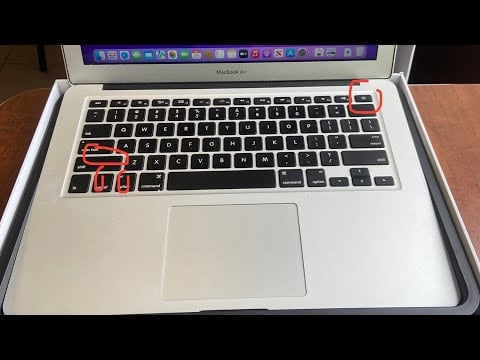
It works differently based on the Mac models. If you use an Intel-based Mac with a T2 Security chip, shut down your computer first. Hold down the control left plus option left plus shift right keys for seven seconds. Now, after a while, holding the case, press the power button for another seven seconds. Now, release all the keys and the power button and wait for a few seconds. Now, press the power button to restart your Mac.
If you are using an Intel-based MacBook without a T2 chip, similarly shut down your MacBook, hold down shift left plus control left plus option left, and press the power button for 10 seconds. Release all the keys and the power button, and turn your MacBook on using the power button.
If you are using an Intel-based desktop Mac, shut down your Mac and unplug it from the power source. Please wait for 30 seconds, plug it back into the Mac power, and restart.
This will reset all hardware parameters and fix any glitch that is causing the USB access disabled error. However, it won’t fix your port if it is physically damaged, and it also won’t fix any root-level system issues.
If you are using Macs with M1 or later, you can restart your device.
Use the Terminal to Reset USB Ports
Using Terminal sounds technical, but it is the simplest process of all that takes less effort. It works for both Intel and Mac-based Macs. It fixes any power delivery issues and also recalibrates power delivery to USB ports. It is, of all the ways, the simplest process to reset USB devices without restarting your Mac.

Head over to the Terminal and run the following command. Enter this command sudo killall -STOP -c usbd and press enter. Now, unplug and re-plug your USB devices to see if the issue is resolved.
Use a Powered USB Hub

If all the external USB-connected devices are essential, use additional power to power up your USB devices. Using a USB hub or a docking power station with its own AC power supply is effective and also the easiest way. It offers additional power to the connected devices that require more power than Mac can supply, such as RGB lights, speakers, and more. Check out our detailed guide on USB hubs and power stations for a more detailed guide.
If the issue still exists, You can further troubleshoot the issue by resetting the NVRAM/PRAM for intel-powered Macs (Hold Option + Command + P + R for 20 seconds), connect the device directly to the Mac if the issue is with the USB hub, use your Mac in the Safe mode. If these methods don’t fix the issue, you can contact Apple support or make a Genius bar appointment for device inspection and further guidance.
FAQs on Fixing USB Disabled Error on Mac
Why does this error only occur sometimes?
If the error occurs occasionally, the reason likely being that you have connected multiple devices and your Mac is running in low power mode, or it might be one device that you might have used initially that might have issues with the USB ports. To fix this, check if the device is reading more power using Mac system settings and reduce the number of devices connected to your Mac.
Are all USB-C cables and devices compatible with my MacBook?
Not all USB devices support on Mac. Ensure your USB devices support minimum USB-C 3.0 or 3.1 to run faster, and look for MFi Certified. If your device doesn't support it, look for the error logs using this command.
Can using a powered USB hub solve all power-related issues?
USB hub can supply additional power, but it cannot fix the issues related to software or hardware port issues and faulty devices. Using the error logs, find the exact issue you are facing and apply the relevant troubleshooting method to fix the issue.
What if the error keeps coming back?
If the error keeps coming back, the issue might be likely related to the hardware or the unknown software issue that might be causing it. You can factory reset your device to remove everything and any unwanted configuration or third-party app that might be causing the issue. If it still doesn't fix the issue, contact Apple Support for further assistance.

