

Quick Answer
To fix blurry wallpaper on your iPhone, ensure you use high-quality wallpaper that matches your screen resolution. Both Android and iPhone have wallpaper settings that let you adjust the blur. Change the blur Wallpaper settings to fix the issue. On Android, if you are using a third-party launcher, adjust the wallpaper blur in the launcher settings. On iPhone, ensure the Focus Modes don’t have wallpaper blur settings enabled. If this doesn’t resolve the issue, restart your device.
Wallpaper can get blurry for three main reasons. Firstly, you can activate the “Blur wallpaper” effect from the customization settings. This mostly happens on iPhones. Secondly, if you set low-resolution images as wallpaper, and thirdly, if the Live wallpaper is not rendered correctly. Fortunately, you can quickly fix these problems by following these simple steps. In this guide, you’ll learn how to fix blurry wallpapers on your iPhone and Android.

Table of Contents
How Do I Fix a Blurry Wallpaper on My iPhone?

Change Wallpaper Settings
Starting with iOS 16, Apple has introduced a Wallpaper customization option. With these settings, you can customize the wallpapers with different widgets, fonts, colors, and more. You can apply a blur effect to the wallpaper to make the icons on the home screen appear clear.
If you enabled wallpaper blur, your wallpaper looks blurry on the iPhone Home screen will look blurred. You can remove the blur effect in the wallpaper settings. Here’s how:
- Step 1: Open the Settings app on your iPhone and Tap on Wallpaper.

- Step 2: Select the wallpaper pair and Tap the Customize button.
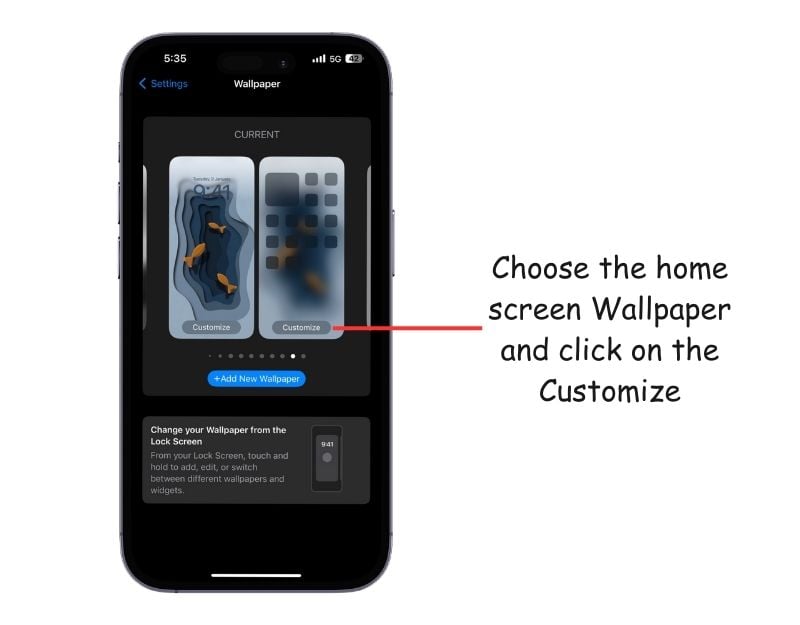
- Step 4: Click on the Blur icon option located in the bottom left corner of the screen to disable the wallpaper blur effect on the Wallpaper
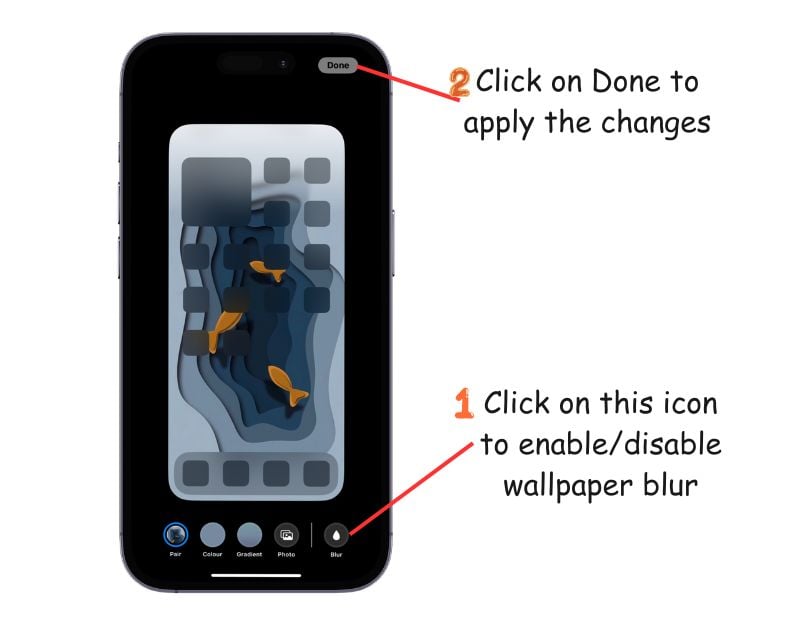
- Step 5: Finally, tap Done. This removes the blur on your iPhone Home screen.
Set a Wallpaper That Fits the Size of Your Screen
Android and iPhone automatically blur wallpapers if they have a low resolution or a smaller size. Find the wallpaper that matches your screen resolution and apply it to fix this.
To fix this, you can find and apply a wallpaper that matches your screen resolution. iPhones do not show screen resolution in the settings. You can use the online search for the model of your iPhone. If you already have this information, you can continue with step 4.
How to find screen resolution on iPhone
- Step 1: Open Settings on your iPhone and go to General.

- Step 2: Click on the About settings on the top.

- Step 3: Find the Model field and note the model number.

- Step 4: Use an online search or Apple’s official specifications page to find the screen resolution.
Here are the screen resolutions of the most popular iPhone models.
iPhone 15 Series
15 Pro and 15: 2556 x 1179 pixels
15 Pro Max and 15 Plus: 2796 x 1290 pixels
iPhone 14 Series
14 Pro: 2556 x 1179 pixels
14 Pro Max: 2796 x 1290 pixels
14: 2532 x 1170 pixels
14 Plus: 2778 x 1284 pixels
iPhone 13 Series
13 Pro & 13 Pro Max: 2880 x 1320 pixels
13: 2640 x 1200 pixels
iPhone 12 Series
12 Pro: 2532 x 1170 pixels
12 Pro Max: 2778 x 1284 pixels
12 mini: 2340 x 1080 pixels
12: 2532 x 1170 pixels
iPhone 11 Series
11 Pro: 2436 x 1125 pixels
11 Pro Max: 2688 x 1242 pixels
11: 1792 x 828 pixels
iPhone X Series
XS: 2436 x 1125 pixels
XS Max: 2688 x 1242 pixels
X: 2436 x 1125 pixels
XR: 1792 x 828 pixels
How To Fix Blurry Wallpaper on Android
Choose a Wallpaper of the Proper Size
Android does not offer a direct system setting specifically for blurring the wallpaper. If the wallpaper on your Android smartphone is blurry, it is probably due to the low resolution or the launcher settings. You can set a wallpaper that matches the screen resolution to fix the problem.
How to find screen resolution on Android
- Step 1: Open the Settings app on your Android smartphone (These steps might vary on Android depending on your smartphone and the Android skin you are using).
- Step 2: Scroll to Display Settings and Look for an option that says Display Resolution or Screen resolution.
- Step 3: Install the Divcheck app to check the display resolution. You can download and apply wallpapers based on screen resolution to prevent wallpaper blur.

Change Mobile Launcher Settings
Sometimes, the launcher’s settings can blur the wallpaper. The Microsoft Launcher for Android, for example, allows users to adjust the blurring of their wallpaper. The Smart Launcher also offers an automatic color adaptation feature for wallpapers and blurs the wallpaper.
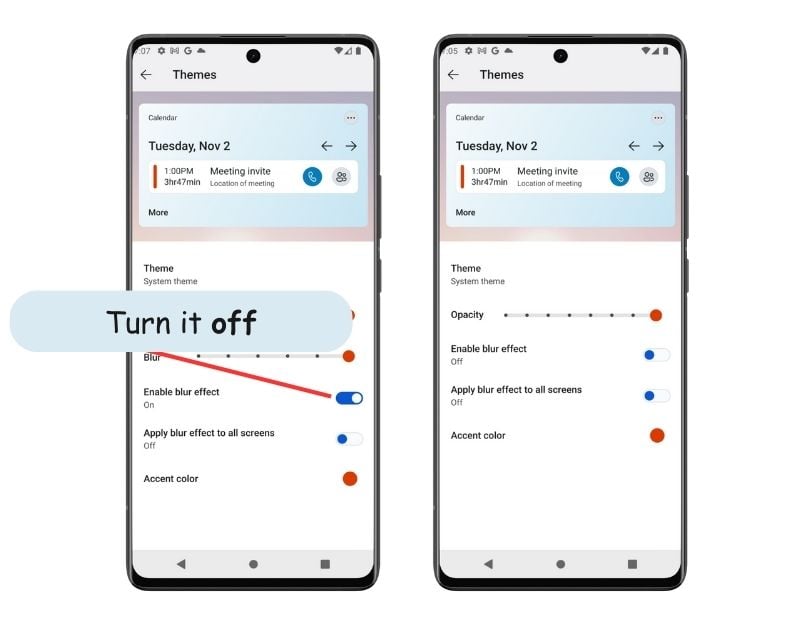
To fix this, you can adjust the settings on the launcher or uninstall the launcher to resolve the issue. Here is how to change the wallpaper blur settings on the Microsoft launcher. If you are using a different launcher, You can find this option in the settings on your launcher.
How to remove wallpaper blur in Microsoft launcher
- Step 1: Press and hold a blank spot on your home screen, then click on Launcher Settings.
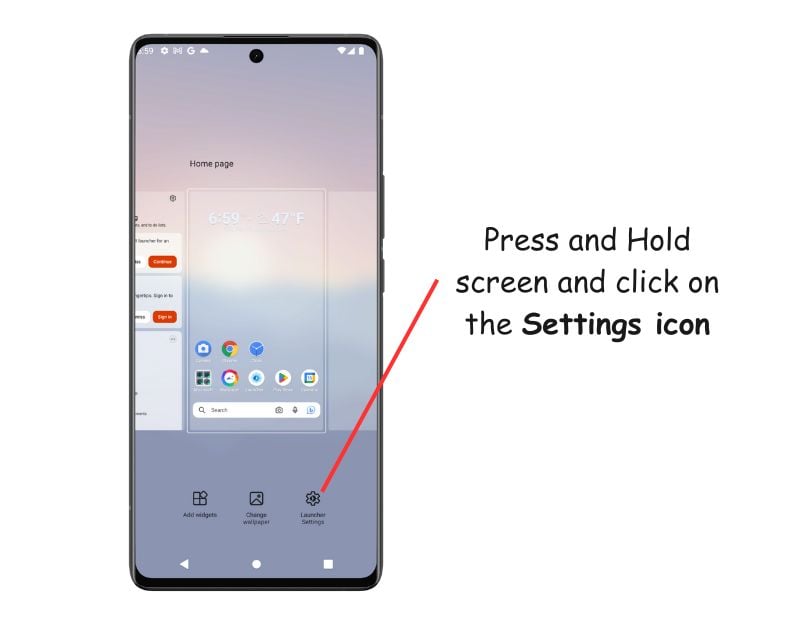
- Step 2: Click on the Themes.
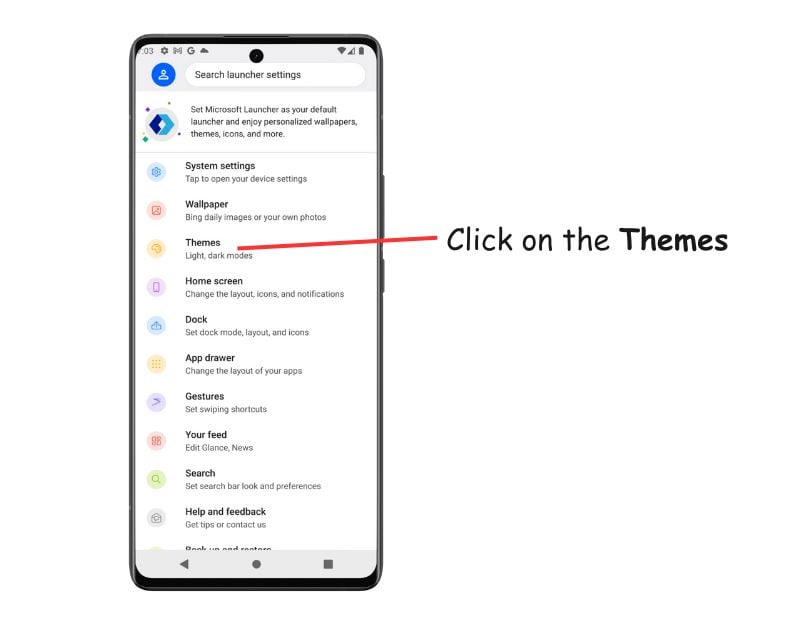
- Step 3: Turn off the Enable Blur effect to disable the Wallpaper Blur effect if you are using a Microsoft launcher. You can follow similar steps if you are using any other launcher on your Android. The Settings might vary.
FAQs about Blurry Wallpaper on iPhone and Android
1. How can I prevent my wallpaper from becoming blurry over time?
Change the wallpaper customization settings when using an iPhone to prevent your wallpaper from blurring. Make sure you use a wallpaper that matches your screen resolution.
2. Why is my wallpaper blurry even after setting a high-resolution image?
If your wallpaper is still blurry even after setting high-resolution images, You might have enabled wallpaper blur in the wallpaper settings. You can disable it to fix the issue. Open the settings app; using the search, find blur or wallpaper blur settings and turn off this setting.
3. Can a screen protector cause the wallpaper to look blurry?
Yes, if your screen protector is broken or peeled off, your wallpapers and the screen may look blurred at this point.
4. Can using live wallpapers affect the clarity of my screen?
Yes, if the live wallpaper is not working properly, it can affect the clarity of your screen. Live wallpapers consume a lot of system resources. You can avoid this problem by using the live wallpapers provided by the system instead of downloading them from websites.
5. Are there any recommended apps for finding high-quality wallpapers?
We have a separate guide listing the best wallpaper apps for the iPhone and Android. These apps offer high-quality wallpapers. Most of the wallpaper apps can preview the wallpaper for a better fit. You can also find high-quality wallpapers on our site if you want any for specific occasions.

