

Several Google Chrome users have pointed out an error in the official support forums that doesn’t allow them to update Google Chrome or reinstall the browser to fix the problem. The full error code is Error 1: 0X80004005 — system level. Google Chrome Error 1, just like the DNS_PROBE_FINISHED_BAD_CONFIG error, is known to annoy Chrome users from time to time. The error doesn’t seem to provide an explanation of what’s wrong with the browser or name the main culprit of Google Chrome Error 1.

While a simple restart or reinstallation of Google Chrome is enough to fix many errors, these solutions don’t seem to work in this case. We have researched and found some solutions to help you fix Google Chrome Error 1: 0X80004005 — system level. There is no specific solution for this error, so you need to try the solutions one by one and check which one works for you. Let’s take a look at the solutions to fix Google Chrome error 1.
Table of Contents
What is Google Chrome Error 1: 0X80004005?
Google Chrome is notorious for throwing errors out of the blue during simple operations like updating the browser. The Google Chrome Error 1: 0X80004005 has also appeared for users when they try to update the browser. The full error message is “An error occurred while checking for updates: Update check failed to start (error code 1: 0X80004005 — system level)“. Due to this error, Chrome users will not be able to download the latest version of the browser or even reinstall it.

A user pointed out that due to Google Chrome Error 1: 0X80004005 during the reinstallation process, when running the ChromeSetup.exe file, a UAC screen appears along with a pop-up that hides behind the UAC screen and closes the installer. This issue is evident in Windows 11, and you will find multiple user reports related to it on Google support forums.
Another instance of Google Chrome Error 1: 0x80004005 was reported by a user who highlighted that even after reinstalling the browser multiple times, the error code was unresolved. So, this gives you a hint that there is no specific solution to this error code, and you need to follow the hit and trial method. However, the solutions below are the curated ones that have helped users in similar scenarios resolve the problem. Any one of the below-listed solutions could be your answer to Google Chrome Error 1: 0x80004005.
How do I fix the Google Chrome Error 1: 0x80004005 issue?
Restart your browser
Before applying complex solutions, you can first start by restarting your browser, which can fix many of the normal issues that you may face with the browser. This is often overlooked but can be very effective in fixing minor glitches.
Check your internet connection
For Google Chrome to work perfectly fine without throwing tantrums, you need to ensure that you are connected to an internet connection that is stable and working fine. If your internet connection is jumpy, then the browser may misbehave. Restart your modem, check your Wi-Fi connection, and make sure your internet is just like you, i.e., Absolutely Fine!
Clear the Google Chrome browser cache
- Click on the 3-dot menu icon on the top right.
- Select Clear browsing data from the list of options. Alternatively, you can press Ctrl + Shift + Del.
- Check the boxes next to Browsing history, Cookies and other site data, and Cached images and files.
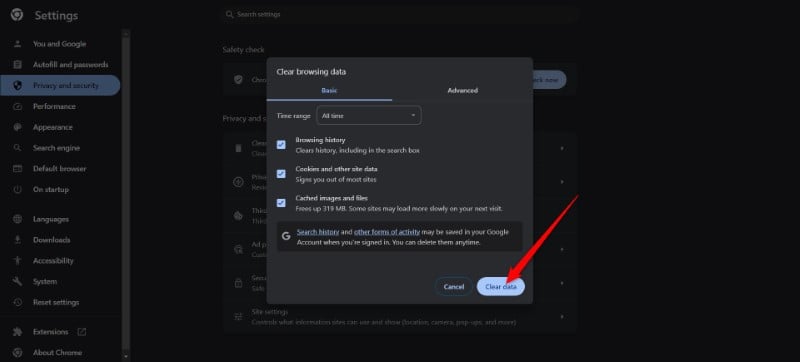
- Hit Clear data.
Disable any antivirus on your PC
- Press the Win key to open the Start menu.
- Search for Windows Security.
- Click on Virus & threat protection.
- Click Manage settings, under Virus & threat protection settings.

- Toggle off Real-time protection.
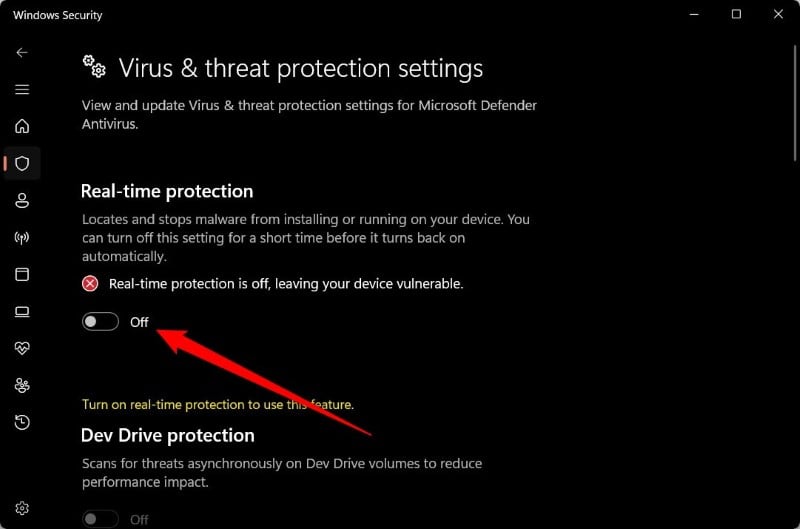
One possible solution to fix Google Chrome Error 1: 0x80004005 is to disable antivirus on your Windows 11 PC. If you are using any of the paid or free antivirus software, you need to disable it. Besides, this is also applicable for users using Windows Security, the in-built antivirus tool in Windows 11.
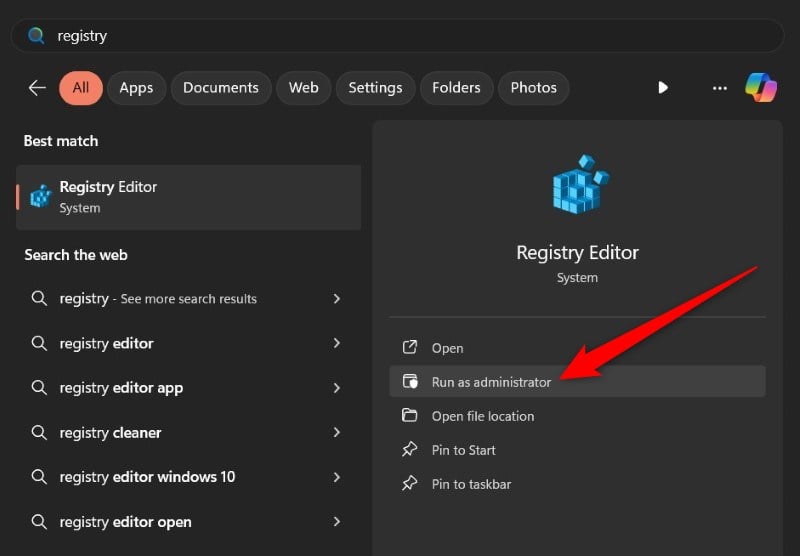
Tweak the Registry
- Press the Win key to open the Start menu.
- Type Registry and open the Registry Editor as an administrator.

- Navigation to the below path:
Computer\HKEY_LOCAL_MACHINE\SOFTWARE\WOW6432Node\Google\Update\Clients\{430FD4D0-B729-4F61-AA34-91526481799D}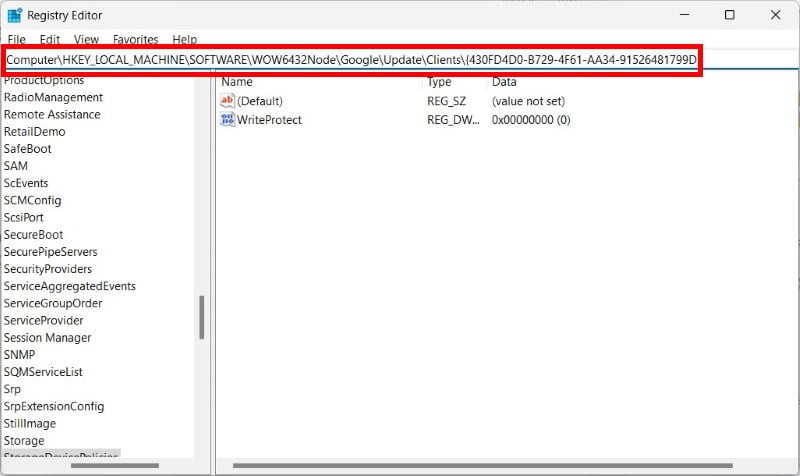
- Delete the key and restart your computer.

After your PC reboots, go ahead and reinstall the Chrome browser and check if tweaking the registry works in resolving Google Chrome Error 1: 0x80004005.
Delete the Google folder
One of the most effective solutions that has helped Chrome users resolve the Google Chrome Error 1: 0x80004005 error is deleting a specific Google folder after uninstalling the program. Here’s what you need to do:
- Open the Start menu by pressing the Win key.
- Open Settings.
- Click on Apps on the left pane.
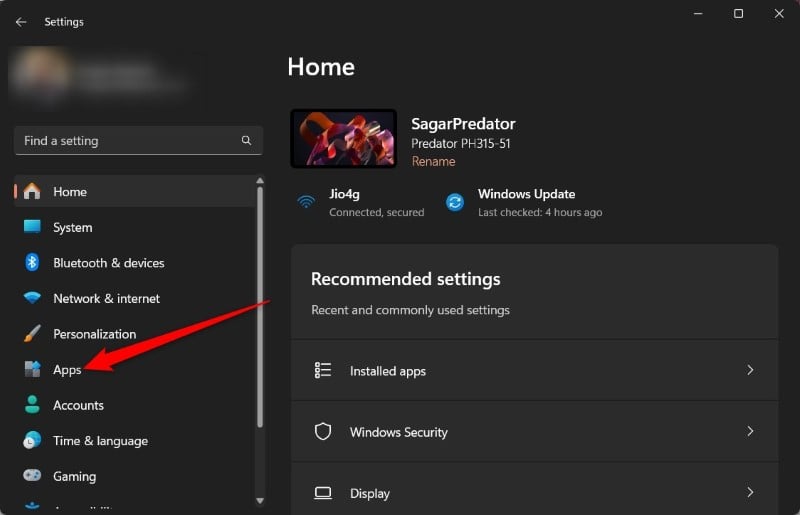
- Select Installed apps.

- Locate Google Chrome, click on the 3-dot menu icon, and select Uninstall.
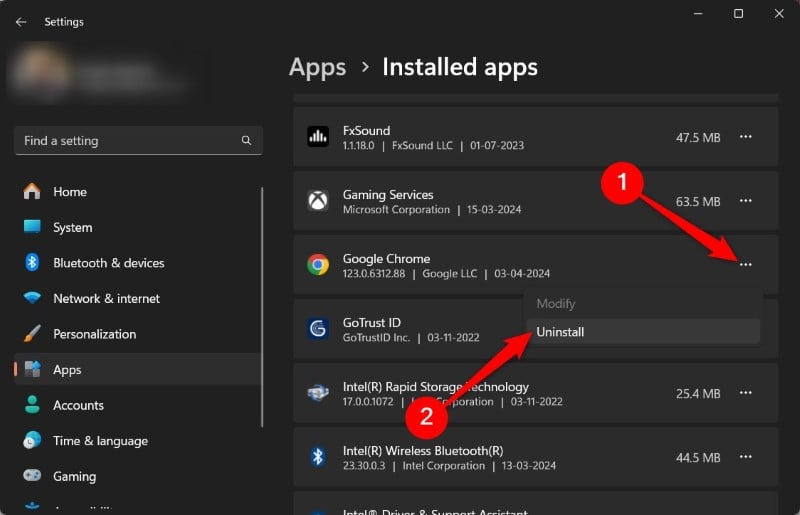
- After uninstalling Google Chrome from your PC, navigate to the below locations:
- C:\Users\YOUNAME\AppData\Local\Google\
- C:\Program Files (x86)\Google\
- Delete the Chrome folder in both locations mentioned above, if there is a Chrome folder.
- Reboot your PC.
- Head to the official Google Chrome website, download and install the browser.
If downloading the Google Chrome browser doesn’t fix Error 1: 0x80004005, then you can use Ninite to download the latest version of Google Chrome on your Windows 11 PC. Ninite is a great tool to have on your PC, as not only can it be used to download certain programs, but it also keeps all of your apps up to date.
You don’t have to manually look for updates for each app installed on your PC. This solution was suggested by one of the Gold Product Experts in Google support forums, and other experts at different forums helping several users facing Google Chrome Error 1: 0x80004005.
Disable all extensions
- Launch the Google Chrome browser.
- Click on the 3-dot menu icon on the top-right, select Extensions, and click on Manage extensions.

- Toggle off all the extensions.

- Head back to Settings.
- Select Reset Settings.

- Click on Restore settings to original defaults.

- Select Reset Settings.

Some experts have suggested that disabling all Google Chrome extensions helps resolve Error 1: 0x80004005. One user pointed out that disabling the Google Drive extension fixed the issue for them.
Fix Chrome errors and browse peacefully
Hopefully, the above methods will help you resolve the error. This issue has been troubling many users on the internet, and the solutions are scattered all over the internet. Here in this guide, we at Techpp have compiled all the solutions that will help you resolve the Google Chrome Error 1: 0x80004005. Let us know in the comments below which of the solutions fixed the problem for you.
FAQs about Google Chrome Error 1: 0x80004005
1. What is error code 0x80004005 on Chrome?
The error code 0x80004005 on Chrome prevents users from updating the Google Chrome browser. Because of this error, the browser simply doesn’t update and throws the error code. You can resolve the problems by applying any one of the above-mentioned solutions.
2. How do I fix the Chrome installation error?
You can fix the Google Chrome installation error by simply applying the above solutions. One of the best solutions that will work includes deleting the Google folder mentioned in the above locations, and then reinstalling the browser.

