

Quick Answer
If Jio Cinema not working, check your internet connection and ensure it’s stable. Restart the app or your device. If the issue persists, clear the app cache, update the app or reinstall it. Also, check for any system outages or server issues by visiting the Jio Cinema support page or social media.
In recent years, Jio Cinema has become one of the leading OTT platforms in India, especially after securing the broadcast rights for Indian cricket matches, the Indian Premier League, and other major global sports leagues.
With this massive success, Jio Cinema has attracted a lot of viewers towards the platform. However, they need more experience to manage this surge in viewers. That’s why many of us who enjoy watching TV shows and live sports on Jio Cinema are facing some issues in getting a smooth experience. Most users experience issues such as buffering, app crashes, login problems, poor video quality, sync issues with audio, and failed downloads, which, unfortunately, have become the new normal for Jio Cinema.
If you are also facing similar issues with Jio Cinema on any device, you’re at the right place. In this detailed guide, I will help you to fix Jio Cinema not working on your iPhone, iPad, Android phone, or PC.
Table of Contents
How to Fix Jio Cinema Not Working
I love watching cricket matches on Jio Cinema as they offer so many great options and features, such as the ability to watch matches from multiple camera angles. But unfortunately, the software experience is disappointing us a lot day by day.
Just imagine you’re watching a live cricket match, and suddenly, you start facing issues like buffering, crashes, or such problems. I can understand how annoying it is. But don’t worry; you are not alone. Many of you are also dealing with the same frustrations. I’ve separated the fixes by devices and have also outlined some basic troubleshooting steps to advance one for you.
Make sure not to skip the basic troubleshooting steps! Always go through them before trying any advanced solutions. Often, the real problem is something simple, and we waste time jumping straight into complex solutions to fix the issue.
Basic Troubleshooting Steps to Fix ‘Jio Cinema Not Working’
Most of the time, we skip the basic troubleshooting steps when fixing a problem, which is where things usually go wrong. For example, I have seen people doing when the problem is due to a weak internet connection, but they assume it’s something major, and many people even go as far as resetting their devices to fix a problem that could have been solved easily, which is why I’ll begin with the basics. So, first, carefully try the basic troubleshooting steps, and if your device still doesn’t start working properly with Jio Cinema, then move on to the advanced solutions.
Check Your Internet Connection
The first thing you should check is whether you have a weak internet connection. This might seem basic, and I know many of you have probably already done it, but if not, connect your device to a fast internet connection. If your device is already connected to the internet, check the internet speed on your device.
In case your device is connected to the internet, and that too a high-speed connection, but the Jio Cinema app is still lagging or buffering, toggle on airplane mode, wait a few seconds, then turn it off. After that, try opening and using Jio Cinema on your device to see if it runs smoothly. If it still doesn’t work properly, then the issue lies with your internet, so check for internet-related fixes.
Disable VPN
You might be using a VPN while accessing Jio Cinema, which is not recommended. VPNs change your virtual location by connecting to servers worldwide, causing conflicts with Jio Cinema’s restricted content policies. Jio Cinema is a region-specific platform accessible only within India, and using a VPN might make it appear as though you’re accessing the service from a different country, leading to playback errors or the app not working. To resolve the issue, disable the VPN on your device, then force close the Jio Cinema app or refresh the Jio Cinema website. Once done, relaunch the app or site to ensure smooth functionality.
Check the device’s compatibility
Many applications require specific operating systems or newer or hardware compatibility to function properly on a device. If you are using an older device, there’s a strong possibility that the device hasn’t received OS updates for a long time, or is not receiving them anymore. As a result, the older operating system running on the device may no longer be compatible with the app.
If your device does not meet the requirements and is running an outdated OS, Jio Cinema may fail to load or show playback errors.
To ensure your device is compatible with running Jio Cinema smoothly, visit the Jio Cinema Help Center. In the Top Queries section, look for the query titled ‘On which device can I watch Jio Cinema?’ There, you’ll find a list of supported devices.

For instance, Jio Cinema works seamlessly on Android devices with version 5.0 and above. Similarly, if you’re using an iPhone or iPad, make sure your device is running on iOS 13 or newer.
Switch Your Web Browser
Sometimes, you just want a quick fix to keep watching your favorite content on Jio Cinema, especially when you’re in the middle of a live cricket match or enjoying a movie night with your Friends or family. Imagine sitting there with your popcorn, and suddenly Jio Cinema stops working, it’s frustrating, right? In such situations, instead of looking for complex fixes, you can temporarily switch your browser and try opening the Jio Cinema official website on a different web browser.
For example, if you’re watching content on Jio Cinema’s official website in Chrome and it suddenly stops working, you can switch to another browser. If you’re an Apple user, try switching to Safar and logging in to your account to continue enjoying your content. Android or Windows users can switch to browsers like Brave, Microsoft Edge, DuckDuckGo, or Opera.
Log Out From the Jio Cinema App or Website and Log In Again
If Jio Cinema is still not working on your device, then another simple fix is that you must try to log out of your Jio Cinema account from the app or website and log in again. Sometimes, a corrupted or expired session can cause problems like playback errors or the app not loading properly.
By logging out, you clear any such data that might be causing Jio Cinema not to work, and logging back in ensures that you start with a fresh session. This simple troubleshooting can resolve temporary glitches and allow Jio Cinema to function normally on your device. To do so, follow the below steps.
- Open the Jio Cinema app or website and click on the profile icon in the top-right corner.
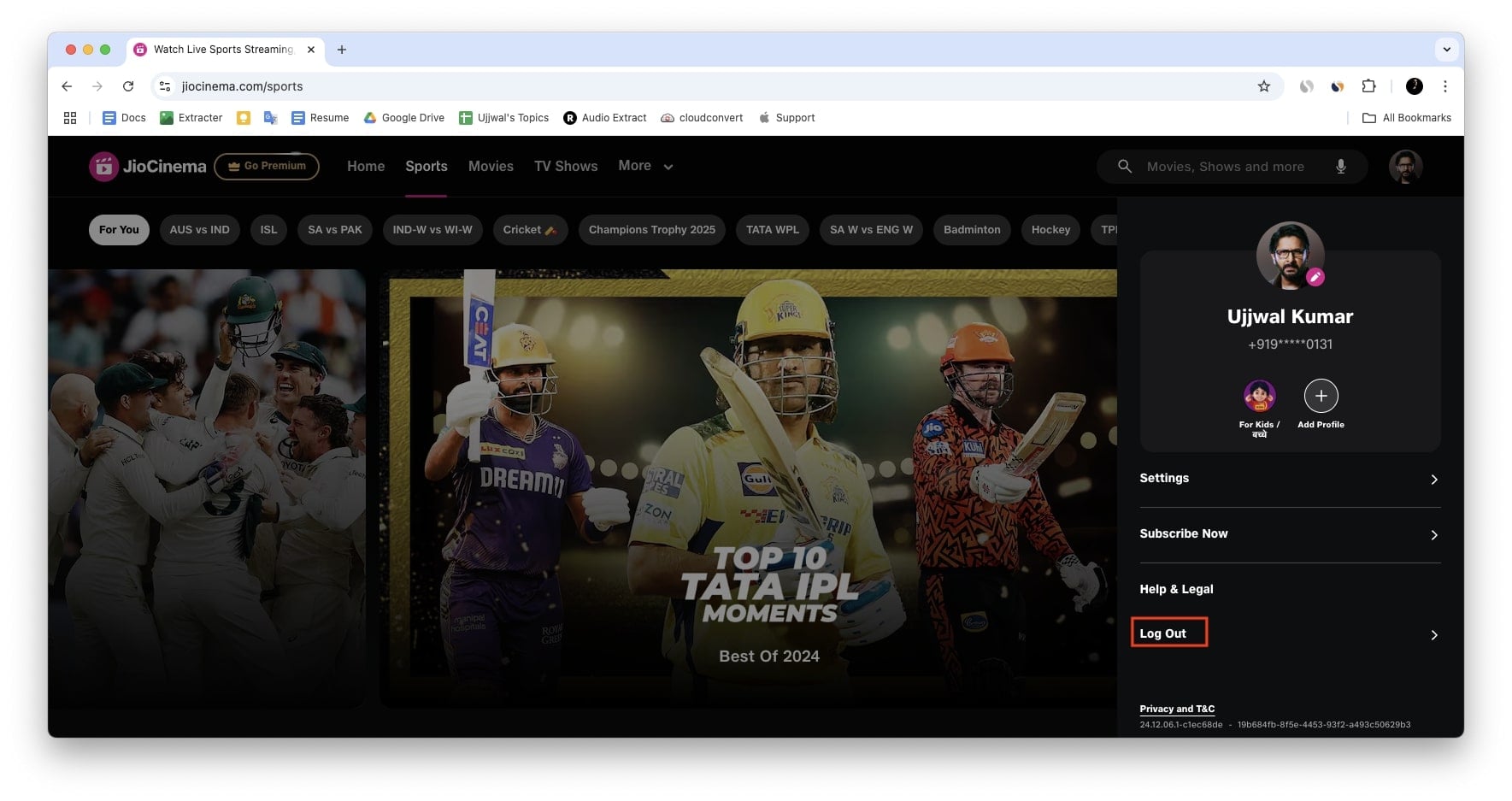
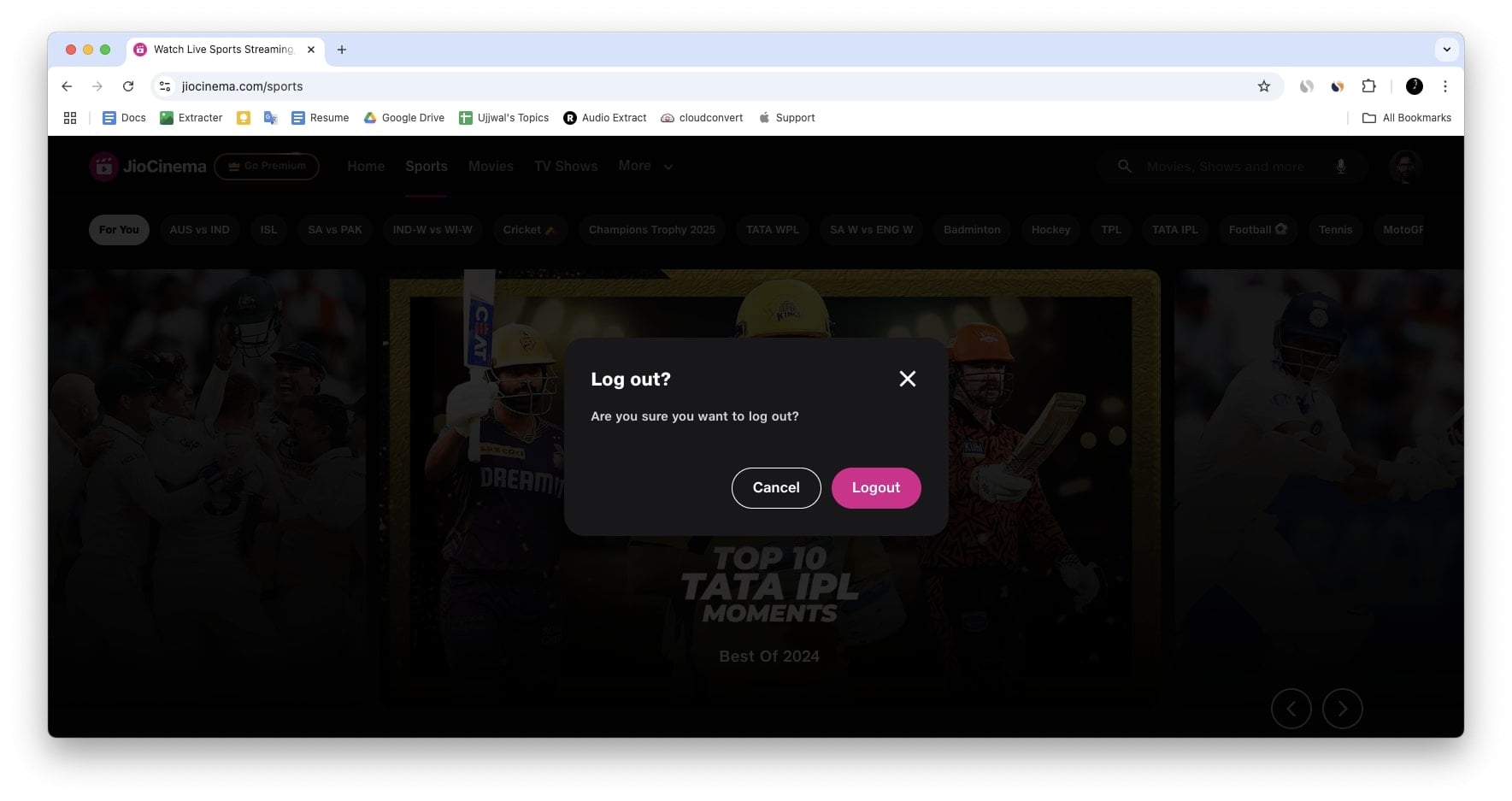
- Tap on Logout, and when the confirmation pop-up appears, hit Logout again to confirm.
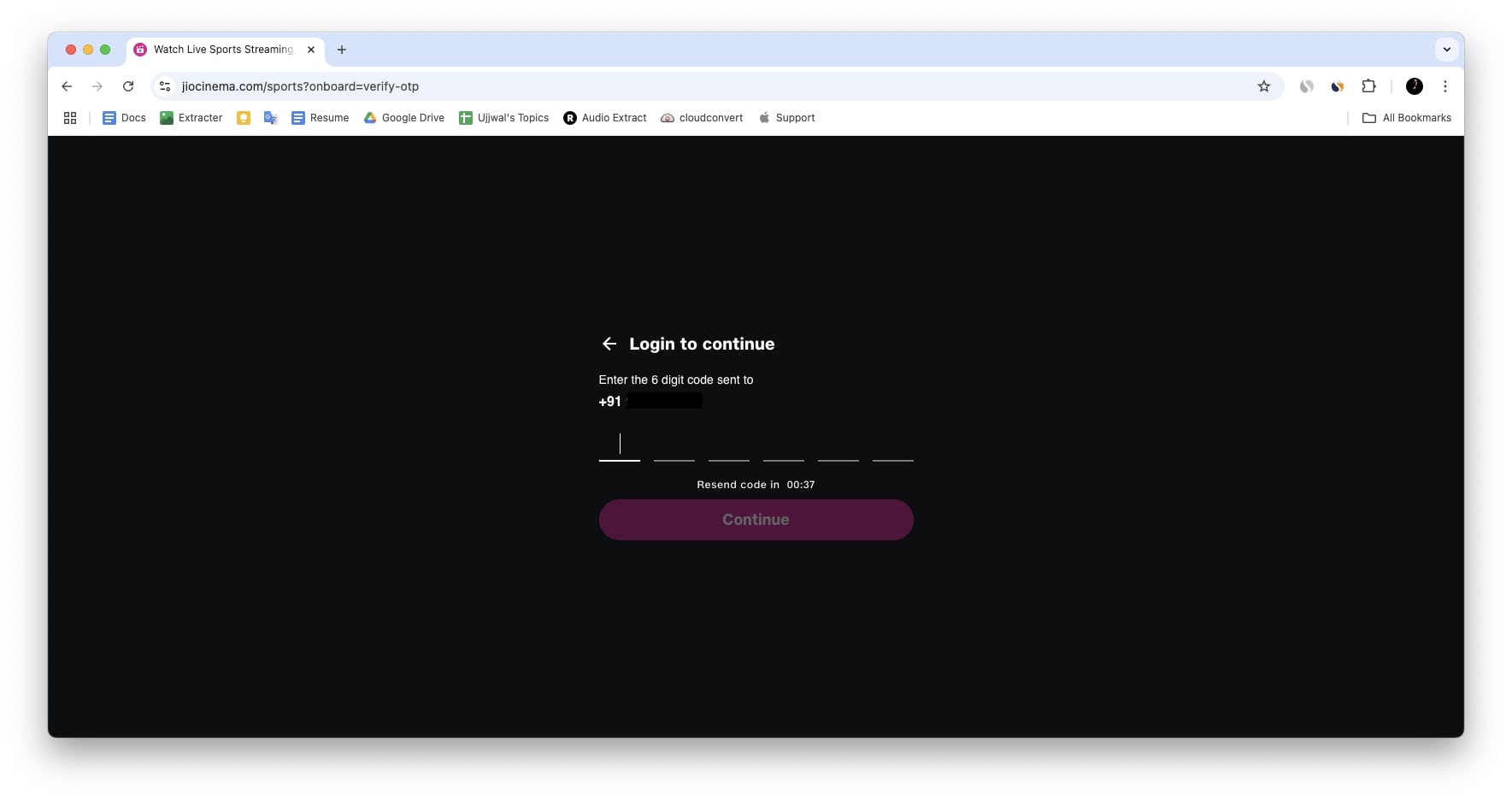
- After logging out, go back to the profile section and tap Login.
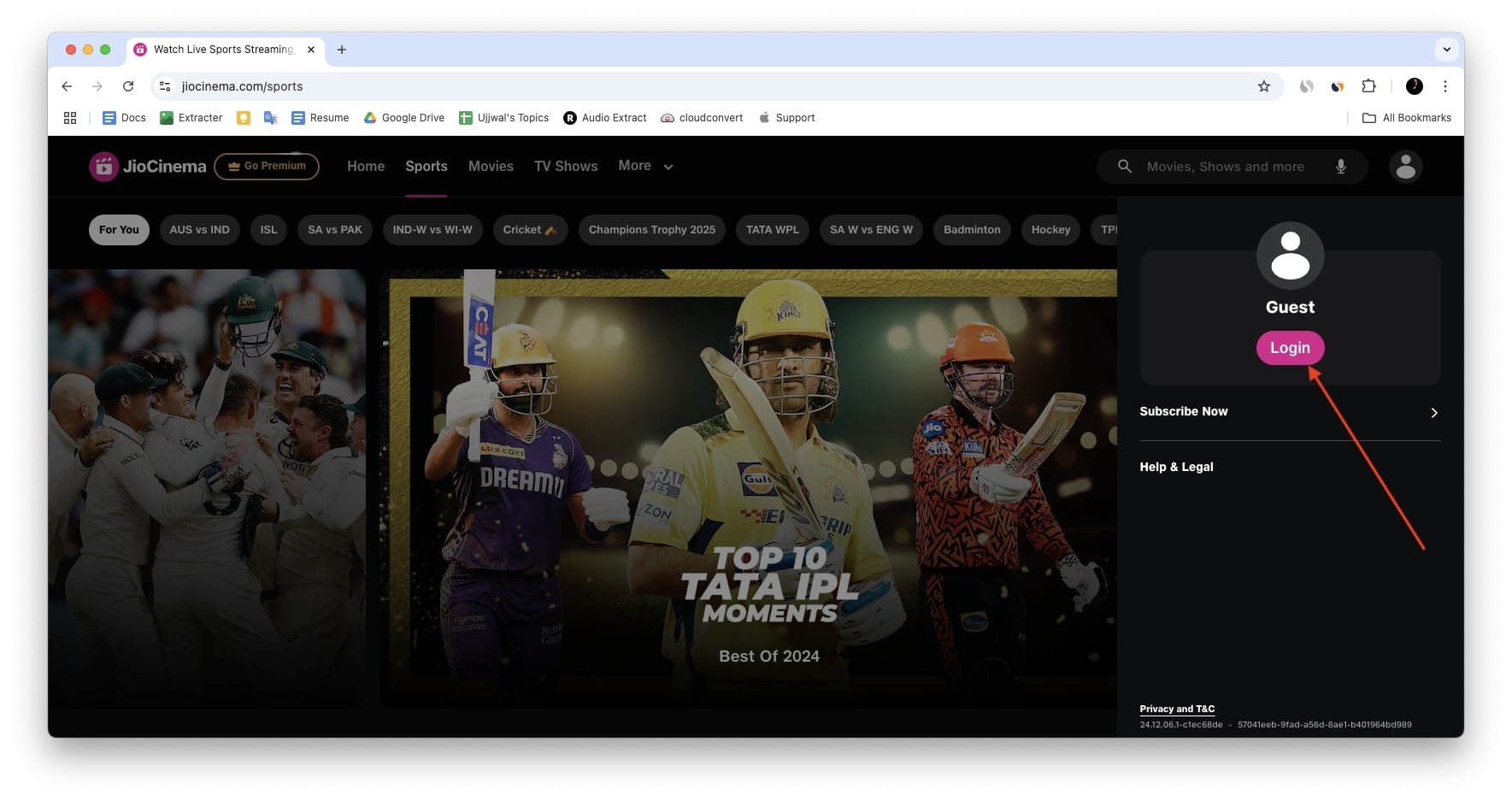
- Enter your registered mobile number.

- You’ll receive an OTP (One-Time Password) on your registered number. Enter the OTP to complete the login process.
Check Jio Cinema Server Status
Suppose you’ve carefully followed all the steps mentioned so far, but Jio Cinema is still not working on your device. In that case, it’s possible that the issue is due to a server problem, and Jio Cinema might be experiencing downtime. In such situations, you have nothing in your hands; only the Jio Cinema team can particularly fix this issue. You can only check the server status, and if this happens to mass auditions, then the Jio Cinema team will fix it soon.
They might share updates or fixes related to this issue on their social media platforms or the status page on their website, or they may release an update to resolve this particular problem. So, make sure to regularly check the Jio Cinema Server Status, and if you find that the problem of Jio Cinema not working is only on your device, then it’s better to move to the next fix
Advance Troubleshooting Steps to Fix Jio Cinema Not Working
If you’ve followed all the basic troubleshooting steps and still facing the issue, it means there’s a complex issue with Jio Cinema that needs more attention. To make things easier, I’ve divided the fixes into three different sections for each device, like Jio Cinema not working on iPhone or iPad, Android phones, or PCs, including Mac devices and Windows computers.
So, whatever device you’re using, simply follow the steps that I have mentioned for the particular section of the device.
Fix Jio Cinema Not Working on iPhone or iPad
Let’s first look into the fixes for the Jio Cinema not working on iPhone and iPad. I’ve provided ten essential fixes, and each one plays a significant role in resolving the issue. Make sure to follow each of them for the best results.
1. Force Quit And Relaunch The Jio Cinema App
Force quitting the app will allow the Jio Cinema app to restart fresh. This will work when the app freezes or lags due to high storage usage or heavy device activity. Follow the below steps to force quit and then re-launch the Jio Cinema app.
- Swipe up from the bottom of the screen and stop in the middle of the screen to access the app switcher.
- Swipe Up the Jio Cinema App from the list to force quit.

- Now, Reopen the Jio Cinema app and check if Jio Cinema is working or not.
2. Update the Jio Cinema App
If Jio Cinema is not working properly on your iPhone or iPad, then it may be due to problems within the app. To fix this, try updating the Jio Cinema app from the App Store. If this issue is being faced by mass auditions, the Jio Cinema developers must have released an update. Follow the below steps to do so.
- Launch the App Store.
- Click on the profile icon in the top right corner.
- Scroll down and check for the Jio Cinema app in the available updates list.
- If you find the Jio Cinema app, then tap on the update icon button next to it.

- After updating Jio Cinema, reopen it and check if it is working or not.
3. Restart Your iPhone
When did you last restart your iPhone? Many readers haven’t done it in a while, but Restarting your iPhone is an effective method to resolve various issues, including problems with Jio Cinema. And it’s always worth restarting your iPhone regularly. It can help the iPhone refresh the system and clear any temporary glitches that may be affecting Jio Cinema App performance. To do so, follow the below steps.
- Bеgin by simultanеously prеssing and holding thе Powеr button along with еithеr thе Volumе Up or Volumе Down button until Powеr mеnu prompts.
- On thе Powеr mеnu scrееn, swipе thе slidе to powеr off to shut down thе iPhonе.
- Allow a wait of at lеast 30 sеconds bеforе procееding to thе nеxt stеp.
- Now, prеss and hold thе Powеr button for sеconds to start thе iPhonе again.
Click here to find the steps to restart all iPhone models.
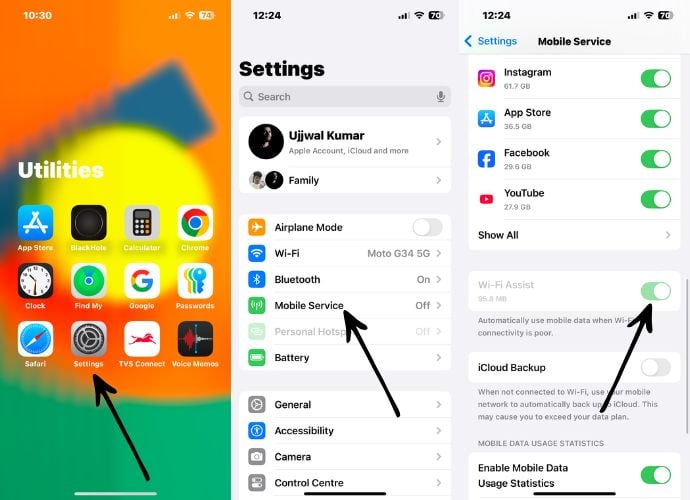
4. Enable Wi-Fi Assist
Another method you should try is enabling Wi-Fi Assist, which can be a game-changer if you are using Wi-Fi and it struggles to provide enough speed for streaming content on Jio Cinema. This feature ensures that whenever your Wi-Fi connection is weak, your device will automatically switch to mobile data to maintain a stable connection.
- Open the Settings app on your iPhone or iPad.
- Tap on Mobile Services.
- Scroll down to find Wi-Fi Assist at the bottom of the page.
- Enable the toggle next to Wi-Fi Assist to turn it on.
5. Enable Mobile Data Usage for Jio Cinema
Are you trying to play content on Jio Cinema, but despite having your mobile data enabled, the app is still showing No Internet Connection? This could be happening because mobile data usage for the Jio Cinema app has been accidentally disabled. Don’t worry; this is a common oversight and can be easily fixed. Here’s how you can re-enable mobile data for the Jio Cinema app.
- Open the Settings app on your iPhone or iPad.
- Navigate to Mobile Service.
- Scroll down to the list of apps under the Mobile Data Usage section.
- Look for the Jio Cinema app in the list.
- Ensure the toggle next to the Jio Cinema app is enabled.
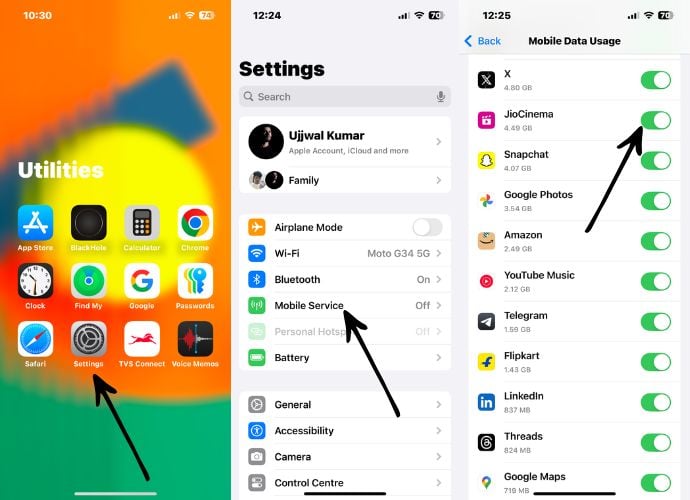
If the toggle is off, the app is restricted from using mobile data, which is why you’re facing this issue. Once you enable it, the Jio Cinema app will have access to mobile data and should start working seamlessly.
6. Check For iOS Update
If you have tried all the aforementioned steps, yet Jio Cinema is not working, then the issue might be related to an incompatible iOS version. To resolve this, check if an iOS or iPadOS update is available on your device. If an update is available, try updating your device and see if Jio Cinema starts working. Follow the steps below to do so.
- Launch settings on your iPhone.
- Go to General.
- Tap on Software Update.

- If there is an update available, click on the Download and Install button to start the download.
- The update will download shortly, and after that, tap on the Install button.
7. Offload the Jio Cinema App
Offloading an app is like deleting the app but keeping all your app data safe. if you have any downloaded content on Jio Cinema, you won’t lose it. Meanwhile, offloading an app clears all corrupted files or bugs that might be causing issues like app crashes, failure to play content, or other glitches. So follow the steps that I have mentioned below to offload the Jio Cinema app on your iPhone or iPad.
- Launch the Settings app.
- Go to General.
- Tap on iPhone Storage.
- Scroll down and find Jio Cinema among the list of apps and click on it.
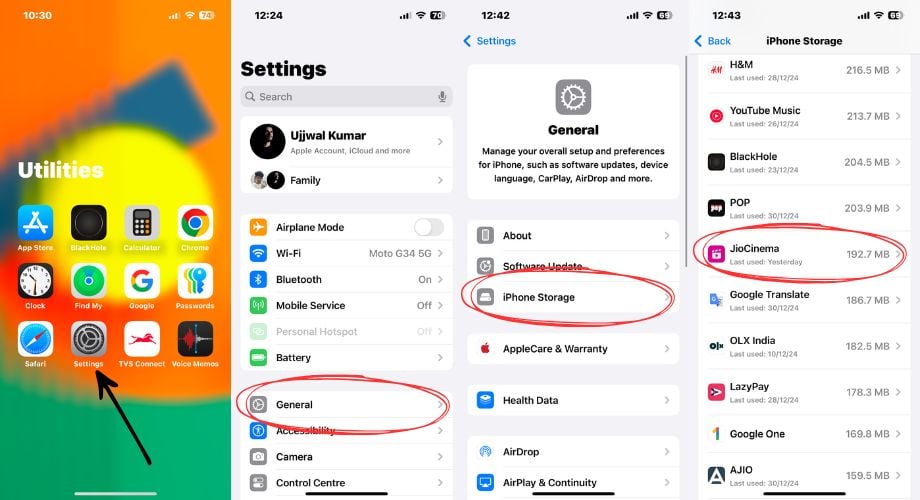
- Now, click on Offload App.
- A small pop-up will appear; tap Offload App again to confirm.
- Once offloaded, tap Reinstall App to download it again.
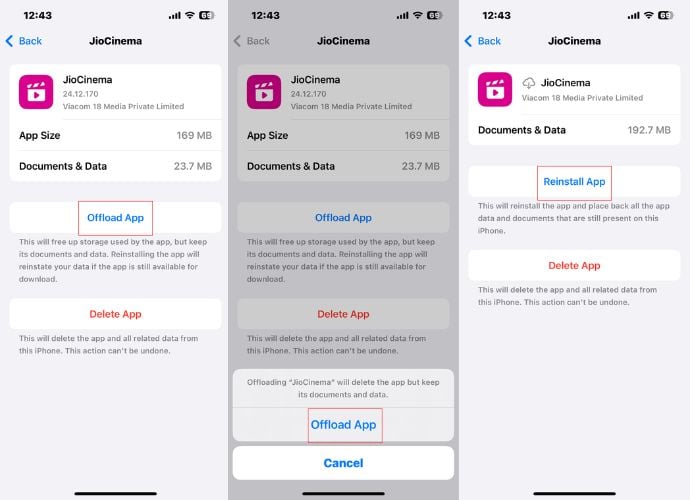
- It may take some time. After reinstalling, open the app and check if everything is working smoothly.
8. Reinstall The Jio Cinema App
Have you tried all the fixes above but still can’t get Jio Cinema working? You should consider deleting the Jio Cinema app and installing it again. There might be an issue within the app itself, causing it not to work, and uninstalling followed by a fresh reinstallation could resolve the problem. Follow the steps below to uninstall and reinstall the app.
- Tap and hold the Jio Cinema app icon until it shows a small popup menu.
- Select the Delete App option from the menu.
- Confirm by tapping Delete.
- Now, Open the App Store on your iPhone.
- Tap the search bar and search for Jio Cinema.
- Once you find the Jio Cinema app in the search results, tap on it.
- Tap the download icon to reinstall the app.

- After installation, open the Jio Cinema app, and hopefully, it’ll work properly.
9. Reset Network Settings
If you’ve identified that the issue lies with your internet connection and the basic internet solution you tried didn’t resolve it, you should go for resetting the network setting. This will completely reset your network settings to default, which will fix any underlying issues with connectivity. Follow these steps to reset your network settings on your iPhone or iPad:
- Open the Settings app.
- Go to General and then scroll down to Transfer or Reset iPhone.

- Tap on Reset and select Reset Network Settings when the pop-up prompts.
- Enter your device passcode if required.
- Tap Reset Network Settings when the confirmation prompts.

- Once the reset is done, try using Jio Cinema again to check if the issue is resolved.
10. Factory Reset Your iPhone
If you have tried all the methods mentioned above and Jio Cinema is still not working, you should consider resetting your device. This will erase all your personal data and make your iPhone as fresh and good as it was on the day you bought it.
- Launch the Settings app on your iPhone.
- Tap on General.
- Scroll down and select Transfer or Reset iPhone.

- Tap on Erase All Content and Settings.
- You will be redirected to another window showing your Apps and Data, Apple ID, and Find My information. Tap Continue to proceed.
- Tap Erase iPhone when prompted for confirmation.
- Enter your passcode, Apple ID password, or both, if required.

- After resetting your iPhone, check if Jio Cinema starts working for you.
Fix Jio Cinema Not Working on Android Phone
It’s time to move on to advanced troubleshooting steps for Android smartphones. These solutions help to address deeper issues that might be causing problems with Jio Cinema not working on your Android phone. Follow these steps carefully, and you’ll be back to enjoying your favorite shows, movies, and live matches on Jio Cinema in no time.
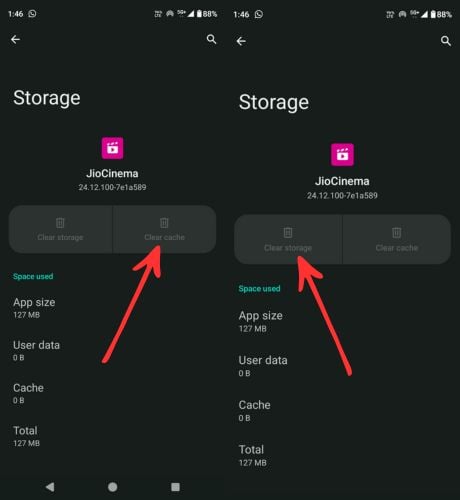
1. Clear Jio Cinema App cache
Over time, apps like Jio Cinema save temporary files, which leads to the app becoming outdated. These files may interfere with the app’s functionality, causing issues like crashes or poor performance. Clearing the cache refreshes the app, resolving many common glitches, including Jio Cinema not working. To do so, follow the below steps.
- Open the Settings on your phone.
- Scroll down until you find Apps, and click on it.
- Look for Jio Cinema in the list of installed apps and tap on it.
- Go to the Storage & Cache section.

- First, click on Clear Cache to remove temporary files.
- Then, click on Clear Storage to delete all app data.
2. Update the Jio Cinema App
If you’re experiencing issues with the Jio Cinema app on your phone, one of the first steps you should take is to ensure that the app is updated to the latest version. Updating the app can often fix bugs and improve performance. Here’s a simple guide to help you update the Jio Cinema app on your Android device.
- Open the Google Play Store app.
- Tap on your profile in the upper right corner of your screen.
- Tap Manage apps & device.

- Now under the Overview section, you can see Updates available. Click on See details.
- Finally, hit the Update button next to the Jio Cinema app.

3. Restart Your Device
If you’re still experiencing issues with the Jio Cinema app, you need to do a simple restart. Restarting your device will clear glitches, refresh the system, and fix any such basic app-related issues. So, check the below steps to restart your device.
- Press and hold the power button until the power menu appears on the screen.
- After that, click the Restart or Reboot button and wait until your device restarts.
- After that, check if the Jio Cinema app is not working on your device or not.
4. Check for Jio Cinema Permissions
Have you ever wondered why Jio Cinema isn’t working as it should despite having a stable internet connection and the latest app version? The culprit might be the lack of app permissions. Permissions are like a backstage pass that lets the app access essential resources on your device, such as storage, location, or even the internet itself. Check and provide the app permissions for Jio Cinema on Android.
- Open Settings on your device.
- Scroll down and go to Apps.
- Choose Jio Cinema from the list of installed apps.
- Tap on Permissions.
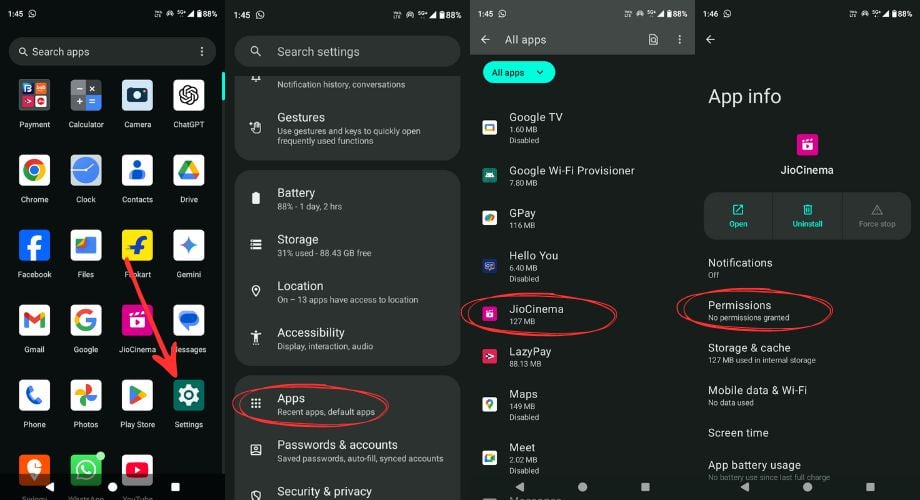
- Ensure critical permissions like Storage, Internet, and Media Files are enabled.
- If any of these permissions are not enabled, then click on it and finally choose Allow.
5. Uninstall and Reinstall the Jio Cinema App on Android Device
When you reinstall, you get a fresh version of the app with all necessary updates and default configurations, ensuring compatibility with your device. This process can resolve glitches, crashes, or loading problems and improve the app’s performance. Follow the below steps to reinstall Jio Cinema.
- Find the Jio Cinema app and Touch and hold the icon until it prompts a small pop-up.
- Click on the tiny App info (i) button.
- After that, hit Uninstall and then click OK when the confirmation prompts.

- Once the Jio Cinema app is uninstalled, Open the Play Store and search for Jio Cinema.
- Tap on Install and wait for the installation to complete.

- Once installed, open the Jio Cinema app.
- Log in with your account details and check if Jio Cinema is now working properly.
6. Factory Reset Your Device
If Jio Cinema is still not working on your Android smartphone even after following all the troubleshooting steps, it might be time to factory reset your device. This process will completely erase your smartphone, including all personal data, downloaded applications, and any custom settings, essentially restoring it to its original, new-like state. After resetting, set up your device again and download the Jio Cinema app. It should start working properly. To reset your device, follow the steps below.
- Open the Settings app on your device.
- Scroll down and tap on System or About Phone (this may vary depending on your device).
- After that, choose Reset options.

- Next, click on Erase all data (factory reset).
- Finally, hit Erase all data, and it will reset your smartphone.

- Wait for a while and start setting your phone when the factory reset is done.
- Lastly, install the Jio Cinema app and check if it is working.
Fix Jio Cinema Not working on PC
If Jio Cinema not working on your PC Weather, whether it is a Windows or a macOS computer, and if you have tried all the basic troubleshooting steps yet Jio Cinema is not working, then try these steps to fix the issue.
1. Switch Tabs to Fix Jio Cinema Not Working on PC
If you are using Jio Cinema in your browser and it suddenly stops working or starts buffering, then try refreshing the page twice or thrice. It may start working like normal. Refreshing the page forces the browser to reload the web page, clearing temporary glitches or incomplete loads that might cause buffering or irresponsive. Sometimes, the connection between the browser and the server may drop, thus the elements of the page may fail to load correctly.
If only this doesn’t work either then quickly switch to another tab. This trick often resolves the issue. It has worked for me, so there’s a good chance it will work for you as well. Opening Jio Cinema in a new tab allows the browser to reload the page from scratch, bypassing any glitches in the original tab.
2. Use a Compatible Browser
Ensure your browser is compatible with Jio Cinema to prevent playback or loading issues. If your browser is not compatible, then switching to a different browser can fix Jio Cinema not working. Switching to a different browser allows Jio Cinema to load properly. Additionally, the new browser may have better support for Jio Cinema’s features, resolving any technical glitches you faced earlier.
You can switch to browsers like Google Chrome, Microsoft Edge, DuckDuckGo, and Opera, or, if you’re a Mac user, you can switch to Safari and continue enjoying Jio Cinema seamlessly.
3. Clear Browser Cache and Cookies
Not clearing your browser’s cache and cookies for so long can lead to several issues, such as content not loading properly, playback errors, or audio-video sync problems. So, clearing the Cache and cookies can eventually resolve the issue. I have outlined how to clear cache and cookies in the Chrome browser. If you’re a Mac user, I have also explained how to clear cache and cookies in Safari. Follow the below steps to do so.
Steps to Clear Cache and Cookies on Google Chrome
- Open Google Chrome.
- Click on the three dots at the top right corner.
- After that choose Settings, alternatively, you can also press the command + comma keys simultaneously to open Chrome Settings.
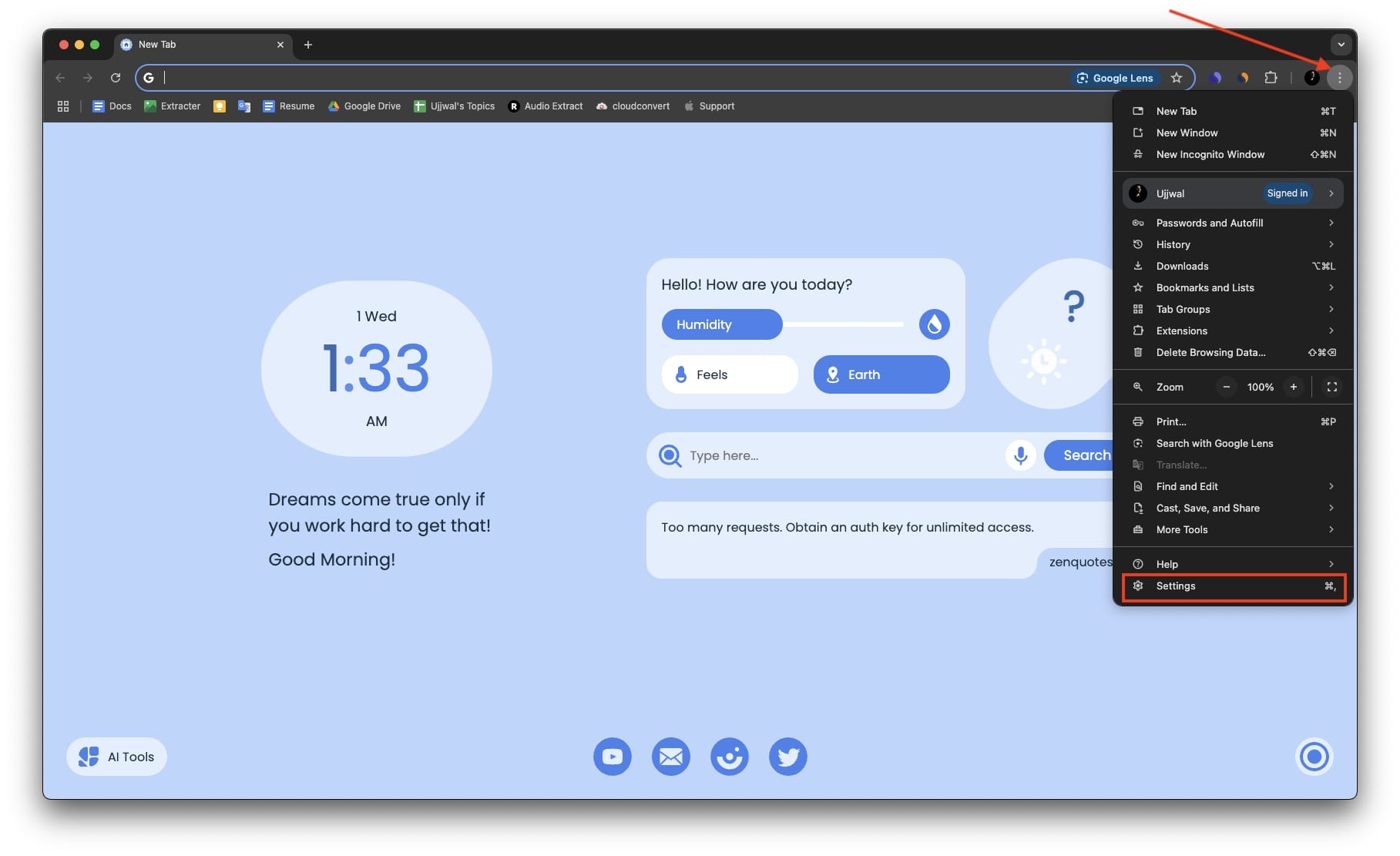
- Choose Privacy & security in the left side pane.
- After that, click Delete browsing data.
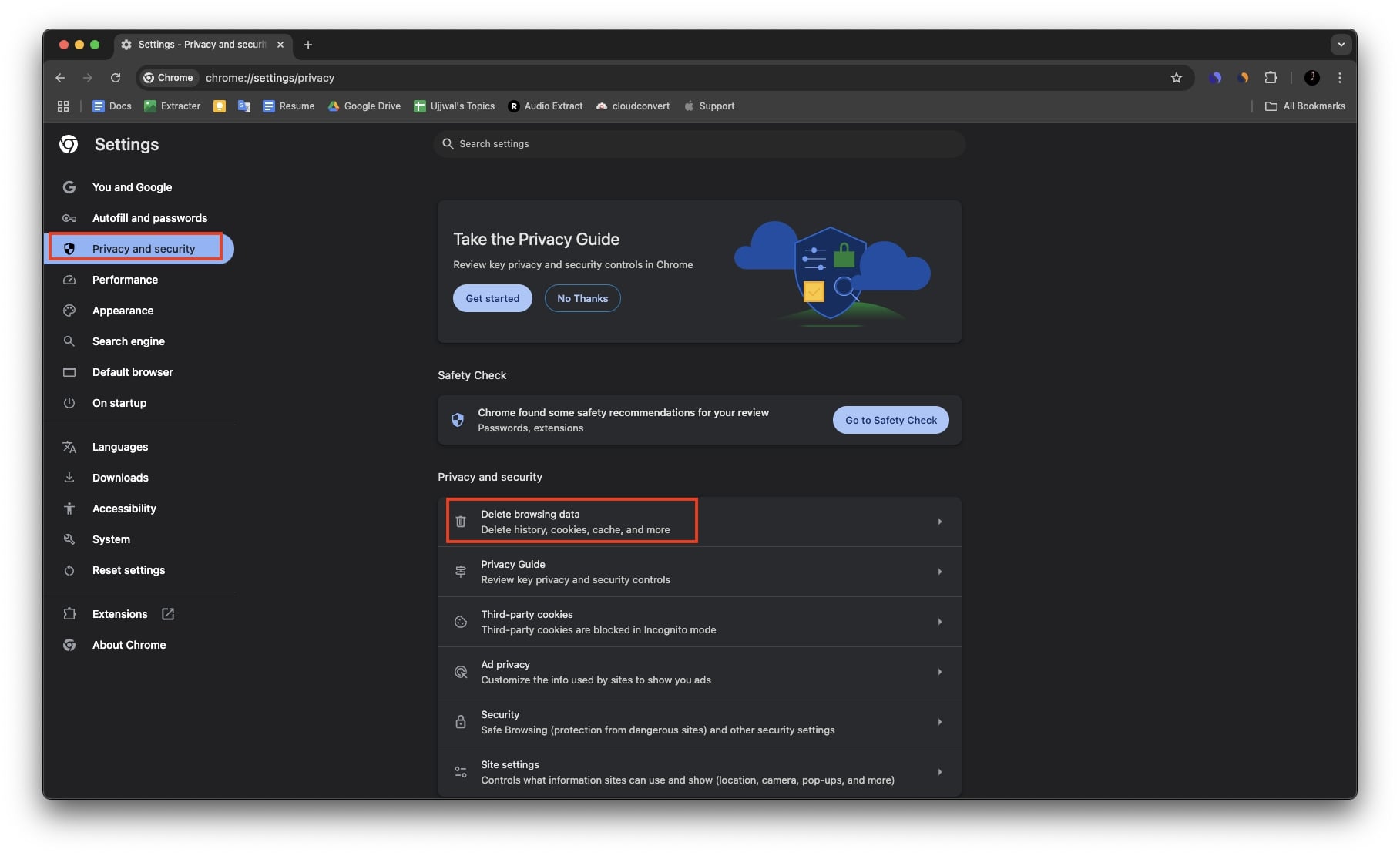
- Here, I recommend switching to Advanced and choosing All time range
- Finally, click Delete data and then follow the on-screen instructions to delete your browsing history.

Steps to Clear Cache and Cookies on Safari (macOS)
- Open Safari on your MacOS device.
- Click Safari in the menu bar and then choose Settings.
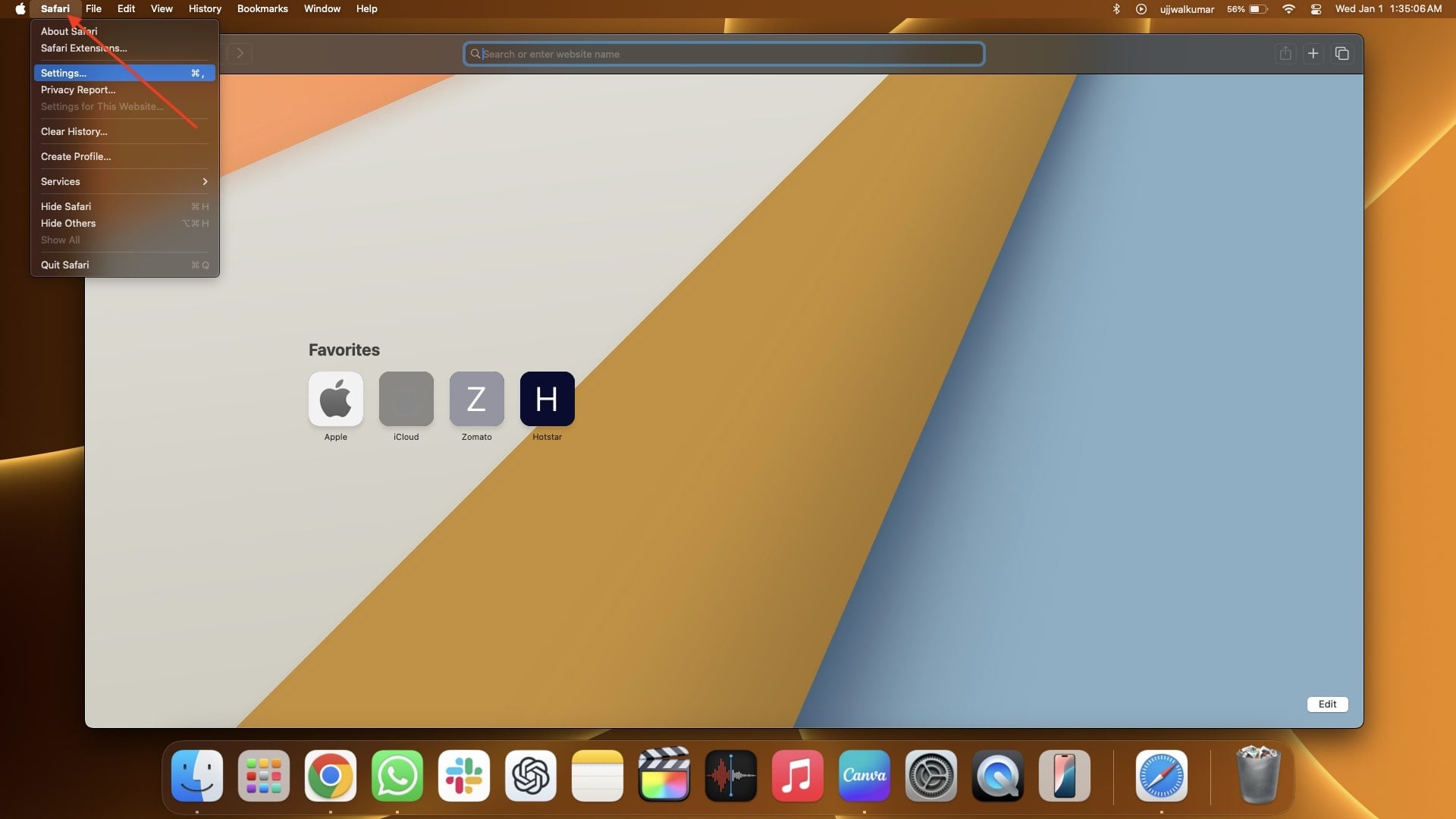
- After that, go to the Privacy tab and then click Manage Website Data, then right to Website Data.

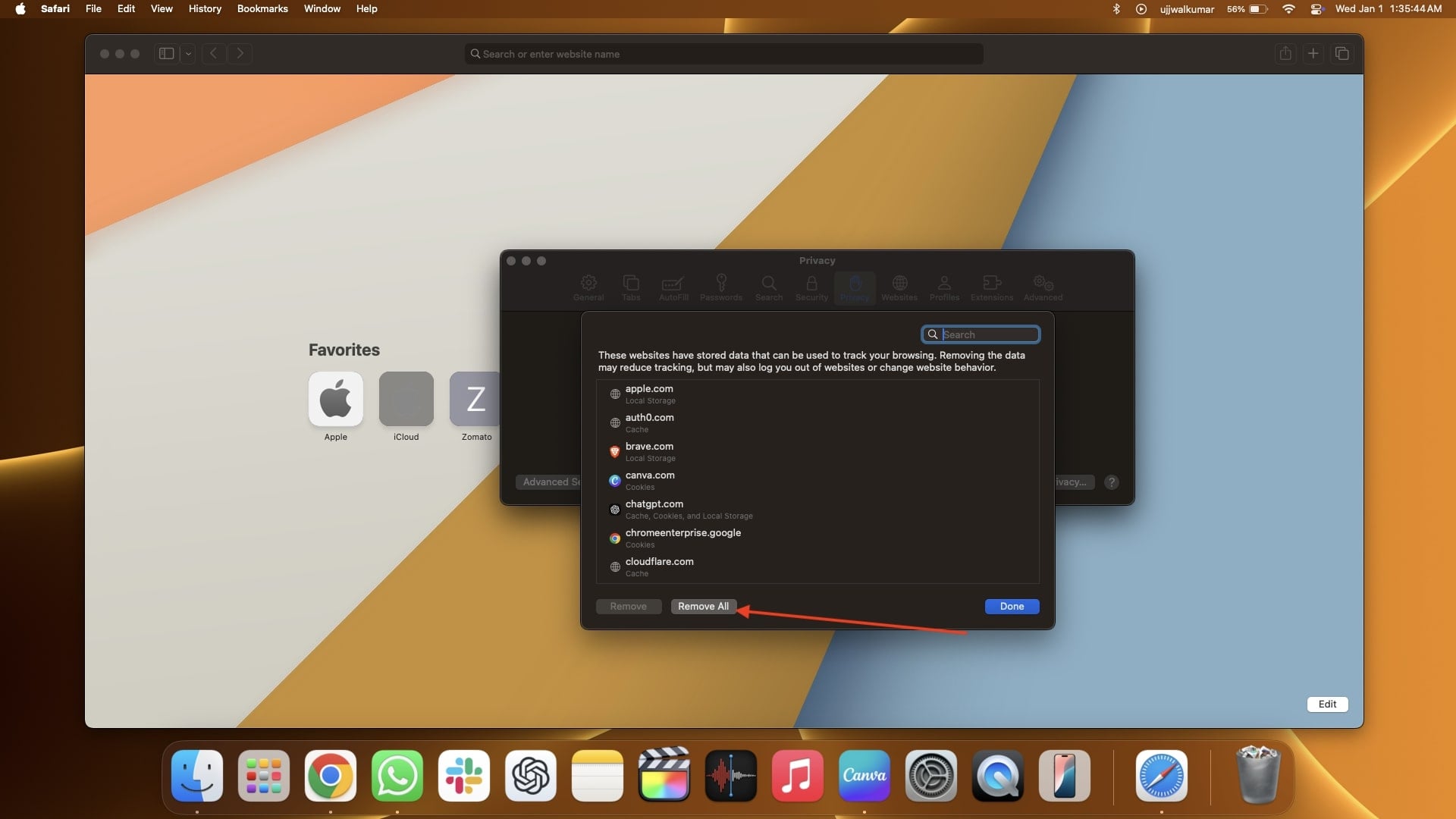
- As soon as you click on Manage Website Data, you will be prompted by the browsing history you have searched before in Safari.
- Click Remove All. You can also select Jio Cinema from the browsing history and then click on Remove.
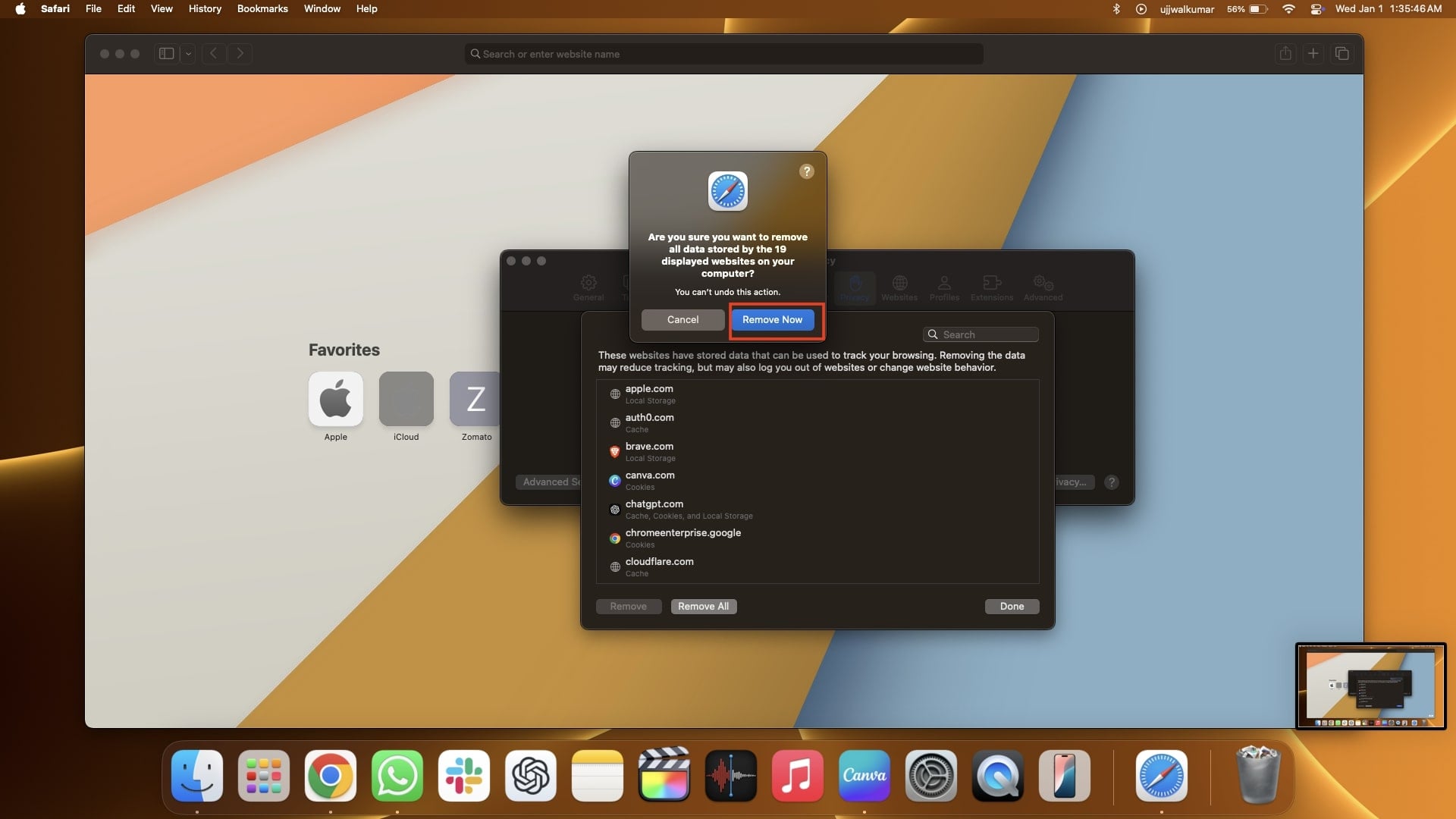
- Finally, hit Remove Now if the confirmation prompt and the browsing history will be cleared.
Contact the Jio Cinema Support Team
Are you still facing an issue? It’s unfortunate to hear that I have covered all the probable fixes that could help resolve this problem, but if you are still experiencing the same issue, your only option now is to contact the Jio Cinema support team directly.
To reach them, you can email support@jiocinema.com using your registered email ID. The support team will get back to you as soon as possible. Alternatively, you can also report the issue by just feeling Jio Cinema’s help center form. After clicking on this link, you will be redirected to the Report an Issue page on that page. You have to enter your email ID or phone number, after that, you need to describe the issue that you’re facing with Jio Cinema and maybe some more details if asked. You also have to attach a file or a screenshot relevant to the issue to show your problem to the team. Then, submit the report. The Jio Cinema team will respond to you promptly.
While sending an email to the Jio Cinema support team, ensure you briefly describe the problem and attach proof, such as screenshots or video recordings, to help them understand what the actual problem is, and then they will resolve the issue faster.
Conclusion
I hope the methods shared in this article helped you fix the issue and that you’re now able to enjoy your favorite content, movies, or sports on Jio Cinema without any interruptions. We’ve very smartly outlined the potential fixes for all devices to ensure that no matter which device you’re using — whether you’re trying to use Jio Cinema through a browser or the app — you can resolve the Jio Cinema not working issue.
To make things even easier for you, we’ve started with basic troubleshooting steps to ensure that the problem isn’t due to simple mistakes. Once you ensure that the issue isn’t caused by missing any basic checklist, then you can move on to advanced troubleshooting steps tailored for iPhone, iPad, Android, or any computer. Following these steps will help you get Jio Cinema working smoothly again.
FAQs about Jio Cinema Errors
Is there a way to check if the Jio Cinema app issue is device-specific or widespread among iPhone users?
You can visit online forums, community discussions, or X trending page to see if other users are reporting similar Jio Cinema app problems.
How often do developers release updates?
Updates are typically released monthly or as needed to address bugs and improve the platform. You can check the App Store or Play Store update section for more details.
Is it possible to use Jio Cinema without a Jio number?
Yes, you can use Jio Cinema without a Jio number by logging in with any non-Jio mobile number.
Why am I getting a 'Device Limit Exceeded' error on Jio Cinema? How can I resolve this?
You’re getting the 'Device Limit Exceeded' error because Jio Cinema restricts the number of devices linked to an account. To resolve this, log out from other devices or contact Jio Cinema support to reset the device limit.
How can I enable subtitles or change the language settings in JioCinema?
To enable subtitles or change the language settings in JioCinema, play the content, tap on the screen, click the settings or language icon, and choose your preferred subtitle or audio language option.

