

Quick Answer
I built a simple resume system by creating clean, ATS-friendly LaTeX resumes in Overleaf, using AI to customize skills and keywords for each job, and organizing every version in Notion. It cut hours of manual edits and made tailoring resumes for each role fast and repeatable.
If you are a graduate applying for jobs or a professional looking to switch careers, you know how important a resume can be. Despite an increase in AI adoption, interviews for many companies are still expensive and time-consuming.
It’s impossible for many companies to interview everyone who applies for jobs. Many companies use resumes to filter out people and shortlist relevant candidates.
Since resumes are the deciding factor of whether you get the interview for the job or not, it is very important to create a high-quality resume and optimize it for every job that you apply to.
However, the biggest downside is that customizing a resume for every job is painful, especially when you are applying for many jobs and feeling stuck.
When I started applying for jobs back in 2023, I spent hours customizing resumes; however, for the past six months, instead of manually editing and making multiple resumes, I created an easy system with which you can easily create, edit, and customize your resume for every job without much effort.
So in this guide, I will guide you through this entire process and help you create high-quality resumes easily and personalize them.
This process involves three main sections. First, creating high-quality resumes using free tools like OverLeaf, next, using AI tools to edit and customize them for every job, and lastly, providing an easy way to store and access them.
Table of Contents
How to Create, Edit, and Store Multiple Resumes Using the Right Tools
Create High Quality Resumes
Your resume is the first thing your recruiter sees about you, and it should be high-quality to get a good impression.
While there is no single best design framework that works, there are a few parameters that you need to consider to create high-quality resumes.
These include relevance to the job, easy to read, consistent formatting, and using keywords naturally.
Most resumes today go through ATS before reaching a human recruiter, and most importantly, they are the right length and have accurate content.
There are plenty of different ways you can design your resume, and there is no single best option that works for everyone.
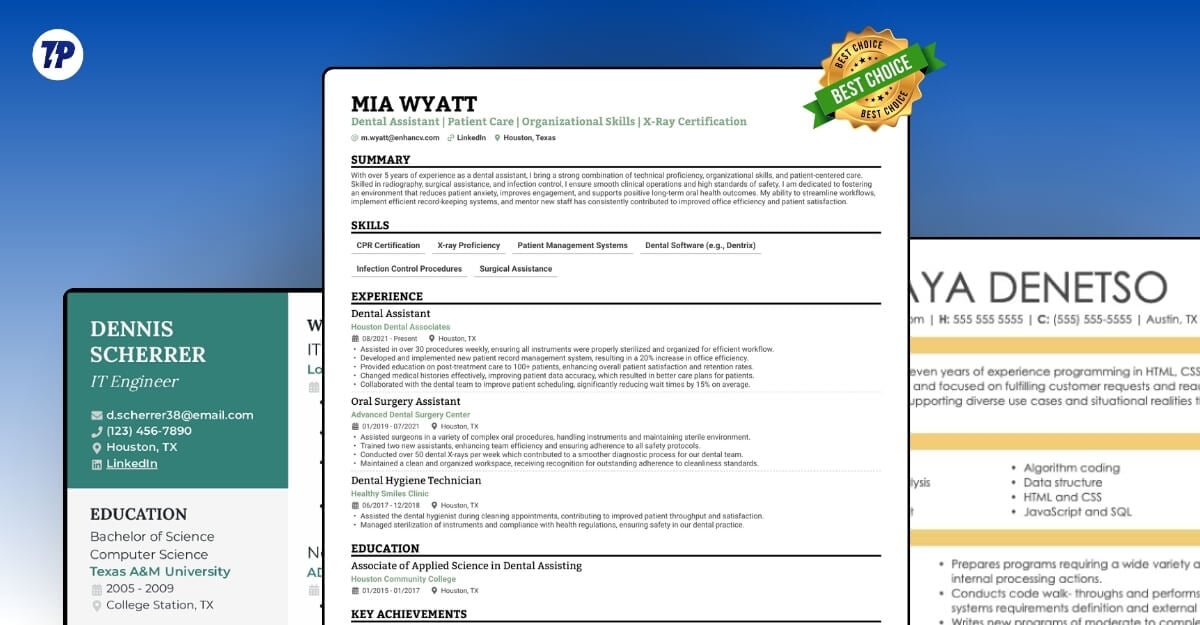
Here are a few templates that are most popular and many high-quality professionals use for their resumes, which you can use for inspiration.
Download Free LaTeX Resume Templates:
- Software Engineer Resume (Fresher) – Download
- Software Engineer Resume (Professional) – Download
- Data Analyst Resume – Download
- UI/UX Designer Resume – Download
- DevOps / Cloud Engineer Resume – Download
- Business Analyst Resume – Download
- Content Writer – Download
- Digital Marketing – Download
One of the biggest reasons why many people prefer this resume format is that it is clean without any distracting elements and also easy to read with clear titles, bullet points and works well with ATS resume screening software.
And since these formats are so popular, they can also increase chances of being shortlisted and accepted across companies and industries.
How to create your own resume
To create highly professional resumes like these, I use Overleaf, a popular tool that uses LaTeX to create high-quality, professional-looking templates, and most importantly, you don’t need to worry about formatting issues, since, unlike Google Docs, LaTeX uses a different content structure.
Because of this, the layout never breaks, and it also comes with easy version control and storage options, even for free users, which helps you keep track of changes you made and store them in the cloud and download them whenever you need them.
However, the biggest downside of using Overleaf is the learning curve. If you have never used LaTeX before, you might find it confusing. However, you can use any LLM to help you guide and generate a resume for you.
Or you can also use the templates that I have shared above and customize them easily. However, you still need to learn the LaTeX basics.
You can watch this video below for a step-by-step reference.
Once you are familiar with LaTeX, here is the exact process I use to create high-quality resumes.
How to create high-quality resumes in OverLeaf
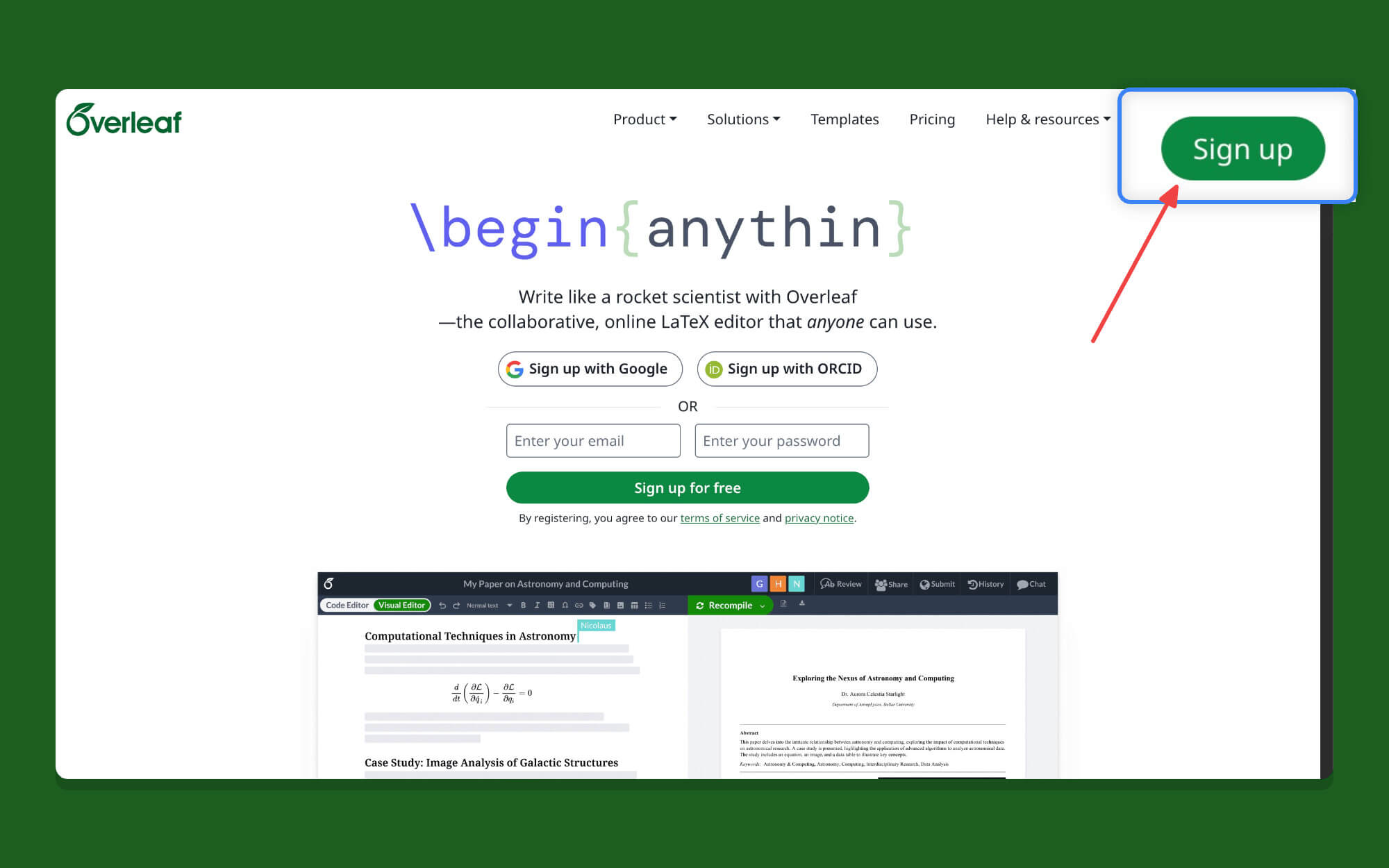
Step 1: Create an account on Overleaf. You can also sign in with Google to create an account easily.
Step 2: Open the project, and you will be redirected to the project’s dashboard. The free version allows you to create and store up to three resumes for free.

Step 3: Click on the new project button in the sidebar, tap on the blank template, enter the project name, and click on create.

Step 4: That’s it, now you will be redirected to the resume editor page. If you are familiar with LaTeX, use the default code editor (I highly recommend it), or you can switch to the visual editor.
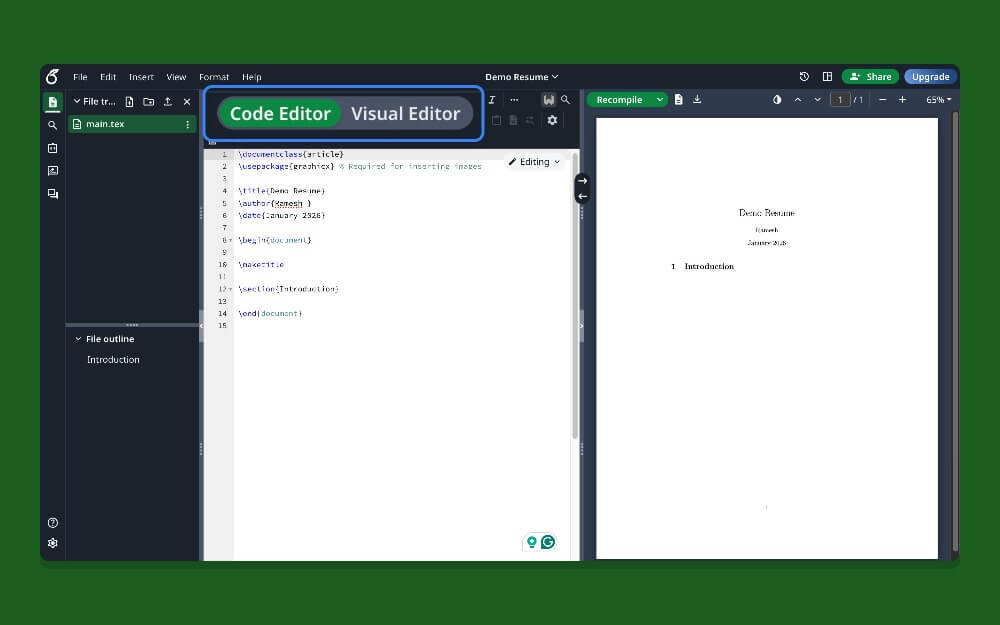
Step 5: Now, copy the template and paste it into the editor. Once done, click on the recompile option.
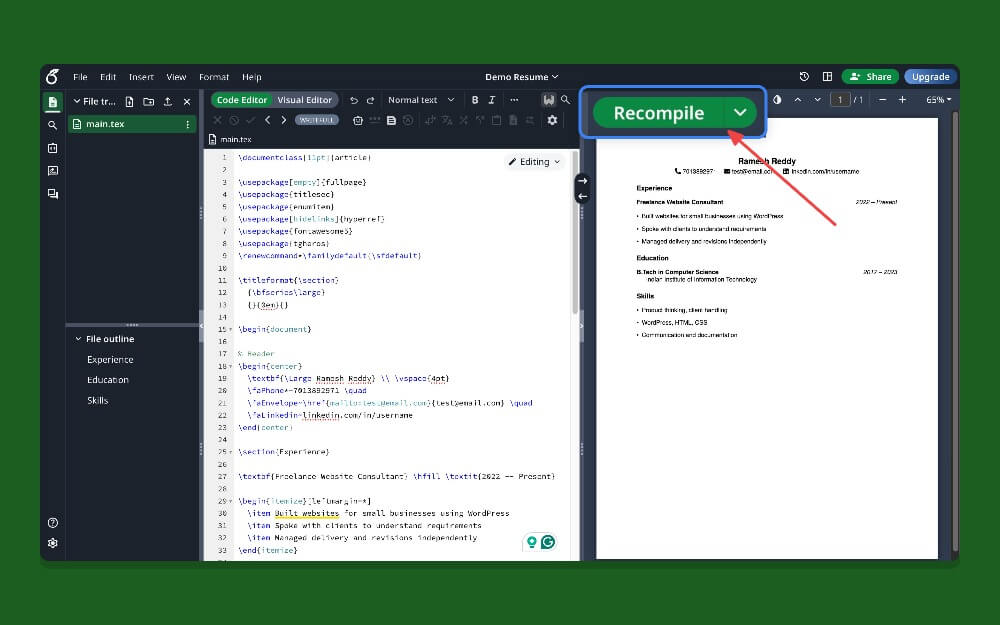
Step 6: Your resume is now compiled. To edit, you can edit the LaTeX text code directly or add a new section or new types, and also use the visual editor.
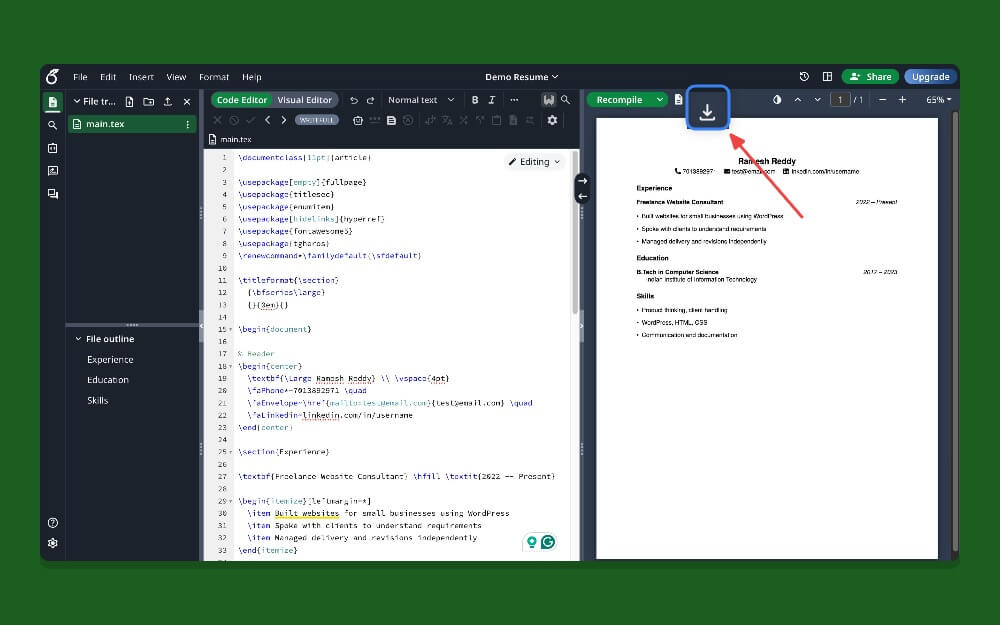
Step 7: Once your resume is downloaded, click on the Download icon next to recompile.
How to use AI to edit LaTeX Templates
If you still find this process complex, here is an easy way to create and customize a resume.
Open ChatGPT and paste the code, or you can ask it to generate a new resume with your own sections. The best part is that you can use natural language to communicate and create high-quality resume templates. For example: Create a resume for a fresher with education, skills, and projects sections in LaTeX.
Step 1: Open ChatGPT and paste the LaTeX code. You can ask ChatGPT to create a template from scratch. Use the exact prompt below to create a proper structure:
Recreate a LaTeX resume template similar to Ramesh Reddy’s resume.
Design details:
– One-page
– Light grey section divider lines
– Tight spacing
– Bold section headings
– Tabular layout for role and dates
– Itemized bullets with small text
– Clean sans-serif font
Content placeholders:
– NAME HERE
– ROLE TITLE
– COMPANY / PROJECT NAME
– DATE RANGE
– LOCATION
– BULLET POINTS
Rules:
– No AI-style wording
– Simple, human language
– ATS-friendly
– No tables except for alignment
– Full LaTeX code only
Step 2: Next, to make any edits, you can simply ask ChatGPT to make any edits. For example, if you want to move the experience section about education or add a new project or skill, you can simply ask ChatGPT to add your requirement and give you an updated code.
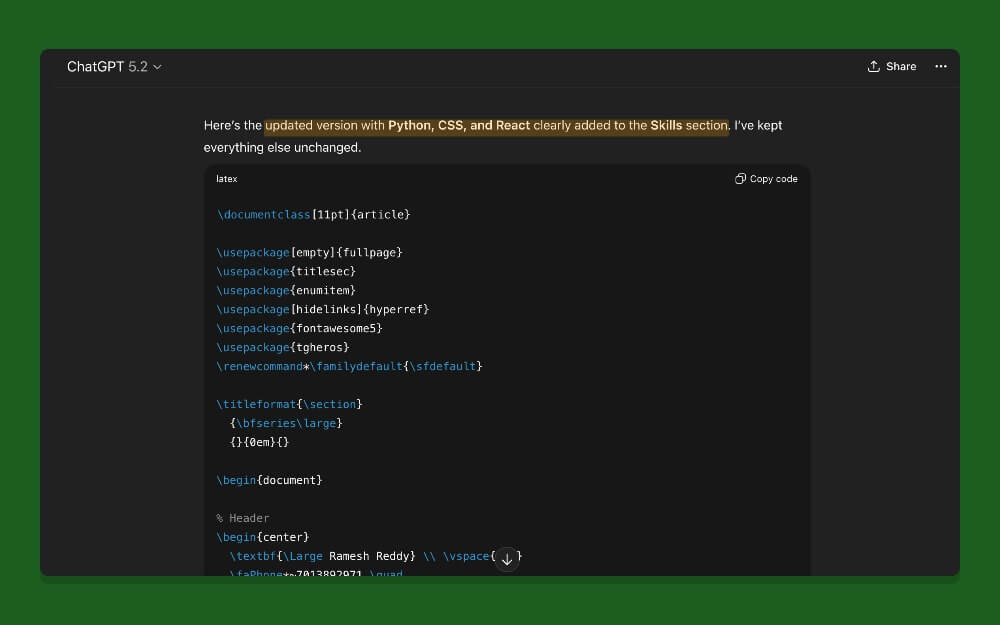
Step 3: Once done, copy the LaTeX code and paste it into the editor and click on compile. That’s it, your updated resume will be created in seconds.
Step 4: Download resume
Click on the download icon in the top right corner of the screen and then save it as a PDF. Later, you can use any free Online file converter tools to convert into other formats. You can use these templates to get started:
Customize Your Resume
You can update your resume without any limits using LaTeX. You can navigate each column and update using the code or the visual builder; however, you can use ChatGPT to make any changes you require, just using simple natural language.
How to personalize your resume for different jobs
Before showing you the process, personalizing your resume for a specific job or for a specific role means understanding the role clearly and explaining how you can be a better fit for the role.
Since we are using AI, it is easier to add fake content than ever before, based on the job’s requirements, which may cause trouble.
Follow my exact process to personalize resumes
Step 1: Open the JD and copy the entire JD, and paste it into ChatGPT.
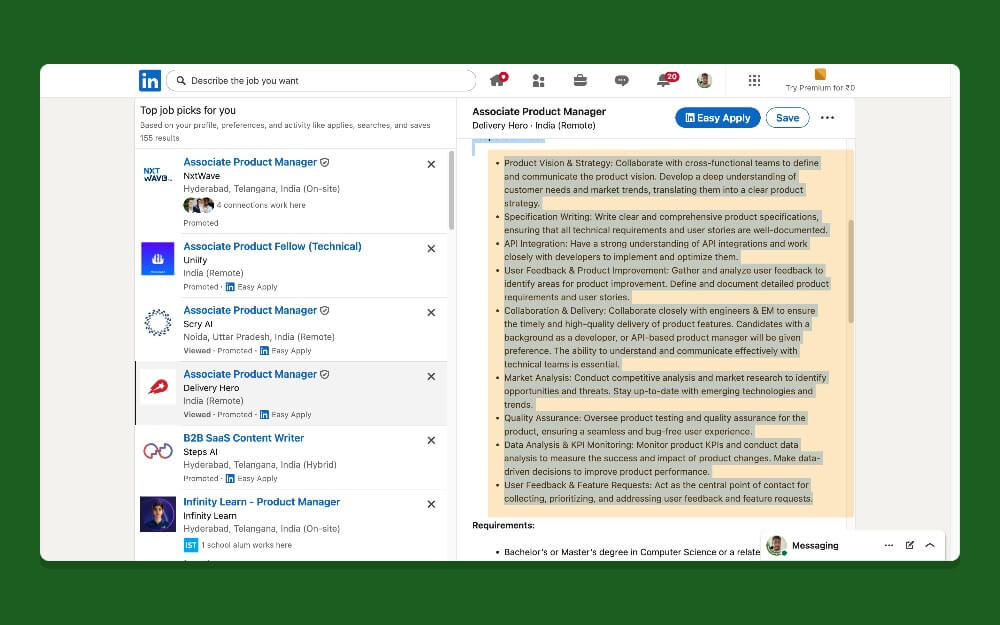
Step 2: Now, add your resume or paste the latest version of your resume and enter this prompt.
Act as a senior hiring manager who explains things in very simple words.
I will give you:
1. A job description
2. My resume
Your goal is to find the exact gap between the job and my resume.
Important rules:
– Do NOT rewrite my resume.
– Do NOT assume I have skills that are not written.
– Use only what is clearly mentioned in the resume.
– Do NOT use complex words, hiring jargon, or corporate language.
– Explain everything as if talking to a normal person or beginner.
– Be honest, but supportive and clear.
How to respond:
1. What I already match well
– Explain what parts of my resume clearly fit the job.
– Use short sentences.
– Explain *why* they match.
2. What I partially match
– Explain what I seem to have experience in,
but did not explain clearly or deeply enough.
– Mention what is missing in simple terms.
3. What is clearly missing
– List what the job wants but my resume does not show at all.
– Explain each missing item in one simple line.
– Avoid technical terms unless necessary.
4. Why my resume feels different from this job
– Explain how my background looks compared to what the company is expecting.
– Talk about titles, focus area, and type of work in plain language.
5. Top reasons I may not get shortlisted
– List the top 3–5 reasons.
– These should be the biggest blockers.
6. Simple final explanation
– In 5–6 short lines, explain in plain English:
“Why my resume may not be selected for this job.”
– No blame.
– No harsh words.
– Just facts, explained simply.
Tone:
– Friendly
– Clear
– Honest
– No fluff
Step 3: Now, it will generate a summary of the resume gap and resume score for the role you are applying for.

Step 4: The output also generates a detailed skills list with examples and relevant skills required for the job.
Step 5: Now, add the relevant experience to your resume manually, or you can use ChatGPT to add skills. Now, enter the skill and type add this skill and it will ask you a detailed question. Ensure you are honest while answering this question.
Step 6: You can do this until you add all relevant skills and check the resume scores again. Having a resume for 80% is a decent start; however, if you still want to increase the chance, you can use the prompt below to get relevant experience and upgrade your skills.
And again, you can use ChatGPT to get a detailed guide on how to upgrade your skills that match the job description.
It will ask you detailed questions about the time you have left before applying for this job, whether you are a beginner or have experience, the time you can spend, the best sources, and all to get started.
Step 7: Once you have the relevant experience, you can update your resume with your new skills and experience to increase your resume score.
Store, track, and reuse resumes
While creating and customizing résumés for every job can be easy if you use the right process, storing them, accessing them, and applying for jobs is the hardest part.
Previously, I used Google Drive to store and access resumes; however, over time, it has become increasingly complex, so I switched to Notion for easy management.
Along with the free cloud storage, with Notion, you can easily organize resumes with tags, find them using advanced filters, add status to track easily, use resume upload history, and much more. Here are the free Notion templates that I created to manage your resume for free. Here is the step-by-step process of how to use it.
And also most importantly, Notion is available on all major platforms, and you are not just tired of Google Drive.
Step 1: If you are a first-time user, create a free Notion account by visiting the account creation page. You can use sign in with Google
Step 2: Once you have created your account, open the template link
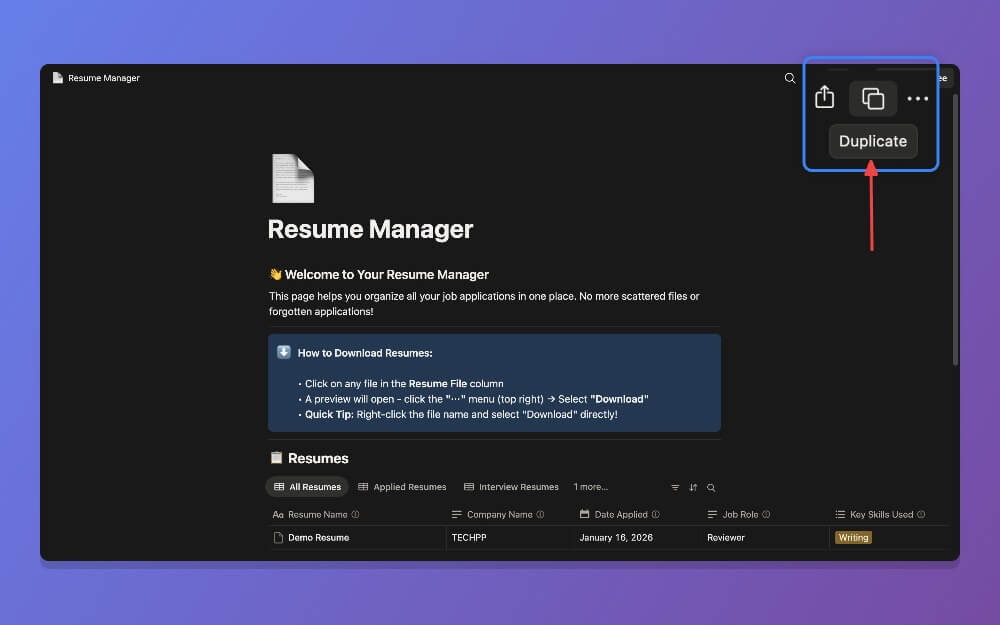
Step 3: Click on the duplicate icon, select the workspace, and add it to your Notion workspace you created.
Step 4: Open the page and click on the plus sign, and add your resume. First, give it a name, next, enter the company name that you are applying for, add date, job roles and skills, add notes, and next, add your resume file. You can click on the choose file and from here select the PDF files that you created with your resume. Finally, enter the status of the application to track its status.
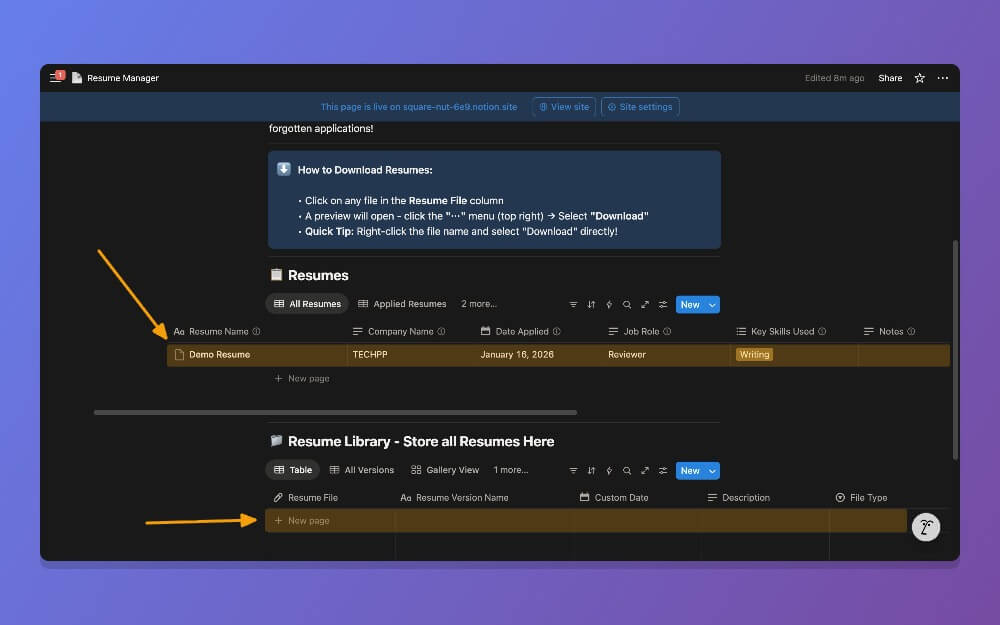
Step 5: You can add multiple resumes; however, to make it easy for you, there is also an easy way to manage all your resumes. You can keep track of all resumes with an easy-to-manage version history.
Step 6: To download the resume, go to the resume library section and tap on the resume file. If you’re on a desktop, I will redirect to the preview. You can click on the download icon to save it locally on your device. On mobile, you can directly download the files and upload them to any job form.

After following all these three methods, you will be able to create high-quality resumes, customize them, store and access them easily for your next job applications. I hope you find this guide helpful. If you have any suggestions, you can comment below.
FAQs on how to create high-quality resumes
1. Can ChatGPT safely edit long LaTeX resumes, or should the file be split into sections before pasting?
In my usage, it worked without any issues. However, if you are using a free version or a long resume format, you need to split it into two parts. However, for most people, having one to two pages or a resume, you won’t find much of a difference.
2. Are there any free ATS-checking tools that work well with PDF resumes created in LaTeX?
Yes, there are plenty of free tools that help you get a resume score for free. You can upload the resume created to ATS software and get resume feedback; however, in my experience, ChatGPT is the best option you can use. Not only does it improve the resume score, but it also provides feedback on what needs to be improved.
3. Which tools are best for converting LaTeX PDF resumes into DOCX without losing alignment?
You can use any PDF to document converter tools to convert PDF into a document, and you don’t need to worry about layout, since in most cases, the PDF converts into a document without layout issues.
4. Which tool lets me quickly change only keywords and bullet points for each job without redesigning the entire resume?
You can use Overleaf for all resume edits, even to change specific keywords and bullet points. You can simply find the text and replace it with new text. Or once you convert your PDF into a document, you can easily edit the text without dealing with complex LaTeX edits.
5. Is there any tool that can test my resume against multiple job descriptions automatically?
Yes, you can use chat and upload multiple job descriptions and ask for a proper description nd a gap analysis. You can use the template that I shared above.

