

Quick Answer
If Instagram Stories aren’t showing up on your feed, start with checking your Internet connection and status of Instagram servers. You can also try force stopping the app, clearing its cache, updating the app, signing out and signing back in. This should help you fix the issue for sure.
Instagram Stories have become an integral part of the platform. They appear at the top of the Home Feed and are easily accessible. Stories are only valid for 24 hours and are great for getting real-time updates from friends, celebrities, brands, or other accounts you follow.

However, it sometimes happens that Instagram Stories don’t work as expected. This can be due to various reasons, such as a poor internet connection, outdated apps, bugs, and more. Fortunately, most of these issues can be easily fixed with simple troubleshooting steps.
In this guide, we’ll show you ten different ways to fix the issue of Instagram Stories not showing up in the app and get it working again.
Table of Contents
How to Fix Instagram Stories Not Showing on Feed
Fix#1: Follow the Accounts
As ridiculous as it might sound, please first make sure you’re following people to get Stories on Instagram. Stories show up as little circles at the top of your app. If you don’t follow anyone or the accounts you follow, you won’t be able to post Stories; you won’t see those Stories on Instagram. Also, users on Instagram can hide and share Stories with a select group of people, called the “Close Friends” feature, as well as an option to hide Stories from specific users. Currently, there is no feature that lets you see who has hidden their Stories from you.

This means that even if the account posts a Story, the people you’ve hidden it from won’t be able to see it. To see who has added you as a close friend on Instagram: If you’re browsing through Stories and see a green circle around someone’s profile picture instead of the usual pink circle, it means that person has shared a Story with their “Close Friends” list, and you’re in.
Fix#2: Check Muted Accounts
Instagram automatically hides posts and Stories from muted accounts. If you’re not getting Stories from a particular account, check to see if you accidentally muted it. You can easily unmute it.
How to unmute accounts on Instagram
- This method works for both Android and iPhone.
- Open the Instagram app on your smartphone and make sure you’re using the latest version.
- Go to your profile and click on the menu in the upper right corner of the screen.
- Now click on Settings and Privacy.
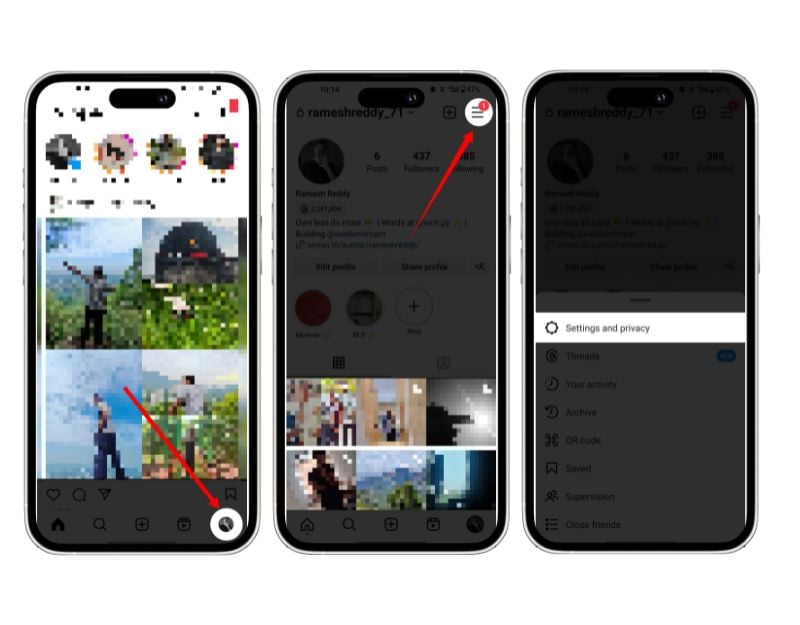
- Scroll down and click on the Muted Accounts tab. Here, you can see the accounts you have muted.
- Click the button next to the account and turn off Mute Stories to unmute it. Instagram allows you to mute posts, stories, and notes independently.

- Alternatively, you can go to the profile of the account you want to unmute, click on the following button, and then click Mute and turn off the individual settings to control muting.
- You can follow the same steps on iPhone and Android.

Fix#3: Check Your Internet Connection
If you have an unstable internet connection, Instagram may have trouble loading Stories. Troubleshoot network issues on your smartphone. Enable Internet access for the Instagram app and turn off the data saver to fix Stories loading issues on your Android or iPhone.
To fix the internet connection on your smartphone, restart your device, turn on airplane mode, reset network settings, and more. Once you have a stable internet connection, check if Instagram has access to mobile data and the data saver is turned off.
How to enable mobile data for Instagram
Android:
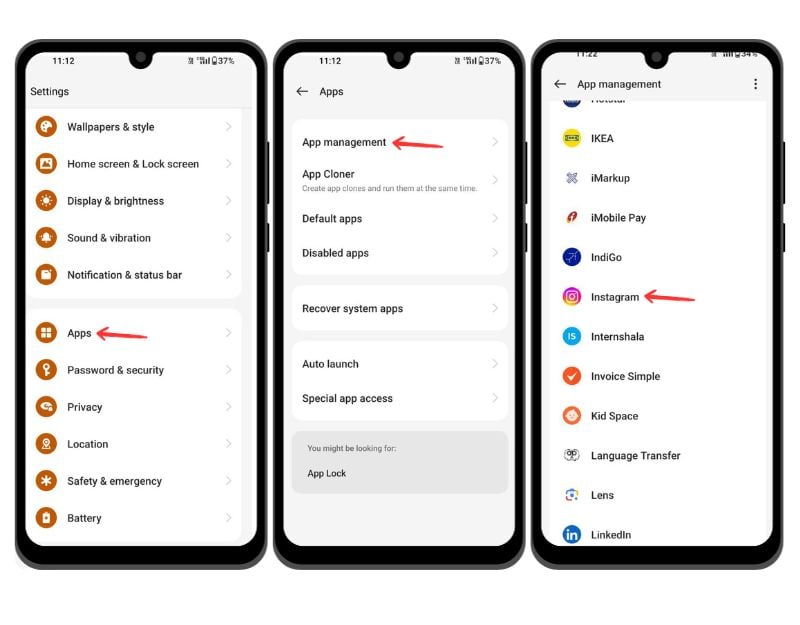
- Go to the settings of your Android smartphone and click on the apps. This may vary depending on your smartphone and the Android version you are using.
- Alternatively, you can long-press on the app and click the info button to get to the app info.
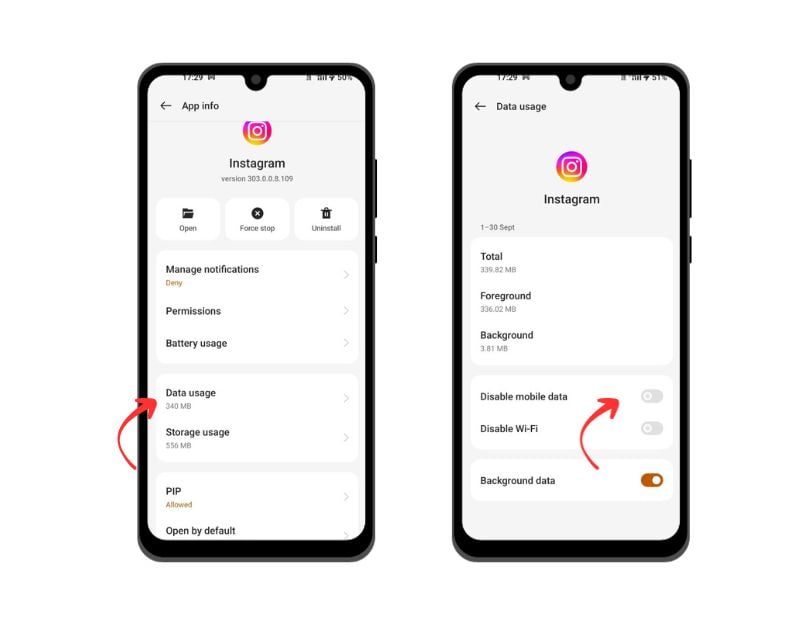
- Click on Data usage and uncheck the mobile data and disable Wi-Fi options. This may vary depending on your smartphone.
iOS:
- Open the Settings on your iPhone
- Scroll down and tap on the Instagram app
- Enable the mobile data toggle in the following menu.
How to turn off data saver on your smartphone
Android:
- Open the settings on your Android smartphone.
- Go to Connections > Data Usage > Data Saver and Toggle off “Turn On Now.”
- If you’re using the Pixel, navigate to Network and Internet > Data saver. Turn off the “Use data saver” option.
iOS:

- Go to the settings of your iPhone and click on Mobile Services
- Tap on Mobile Data options and Data Mode.
- In the Data Mode section, you’ll see several options. To disable data mode, select “Default” or “Allow more data on 5G.”
Fix#4: Check the Status of Instagram Servers
Check the status of the Instagram server. If the server is down, Instagram may not be able to update posts and Stories in the app. As a user, there’s nothing you can do. Since it’s an issue on the server side, the Instagram team should fix it. Once it’s fixed, everything should be back to normal and you’ll be able to see Stories in the app.
You can check the server status of the Instagram app with tools like downdetector or via social networks like Twitter by following Instagram’s official channels. Here you can learn how to check the status of the Instagram server with downdetector.
- Open your browser on your smartphone or PC; this works on any device, and go to the down detector website.
- Search for Instagram or visit https://downdetector.in/status/instagram/

- If you see a text like “User reports problems on Instagram”,” most probably the Instagram app has the problems. To confirm this, you can look at the number of user reports in the graph. You can also read the comments to learn more about the problems users are currently facing.
If there is nothing wrong with the server, the problem is more likely to be on your side. Follow the other troubleshooting techniques below to fix the problem.
Fix#5: Force Stop Instagram App
Force the Instagram app to quit. A temporary glitch could be the cause of the problem with Stories not loading. You can force close and restart the Instagram app to fix the issue. When you force quit the Instagram app, all the running processes will be stopped and the app will be restarted from the beginning. This can help you fix temporary issues and related problems. Here’s how you can force quit the Instagram app on Android and iPhone.
Android
- Go to the settings of your Android smartphone and click on the apps. This may vary depending on your smartphone and Android version.
- Alternatively, you can long-press on the app and click the info button to get to the app info.
- Click on Force Stop and confirm the action.

iOS

- Go to the recent tab on your iPhone and select the Instagram app
- Swipe up the app to force stop on your iPhone.
Fix#6: Update Instagram App
Sometimes the specific version of the app can be the cause of the problems. In this case, the current version of your Instagram app might be outdated or contain bugs that prevent Stories from loading in the Home feed. You can update the Instagram app to the latest version to fix the issue. If you’re using an Android device, you can visit the Google Play store, and if you are using an iPhone, you can visit the Apple App Store to update the Instagram app to the latest version.
Fix#7: Clear the Cache of the Instagram App
The cache is a temporary memory stored by apps like Instagram to make the app load faster. It helps apps like Instagram to retrieve the data faster without having to retrieve the data again from the source and make you wait. This is the most common technique used by apps and websites.
However, over time, the cached data can become stale or corrupted, leading to unexpected errors, such as Instagram Stories not showing up. To fix this, you can clear the app’s cache. When you clear the Instagram app’s cache, the stored temporary data is removed, which causes the app to restart and potentially fix the error. Learn how to clear the Instagram cache on Android and iPhone here.
Android
- Go to the settings of your Android smartphone and click on the apps. This may vary depending on your smartphone and the version of Android you are using.
- Alternatively, you can long press on the app and click on the info button to get to the app info.
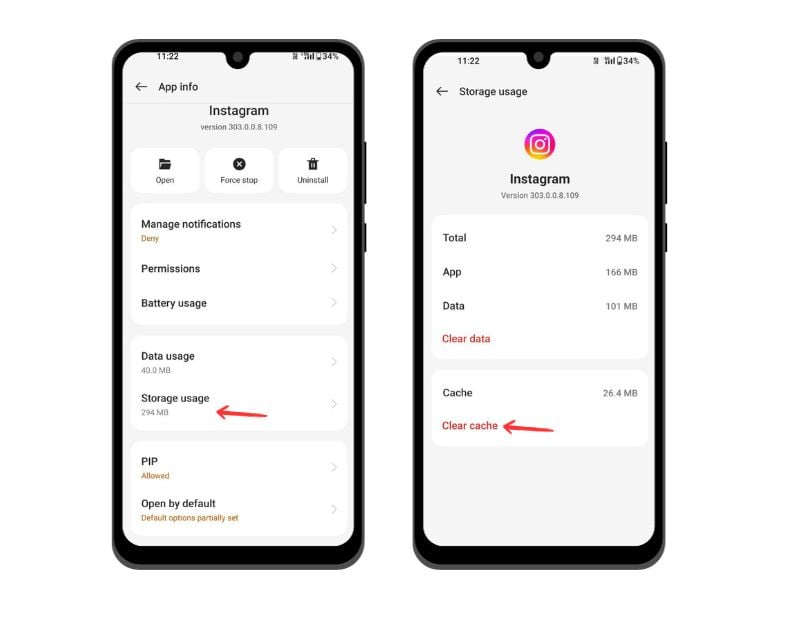
- Here, scroll down and click on the Storage info.
- Find Clear Cache and click on it. Confirm the action and click on Clear Cache again.
iOS

- Open your iPhone, go to Settings and click on General
- Select iPhone Storage
- Scroll down, find the Instagram app and tap on it. You can also use the search bar at the top to find the app.
- Click on the Offload app to clear your Instagram cache.

Fix#8: Correct Date and Time on Your Smartphone
Incorrect dates and times on your smartphone can also cause errors in the Instagram app. This can prevent Instagram from connecting to the server and retrieving the data. To fix this, you can correct the correct time on your smartphone. Smartphones also have automatic time and date settings that depend on your location. You can enable this setting to avoid future problems; here’s how to do it on Android and smartphones.
Android

- Open the settings on your Android smartphone and go to Additional Settings. Depending on the brand of your smartphone and the version of Android you are using, this may vary. You can use the search bar if you can’t find it.
- Click on Date & time.
- Select your time zone and toggle on the options Set time automatically and Set time zone automatically.
- To edit the time manually, turn off the automatic time setting and edit the time on your Android smartphone. Again, this may vary depending on your smartphone.
iOS

- Open the Settings app on your iPhone.
- Go to General
- Select Date & Time
- Turn On ‘Set Automatically. If you want to set the date and time manually, turn off the “Set Automatically” toggle.
Fix#9: Sign Out and Sign Back In
Signing out and signing back in to the Instagram app can solve many problems, such as Instagram Stories not loading. When you log out of the app, Instagram ends your current sessions, which may have issues. Make sure you remember your Instagram password when you log out of the app. This works for both Android and iPhone.

- Open Instagram on your smartphone. This method is the same for both Android and iPhone.
- Click on the profile picture in the lower right corner of the screen.
- Tap on the horizontal menu in the upper right corner of the screen and click on the settings in the popup.
- Scroll out and tap logout_@yourusername.
- To log in, enter your username and password and click “Log in”. Enter the code if two-factor authentication is enabled.
Fix#10: Restart Your Smartphone
Restart your smartphone if none of the steps worked for you. When you restart your smartphone, all running apps and processes are closed and restarted. This can eliminate temporary glitches or stalled tasks. It also frees up memory and ensures that updates or changes are applied properly. To restart your Android smartphone, press the power button and click “Restart”. For some smartphones, this may be different if you are using an iPhone. Press the power button, push the volume down, and slide it to turn off.
Fix Instagram Stories Not Working
The use of Instagram Stories has significantly grown over the years. It can be frustrating when Instagram Stories suddenly disappears from your home feed. With these simple troubleshooting methods, you can easily fix the issue of Stories not loading on your smartphone. If you’re still having trouble, you can email Instagram support (support@instagram.com). You may get a response within a few days or weeks. In the meantime, you can also try to factory reset your smartphone or create a new Instagram account to solve the problem. If you’re still having trouble, comment below; we’ll help you out.
FAQs about Fixing Instagram Stories Not Working
How long does it take for Instagram to respond to support queries?
The response time for Instagram support requests can vary greatly depending on the issue. There is no specific time frame, but users have reported experiences ranging from a few hours to several weeks.
Are there any known bugs currently affecting Instagram stories?
At the time of writing, it was reported by 9to5Mac that a bug in the latest version of Instagram on iPhone exaggerates the zoom when recording Stories. This issue affects multiple iPhone models, specifically iOS 16 and iOS 17 beta, but not Android phones. And there are no known issues related to Stories not displaying. If you are facing this issue, it might be on your end.
How do I control who sees my Instagram stories?
If you have a public profile, anyone can see and comment on your Story unless you post your Story for your friends or ban some people from viewing it. The same goes for your private profile: all your followers can see your Story unless you set certain preferences.
- Open the Instagram app, go to your profile
- Click on the menu and tap on Settings and Privacy.
- Scroll down, tap "Hide Story and Live," and pick followers who can't view your story.
- Your story will not be shown to the followers you have selected.
Further Reading:
- How to View Instagram Stories Anonymously on All Platforms
- 4 Definite Ways to Save Instagram Story with Music
- How to Add Links to Instagram Stories & Gain Traffic

